Summary
The Admin Console is your command center for managing eCat. This guide shows you how to log in, what you'll see, and where to find key features.
Logging In
The Admin Console is a web-based interface you access through your browser. Your login URL will look like:
> supercat.supercatsolutions.com/yourcompanyshortname
You'll use the same username and password you use for eCat and eCat Online (if enabled). If you don't have eCat iPad credentials yet, contact SuperCat support to get set up as an admin user.
What You'll Need
- Admin privileges - Your user account must have the "Is Admin" checkbox enabled. This alone is sufficient to grant Admin Console access. Alternatively, non-admin users can be granted access to specific sections through their User Group permissions — but checking "Is Admin" on a user account is the most straightforward way to provide full admin access.
- A modern web browser - Chrome, Safari, Firefox, or Edge (latest versions recommended)
- Your login credentials - Username and password
💡 Tip: Bookmark your Admin Console URL. You'll visit it frequently to manage eCat.
Who Can Access
Only users with admin privileges can access the Admin Console. Your company controls who gets admin access. Most companies have 1-3 admins who share responsibility for managing the platform.
Regular sales reps and customers do not have Admin Console access—they only see the eCat app or eCat Online interface.
Navigation Sections
The top navigation menu is organized into sections based on what you're managing. Here's what you'll find in each:
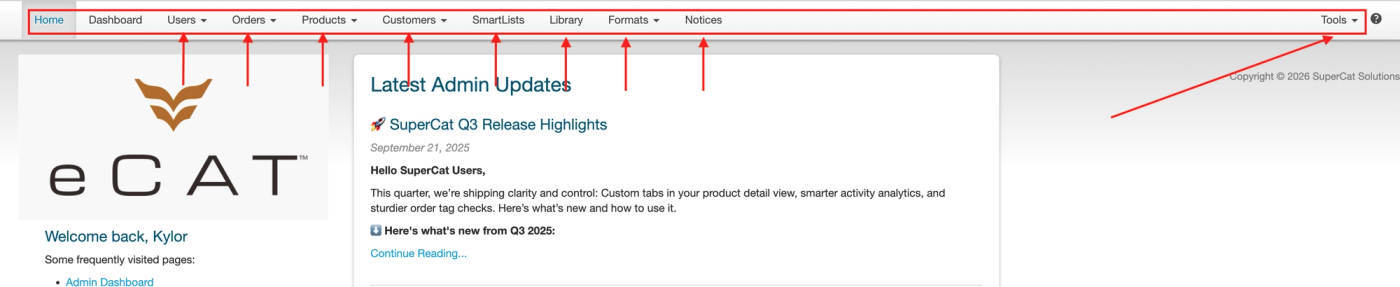
Users:
- What's here: User accounts, permissions, and access control.
- Common tasks: Set up new users, manage permissions, configure User Groups, troubleshoot access issues.
Orders
- What's here: Order history, configuration, and reporting.
- Common tasks: View submitted orders, configure order settings, set up surcharges, run order reports.
Products
- What's here: Product catalog and organization.
- Common tasks: View product details and configurations, add groups to collections and categories, configure options.
- Note: Products are view-only in the Admin Console. To update product data, you must re-import your products.csv file.
Customers
- What's here: Customer accounts and associated fields.
- Common tasks: View customer records and verify customer data.
- Note: Customer records are view-only in the Admin Console. To update customer data, re-import your customers.csv file.
SmartLists
- What's here: Dynamic product lists based on rules.
- Common tasks: Create automated product collections that update based on conditions (like "all items on promotion" or "new arrivals").
Library
- What's here: PDF catalogs, lookbooks, and shareable documents.
- Common tasks: Upload and manage catalogs and lookbooks that reps can share with customers.
Formats
- What's here: Presentation templates and organization tearsheets.
- Common tasks: Configure how presentations and tearsheets are formatted.
Notices
- What's here: Announcements and messages to display to users.
- Common tasks: Communicate updates, reminders, or important information to your sales team.
Tools
- What's here: Administrative utilities, organization settings, data imports, and reports.
- Common tasks: Configure company settings, manage mobile app settings (eCat Online settings), import data and images, download reports.
Troubleshooting
I don't see all the sections mentioned in this guide
Solution: Not all Admin Console sections are available to all users or customers. Your Admin Console will only show sections for features your company has enabled. This is normal.
If you think you should have access to a section but don't see it, contact SuperCat support to verify your account permissions and feature enablement.
I can't find where to do a specific task
Solution: Use the search function in the Knowledge Base to find step-by-step instructions. Common searches include:
- "How to add a new user"
- "How to upload images"
- "How to change user permissions"
- "How to update pricing"
If you can't find the answer, contact SuperCat support—they can walk you through it and point you to the right article.
I'm not sure what I'm allowed to change
Solution: Most Admin Console pages require you to click a "Save" button before changes take effect. This means you can:
- Click around and explore without breaking anything
- Open edit forms to see what fields are available
- Review settings without accidentally changing them
If you're unsure whether to make a change, ask SuperCat support or another admin at your company first.