Summary
Hideable Products lets you keep discontinued, out-of-stock, or redundant items in your catalog without cluttering the main browsing views. Items marked as hideable are hidden by default but remain searchable and accessible when needed.
Quick Start
Want to hide products from the default catalog view? Here is how:
- Open your products.csv file
- Add a column named 'Hideable'
- Enter 'Y' for any products you want hidden by default
- Import the updated file via Admin Console > Import > Products
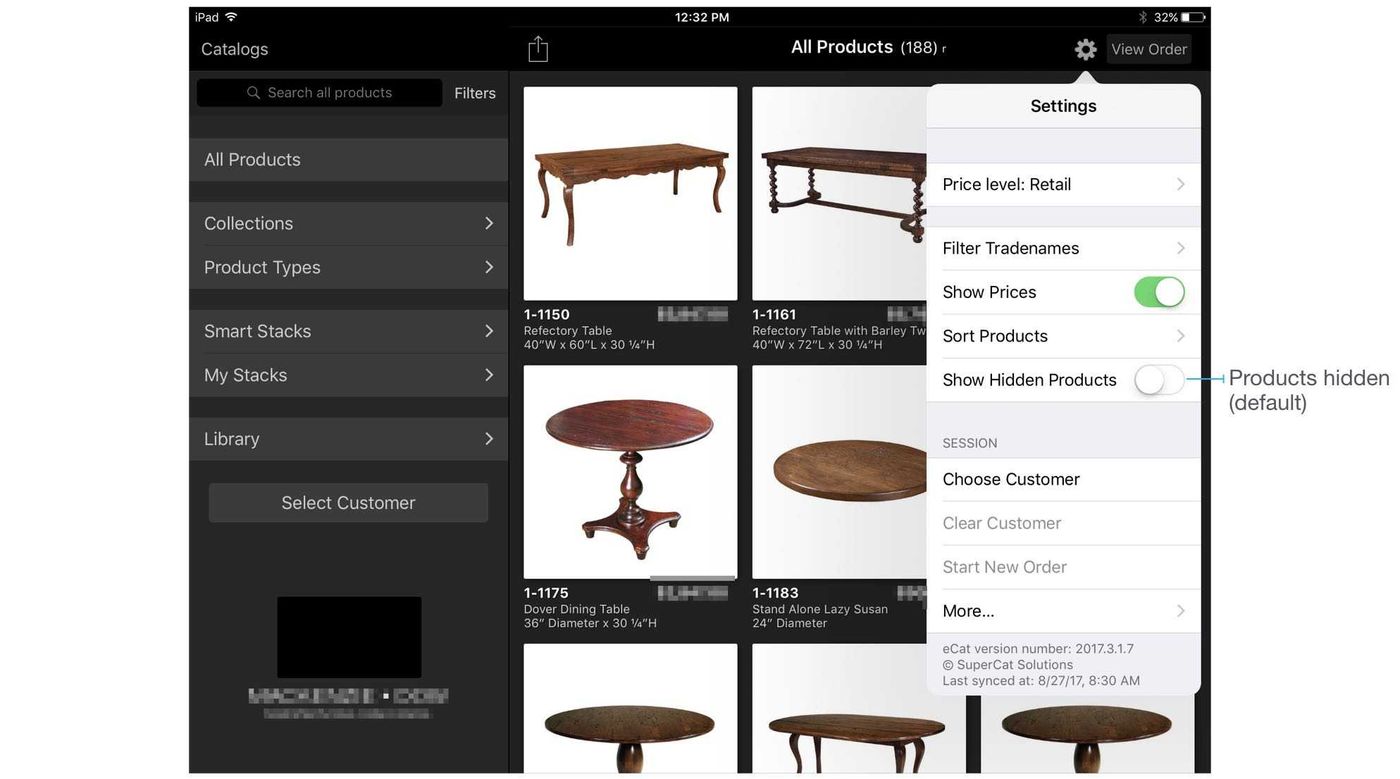
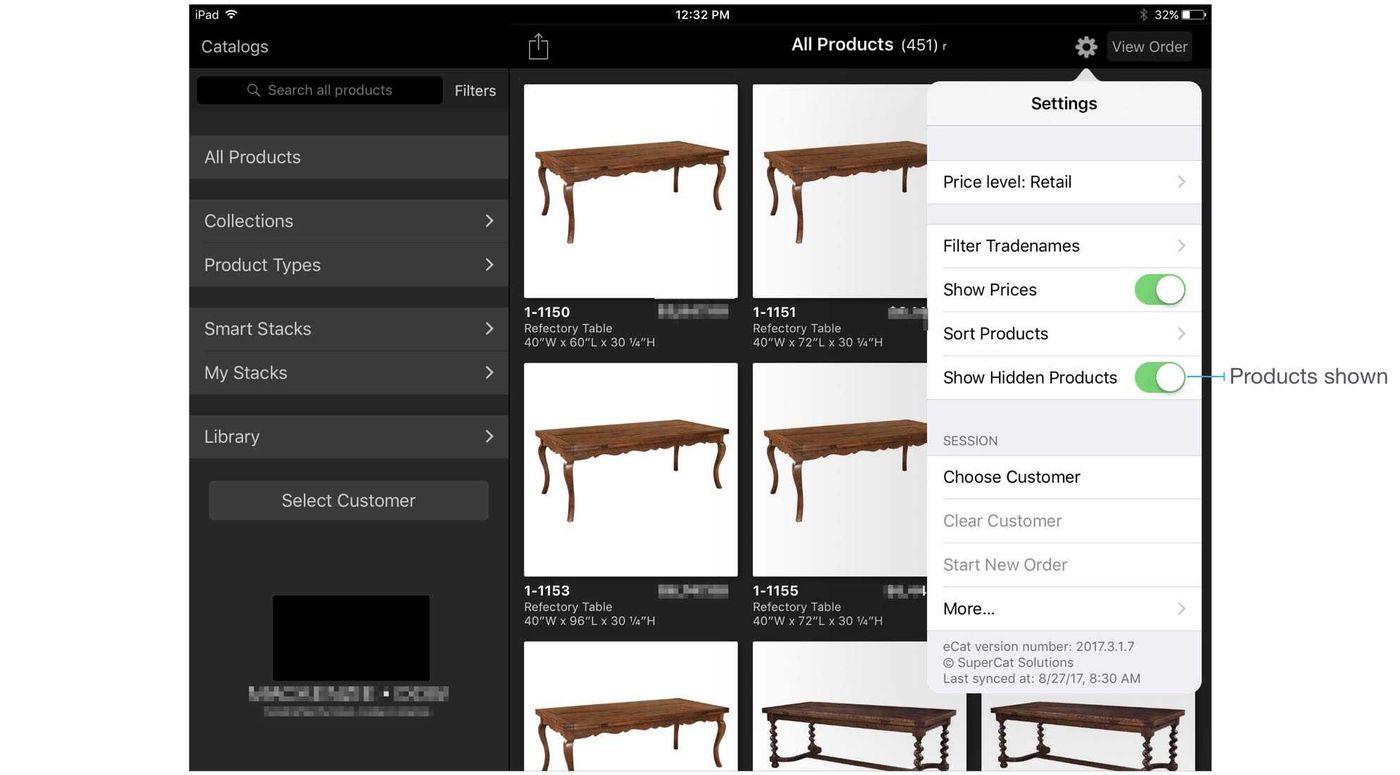
- In eCat, users can toggle Show Hidden Products in Settings to reveal them
Note: Fix any product import errors first - records in error will not reflect hide/show changes.
How It Works
The Hideable Flag (Recommended)
Products with the 'Hideable' field set to 'Y' are hidden in the Catalog, Collections, and Categories Quick/grid views but shown everywhere else. eCat users can change a Settings filter to show hidden items globally. This is useful for:
- Showing a single catalog entry for items offered in multiple SKUs for different sizes/configurations
- Showing only kit parents in main catalog views while keeping components accessible elsewhere
- Including discontinued products in the catalog without showing them in grid view
Alternative Strategies
Sort to Bottom: Put discontinued items at the end of your products.csv file. The default sort in eCat follows file order, keeping them out of prime positions while still findable.
Discontinued Tradename: Move discontinued items into a separate 'Discontinued' tradename. Users can then filter by tradename to show or hide them as needed.
Important: If you move items to a 'Discontinued' category, ensure that category exists in your Categories definition - otherwise those rows will sit in import error and will not update.
Before You Begin
Before configuring hideable products:
- Fix all product import errors - Records in error will not reflect hide/show changes
- Decide on your strategy: Hideable flag, sort-to-bottom, or Discontinued tradename
Need help with product imports? See Product File - Admin.
Step-by-Step Setup
1. Add the Hideable Field
Add a new column named 'Hideable' to your products.csv file. Populate the field with 'Y' for products that should be hidden by default.
2. Add Related Items (Optional)
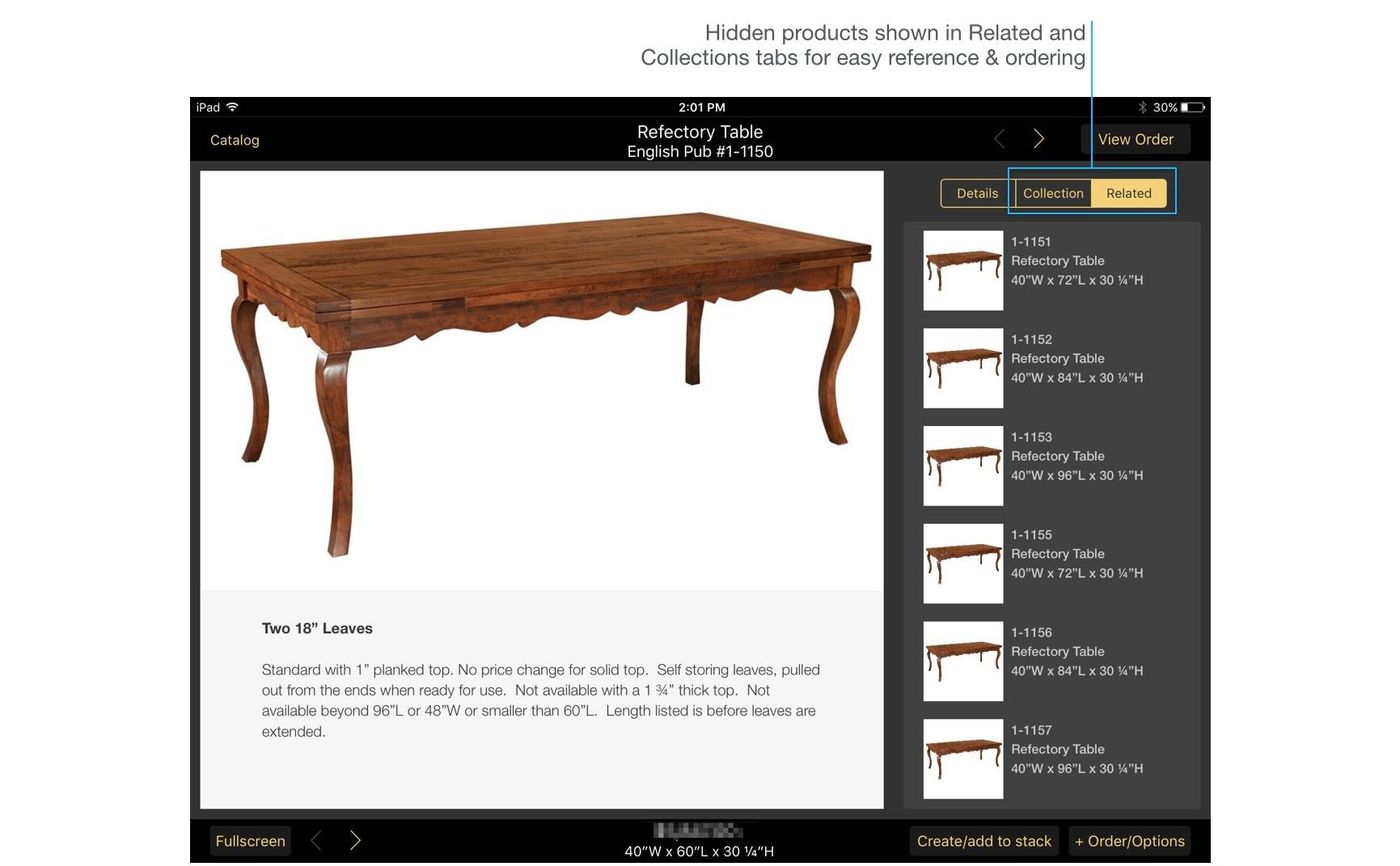
To help users quickly access and order hidden variants, add a 'RelatedItems' field to your product file. For products with hideable variants, enter a comma-separated list of all variant BaseItemCodes.
3. Import Your Products
Upload your updated products.csv via Admin Console > Import > Products. Once any product has 'Hideable' = 'Y', eCat will display the Show Hidden Products filter in Settings.
4. User Experience
Hideable products are hidden by default the first time the catalog is opened. Users can show/hide products by tapping Show Hidden Products in Settings. The filter setting remains in effect until changed by the user.
Even when products are not shown in catalog, collection, and category views, users can view and work with them in the Details view Collections and Related Items tabs. Products are also displayed in Invoices/Favorites and other sales data reports.
Troubleshooting
Products visible in Admin but not in eCat (iPad)
Check the Trade Names filter in eCat's gear icon menu. This setting is persistent - if a user turns it off, it stays off until manually re-enabled.
Steps to check:
- Confirm which User Group the user is in
- On the iPad, tap the gear icon and ensure the relevant Trade Names are enabled
- Request a full-screen screenshot from the user to confirm you are looking at the same view
Hidden products not appearing even with filter on
Ensure the products do not have import errors. Go to Admin Console > Import > Products and check for any errors. Records in error will not respond to hide/show settings.
Can I hide products from search results too?
No. The Hideable flag only hides products from catalog grid views. Hidden products remain searchable and visible in Details, Collections, Related Items, and sales data reports.
What about eCat Online (eOL)?
The 'Hide products marked hideable' setting can be enabled per mobile site. Contact Support to configure this for your eOL site.
Need more help?
Contact Support - we will walk through your setup.