This guide helps resolve common login issues across SuperCat Solutions products.
Quick Start: Can't Log In?
Try these steps first before reading further:
- Open a new incognito/private browser window and try logging in again
- Go directly to your app's home page (Admin Console or eCat Online) - avoid old bookmarks
- Verify you're using the correct URL for your organization
- Check your username and password - they are case-sensitive
- Wait a few minutes if you've been locked out after multiple failed attempts
If these don't work, find your specific error message below.
Common Login Issues
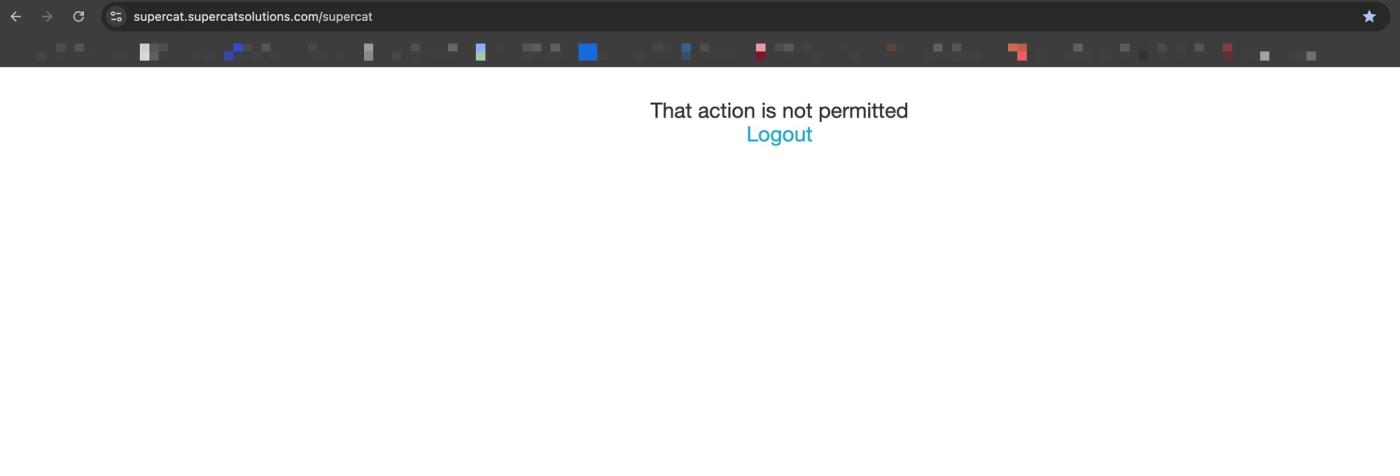
That Action Is Not Permitted
When signing in, some users see "That action is not permitted." This message is intentionally generic for security reasons. It usually means your login session is out of sync with your permissions - it does not mean your username or password is incorrect.
Why This Happens
- Wrong app or context: trying to open Admin Console instead of eCat Online, or vice versa.
- Multiple organizations: your browser may be signed into another account or organization.
- Old or shared bookmark: the link might include a page reference you don't have access to.
- Cached session: your browser may be holding onto an old login state. You need to clear your cache and cookies.
Quick Fixes
- Open a new incognito or private window and try logging in again.
- Go to your app's home page first (Admin Console or eCat Online), then navigate as you normally would.
- Avoid bookmarked or shared links that might include a returnUrl from someone elses session.
- If you belong to multiple organizations, ensure you are signed into the correct one.
Note: If your credentials were incorrect, you would see Not authorized for that organization or a password prompt instead. This message is intentionally broad to protect account security and prevent unauthorized access.
Incorrect Credentials
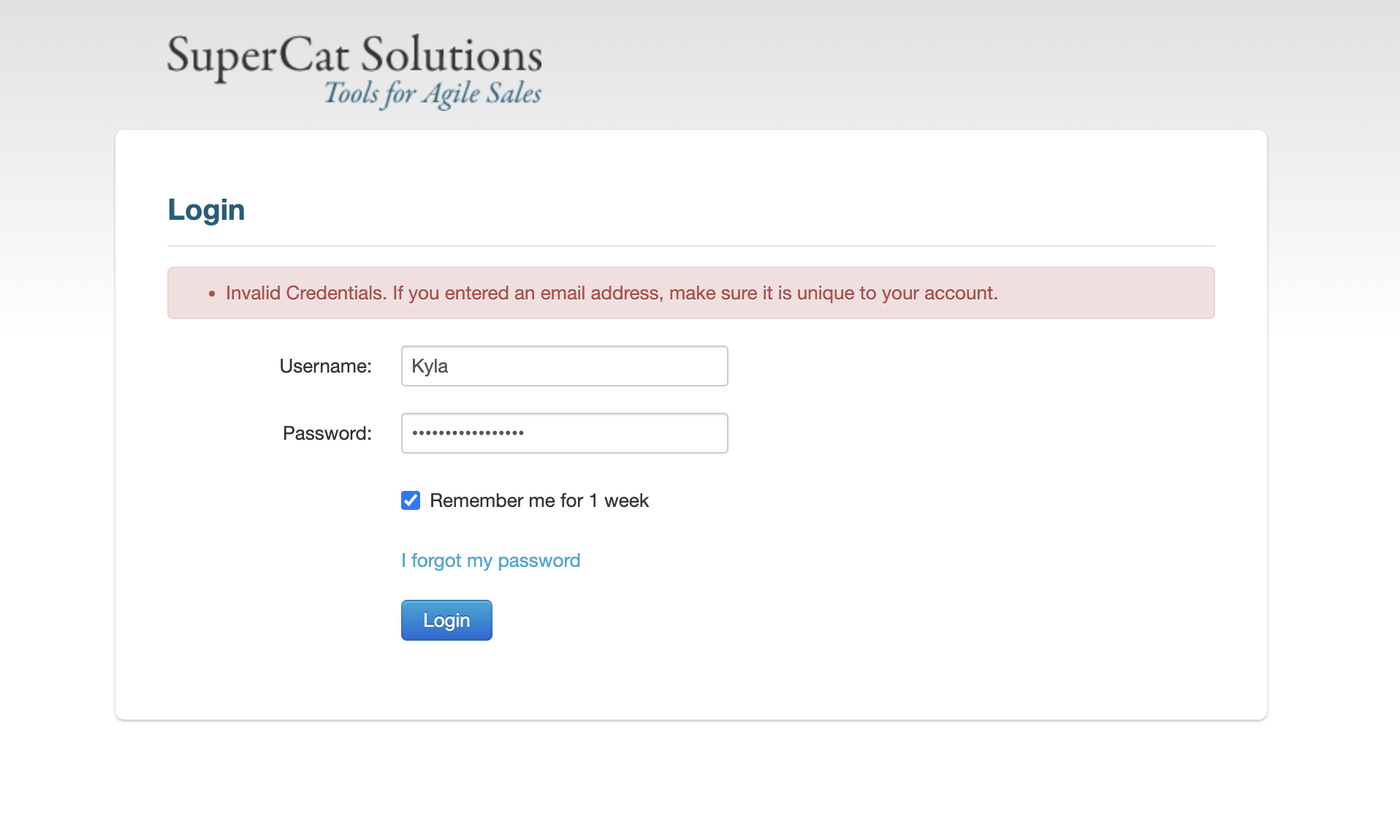
Issue: Entering the wrong username or password.
Solution:
- Verify you are using the correct credentials.
- Usernames and passwords are case-sensitive.
- If using email, ensure it is unique to your account.
Account Lockout
Issue: You have been locked out after multiple failed login attempts.
What this means: For security reasons, accounts are temporarily locked after several incorrect password attempts.
Solution:
- Wait a few minutes, then try again with the correct credentials.
- If you have forgotten your password, use the Forgot Password link instead of guessing.
- Contact your administrator if you are still locked out after waiting.
Forgotten Password
Solution:
- Click Forgot Password on the login page
- Enter the email address associated with your account
- Follow the instructions in the reset email
Not receiving the password reset email: Check your Spam or Junk folder in case they ended up there. You may also want to add our email to your contact list or whitelist noreply@supercatsolutions.com to ensure our emails go directly to your inbox in the future. If you still do not receive it after a few minutes, contact your administrator - they can send a password reset directly from Admin Console.
Network/Connection Issues
Issue: Unable to connect to the server.
Solution:
- Ensure you have a stable internet connection.
- Test your connection by opening a web page.
- Check firewall settings if on a corporate network.
- Contact your IT department if issues persist.
Disabled Account
Issue: You see the message This account has been disabled.
What this means: Your account has been disabled by an administrator for this organization.
Solution:
- Contact your administrator to re-enable your account.
- If you are an administrator, check the Users section in Admin Console to verify the account status.
Redirected to Enrollment
Issue: After entering the correct credentials, you are redirected to an enrollment page instead of logging in.
What this means: Your user account exists, but you do not yet have access to this organization. You need to complete the enrollment first.
Solution:
- Complete the enrollment process on the page you were redirected to.
- Contact your administrator if you believe you should already have access.
Redirected to eCat Online Products
Issue: After logging into Admin Console, you are redirected to eCat Online products page instead of the admin dashboard.
What this means: Your account does not have permissions to access Admin Console features. You may only have access to eCat Online.
Solution:
- If you need Admin Console access, contact your administrator to grant appropriate permissions.
- If you only need eCat Online access, this is expected behavior.
Email Uniqueness Requirement
Issue: You see Invalid Credentials. If you entered an email address, make sure it is unique to your account.
What this means: You are trying to log in with an email address that is associated with multiple user accounts. The system requires unique email addresses for login.
Solution:
- Use your username instead of your email address to log in.
- Contact your administrator if your email needs to be unique to your account.
Not Authorized for That Organization
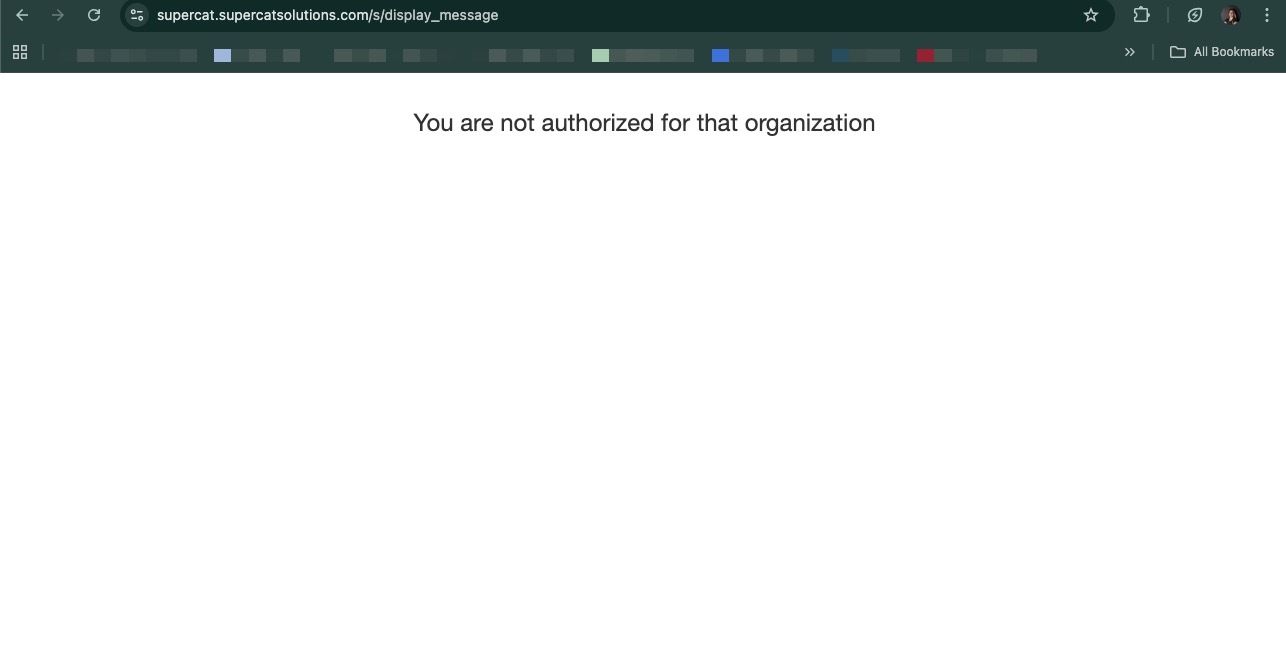
Issue: You see the message You are not authorized for that organization.
What this means:
Your login credentials are correct, but you do not have access to the organization you are trying to access. This happens when:
- You are trying to access a different organizations portal.
- You were removed from an organization.
- You are using a URL for an organization you do not belong to.
Solution:
- Verify you are using the correct URL for your organization.
- If you belong to multiple organizations, make sure you are accessing the right one.
- Contact your administrator to confirm you have access to this organization.
Suspended Organization
Issue: You see a message that The account for [Organization Name] has been suspended or This account has been suspended.
What this means: The organizations account has been fully suspended. Users cannot log into eCat, eCat Online, or the admin console when an organization is fully suspended.
Solution:
- This is an account-level issue that requires administrative action.
- Contact SuperCat Solutions support or your organizations administrator
- The suspension must be lifted by SuperCat Solutions before login access can be restored
Note: There are two types of suspensions: sync suspended (updates are paused but login still works) and fully suspended (login is blocked). Only fully suspended organizations prevent login.
eCat iPad App Issues
Having trouble with the eCat iPad app specifically? Try these solutions:
- IssueSolution
- Cannot log inVerify credentials from your companys eCat administrator; ensure Wi-Fi is connected
- Forgot passwordTap Forgot Password on the login screen and follow the email instructions
- No internet connectionCheck iPad Wi-Fi settings; test by opening Safari to browse a website
- Data not syncingGo to Settings in the app and tap Force Sync
- App stuck or crashingDelete the eCat app and reinstall from the App Store
Product-Specific Access
- ProductAccess MethodWho Uses It
- eCat (iPad App)iPad app loginSales Reps, Field Users
- eCat OnlineWeb loginInternal Users, Remote Reps
- eCat Online (Order Link)Embedded link or loginCustomers, Buyers
- Admin ConsoleWeb login (admin only)Admins, Config Managers
- Sales PortalWeb loginSales Reps, Distributors
Tip: Always confirm your companys branded SuperCat URL. Many portals are customized per client.
For Administrators
Admin Console Access
Issue: Unable to access Admin Console.
Solution: Ensure you have been granted administrative privileges. Contact SuperCat Solutions support if needed.
Managing User Access Issues
- IssueAdmin Action
- User forgot passwordUsers > Search user > Click Reset Password or Send password reset email to this user
- Login page not loadingCheck network/firewall settings; confirm correct URL
- User account disabledUsers > Search user > Uncheck Disabled checkbox
- User redirected to enrollmentUser exists but no OrgUser for this org > Create OrgUser or approve enrollment
- User has no permissionsUser Groups > Check the users group has appropriate permissions enabled
- User cannot access pricingUser Groups > Ensure the users group has the correct price level access enabled
- User sees That action is not permittedCheck users permissions and organization access; verify correct app context
- User sees Not authorized for that organizationUser does not have OrgUser for this org > Add user to organization or verify correct URL
- Organization is suspendedContact SuperCat Solutions support to lift the suspension
- User not syncing (iPad)Advise user to open Settings in eCat app and tap Force Sync
- eCat app stuck/crashingAdvise user to delete and reinstall the eCat app from the App Store
Checking User Login Activity
To see when users last logged into eCat Online:
- Go to Admin Console > Users > Users
- Click Download users as CSV
- Check the LastEcatOnlineLoginDate column in the exported file
Tip: A blank value means the user has never logged into eCat Online. Use this to identify inactive users who may need training or account cleanup.
Still Need Help?
If the steps above do not resolve your issue, contact support and include:
- The URL shown in your browsers address bar
- A full screenshot of the page, including the message and URL
- Whether you were using Admin Console or eCat Online
- If you belong to multiple organizations, which one you were trying to access
This information helps us pinpoint the cause quickly.