Overview
User Groups are used to simplify user management by maintaining permissions for each type of user on the group, instead of in each individual user account. First create user groups, then associate each user with the appropriate group.
Creating/Maintaining user groups
User groups are maintained in the 'Users/User Groups' admin portal page.
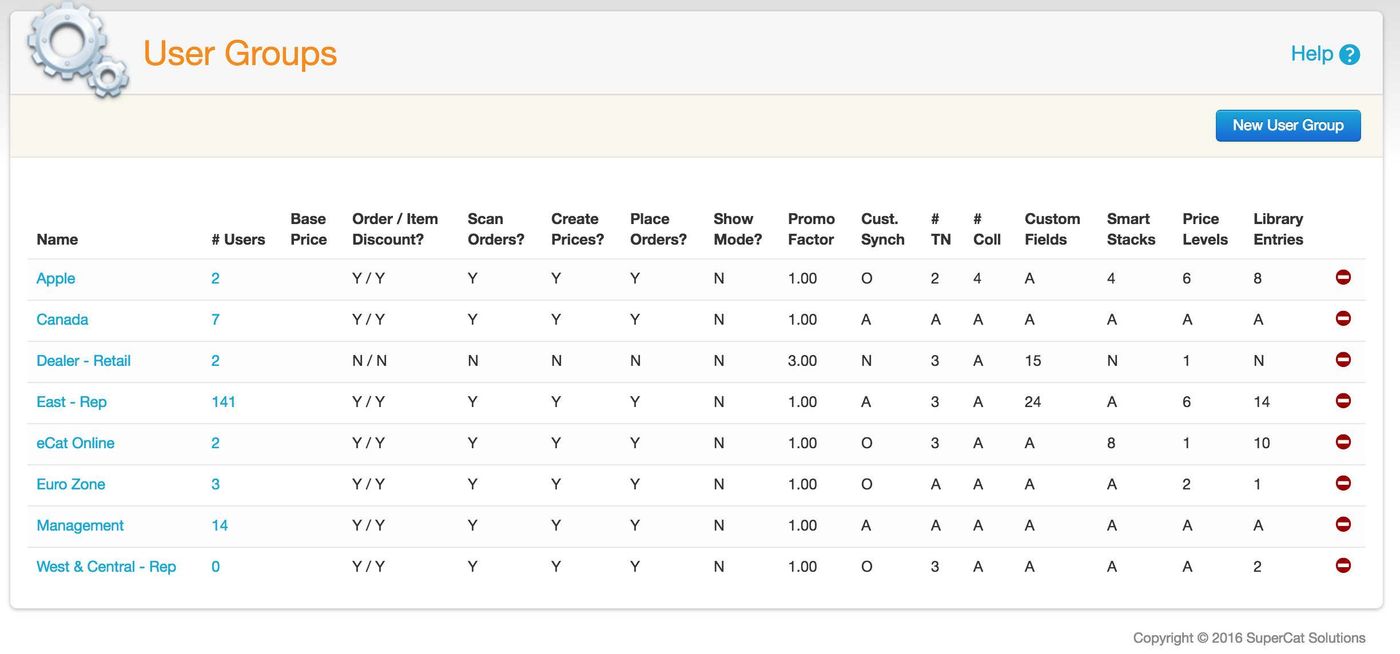
The user group summary screen displays a complete list of currently defined user groups, the number of users assigned to each group, and the permissions associated with each user group.
Click the user quantity number to see a list of users assigned to the group.
Click New User Group to create a new user group.
Click a user group name to edit the group settings.
eCat functionality controlled by user group
- Authorization to use iPad version, web version or both
- Web portal name and URL
- Show/hide promo pricing
- Promo pricing mark up/down
- Show/hide all customers or show only associated customers
- Enable/disable eCat’s ordering features
- Enforce/don't enforce minimum/multiple order quantities
- Send/don't send user's orders to server
- Enable/disable order item line discounting
- Enable/disable order discounting
- Allow/disallow custom price level creation
- Show/hide bar code scanning feature
- Set default order origin
- Set default order type
- Enable/disable changing email address from eCat
- Enable/disable the ship date and/or cancel date order header fields, overriding the value in Company Settings
- Enable/disable sorting products by company sales rank (Does not send details, just the rank. Off by default)
eCat Online functionality controlled by user group
- Whether to allow ordering in the Cart
- Whether to allow downloading full-resolution product images
Sales Portal
- Whether to display the sales portal
- Whether to show totals at the top of the sales portal
- Whether to allow the sales portal territory dashboard
- Whether to allow CSV/XLSX export of portal results
Information controlled by user group
- Informational fields displayed under Quick View thumbnails
- Informational fields displayed under Order Preview thumbnails
- Informational fields displayed under Related Items and Collection thumbnails
- Show/hide customer contract pricing
- Products sent to users' eCat (select tradenames & collections and/or use logical filters)
- Product information fields sent to user’s iPads
- Price levels users are allowed to view/use in eCat
- SmartStacks sent to users' iPads
- PDF catalog formats users are authorized to use
- Distribution centers with which users' are associated
- Library entries sent to users' iPads
- Product email format (HTML template)
- Order email formats (HTML templates)
Permissions
You can enable non-admin users in certain user groups to access parts of the admin portal. This is particularly useful when delegating certain activities to CSRs, sales reps, etc. Below is a list of permissions we enable:
- Permission Comment
- View dashboard View the admin dashboard, which reports on various statistics
- Manage users View, add, edit, and delete user accounts
- View users View user accounts
- Manage user enrollment Review, edit, approve, reject, or delegate enrollment applications
- Review and manage orders View, print, edit, and delete orders
- View/print orders View and print orders
- Review products View products
- Review customers View customers
- Manage library Review, add, edit, delete, and organize library entries
- Manage catalogs Review, add, edit, delete, and organize presentation formats
- View admin reports View and customize admin reports, like Import File Status
- Manage smart lists Review, add, edit, delete, and test smart lists
- View Sales Reports View and customize sales reports, like Sales Summary and Orders
- Manage Users (limited) Same as "Manage users" above, but don't allow assigning admins
- Respond to delegated enrollment applications Allow users to approve or reject enrollment applications delegated to them
- Manage credit card transactions Review credit card transactions and charge cards associated with orders
- Manage Notices Review, add, edit, delete, and organize Notices
Tips & Tricks
- User groups are listed alphabetically in the portal, with numbers sorted at the top. By default new users are assigned to the group at the top of the list. To prevent disclosure of confidential information to the wrong people, name the most restrictive user group so it displays at the top of the user group list.