Summary
The B2B Shopping Cart is an optional add-on for eCat Online that enables your customer users (store buyers) to place orders directly. Orders flow to your eCat admin site and can be automatically forwarded to your back office system.
For customer users to place orders, their user group must have online ordering enabled, and the user must be set up as a customer (with a 'Customer Number') rather than as a rep. An automated user registration/approval process is available with this add-on.
Quick Start
Need to enable ordering for customer users? Follow these steps:
- Go to Admin Console > Users > User Groups
- Select the user group for your customer users
- Open the eCat Online Behavior tab
- Set Enable Online Ordering to Yes
- Click Save
- Verify customer users have a valid 'Customer Number' in their user record
💡 Tip: For a video walkthrough, see: How to Enable Ordering for Customers (Loom)
How It Works
What the B2B Cart Enables
- Customers can purchase products directly from you on their own schedule
- Customers can price and order configurable products by selecting options
- Customers can easily order sets of products (kits)
- Orders are sent to your eCat admin and can auto-forward to your back office
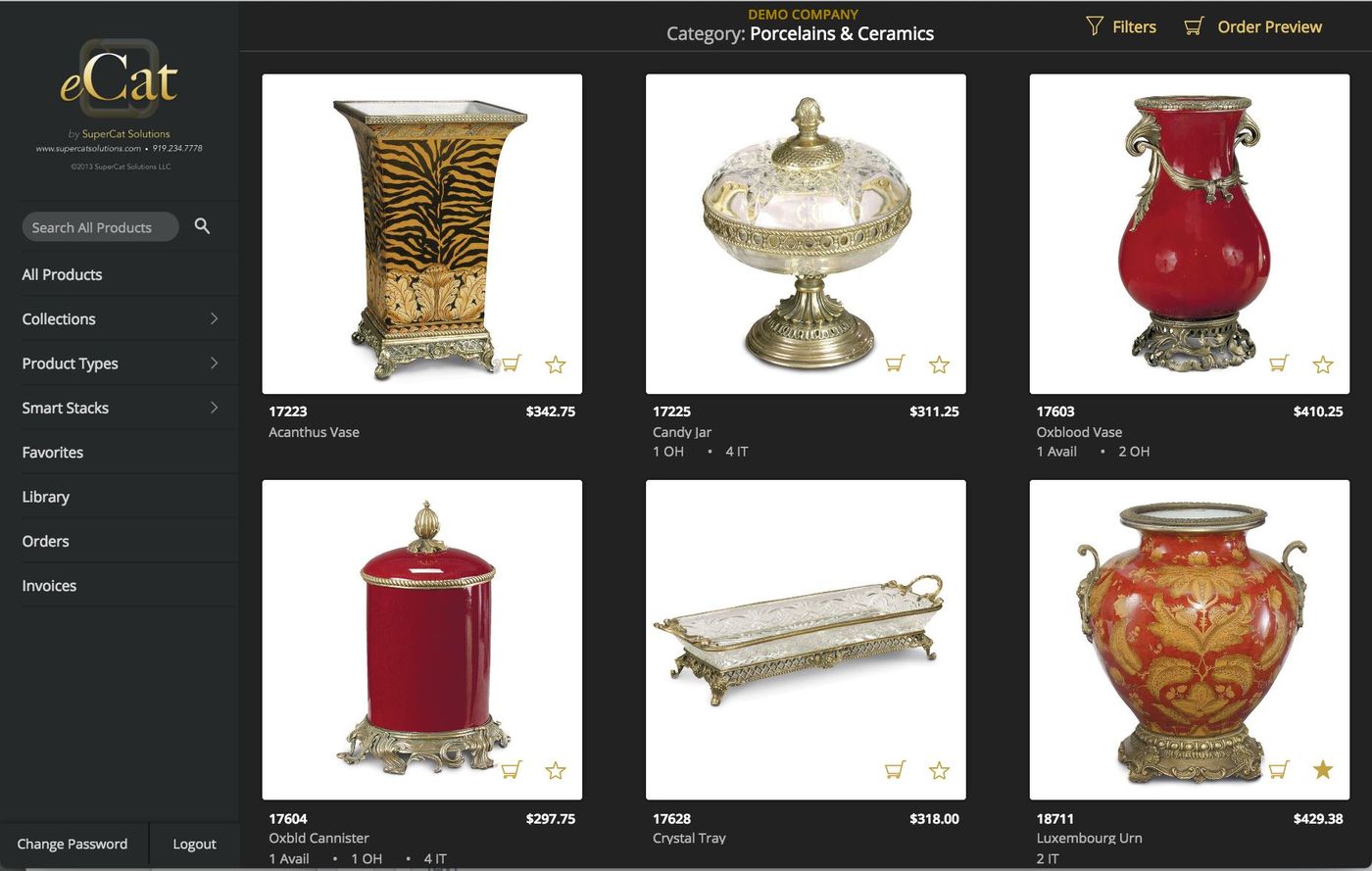
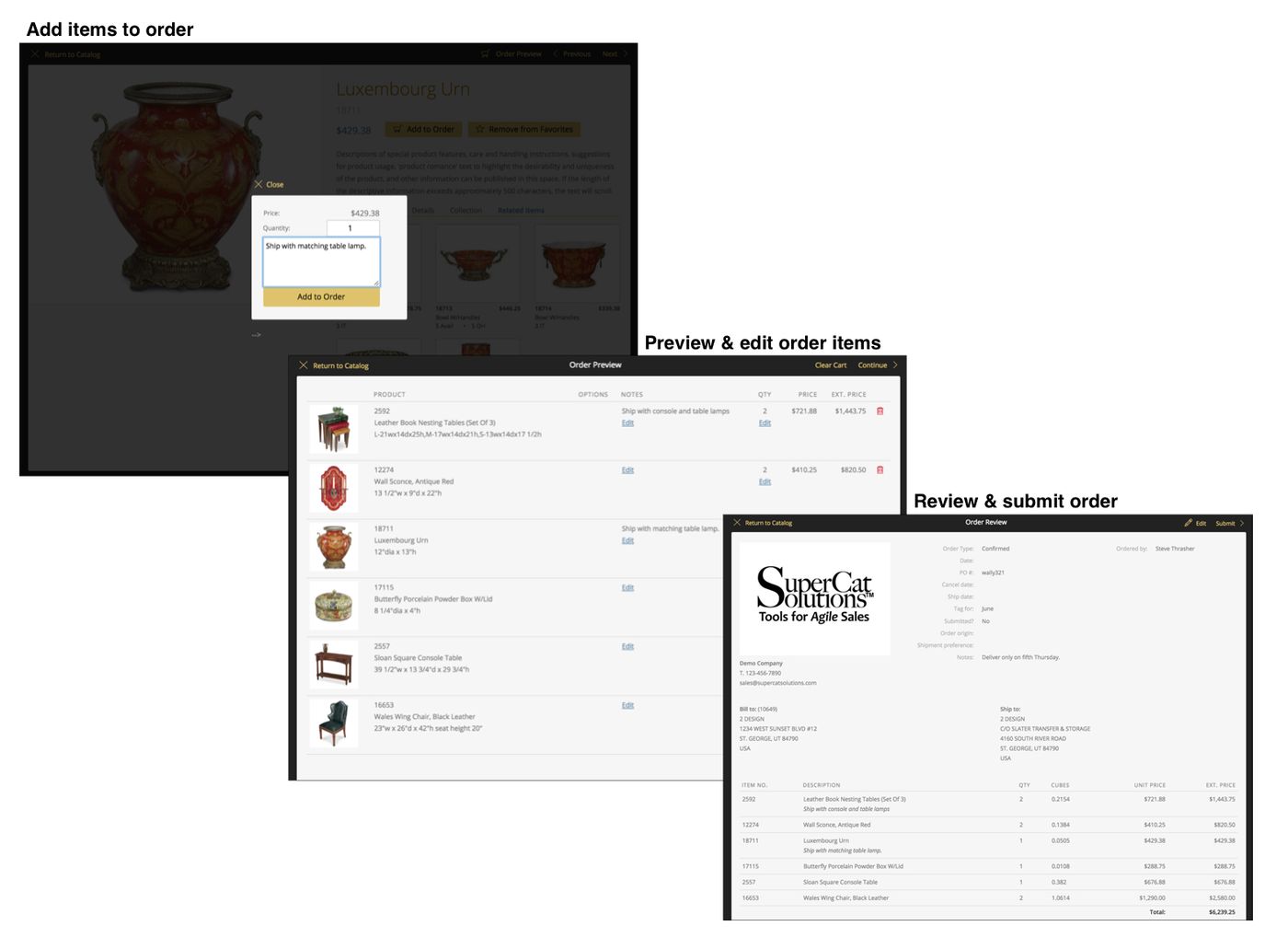
Order items by clicking shopping cart icons on the catalog (grid view) page, or by clicking Add to Order on the product details view.
What Customer Users See
- Customer users (with a valid 'Customer Number') see their own account and can write orders
- They do not see a customer list (that is for reps with territory codes)
- If ordering is disabled at the group level, users see Add to Project but no Order button
Before You Begin
- The user must have a valid 'Customer Number'
- Customer-only logins should have no 'Territory Code'
- You need access to Admin Console
Step-by-Step Setup
Step 1: Configure the User Group
- Go to Admin Console > Users > User Groups
- Select the user group that contains your customer users
- Click on the eCat Online Behavior tab
- Set Enable Online Ordering to Yes (or Use Company Default if your company default is already enabled)
- Click Save
Step 2: Verify Customer User Setup
For each customer user who needs to place orders:
- Ensure they have a valid 'Customer Number' in their user record
- Ensure they do not have a 'Territory Code' (customer-only logins should not have territory codes)
- If you see an Invalid Customer Number warning, verify the customer number exists in your uploaded customer file
Troubleshooting
Order button is missing?
Check User Group > eCat Online Behavior > Enable Online Ordering and ensure it is set to Yes.
Customer list is unexpectedly visible?
The customer user likely has a 'Territory Code' assigned. Remove the 'Territory Code' from the user record. Customer users should not have territory codes.
Invalid Customer Number warning?
This means the 'Customer Number' in the user record does not match any customer in your uploaded customer file. Users with this warning will not see the shopping cart and cannot place orders. To fix:
- Verify the customer number was entered correctly in the user record
- Check if your customer file contains this customer number (search in Admin Console > Customers)
- If the customer is missing, re-upload your customer file with this customer included
User vs Customer confusion?
Making someone a user does NOT automatically make them a customer. A user needs both:
- A user account (for login credentials)
- A customer record (linked via 'Customer Number') for pricing and ordering
Special case: iPad customer ordering?
In rare setups, a customer on iPad can be configured like a rep who can only order for their own account. This is a special configuration. Standard customer ordering is via eCat Online.
Need More Help?
If you continue to experience issues after following the steps above, our support team is here to help.
Contact Support with:
- The user's email address
- The customer number you're trying to use
- Screenshots of any error messages