Overview
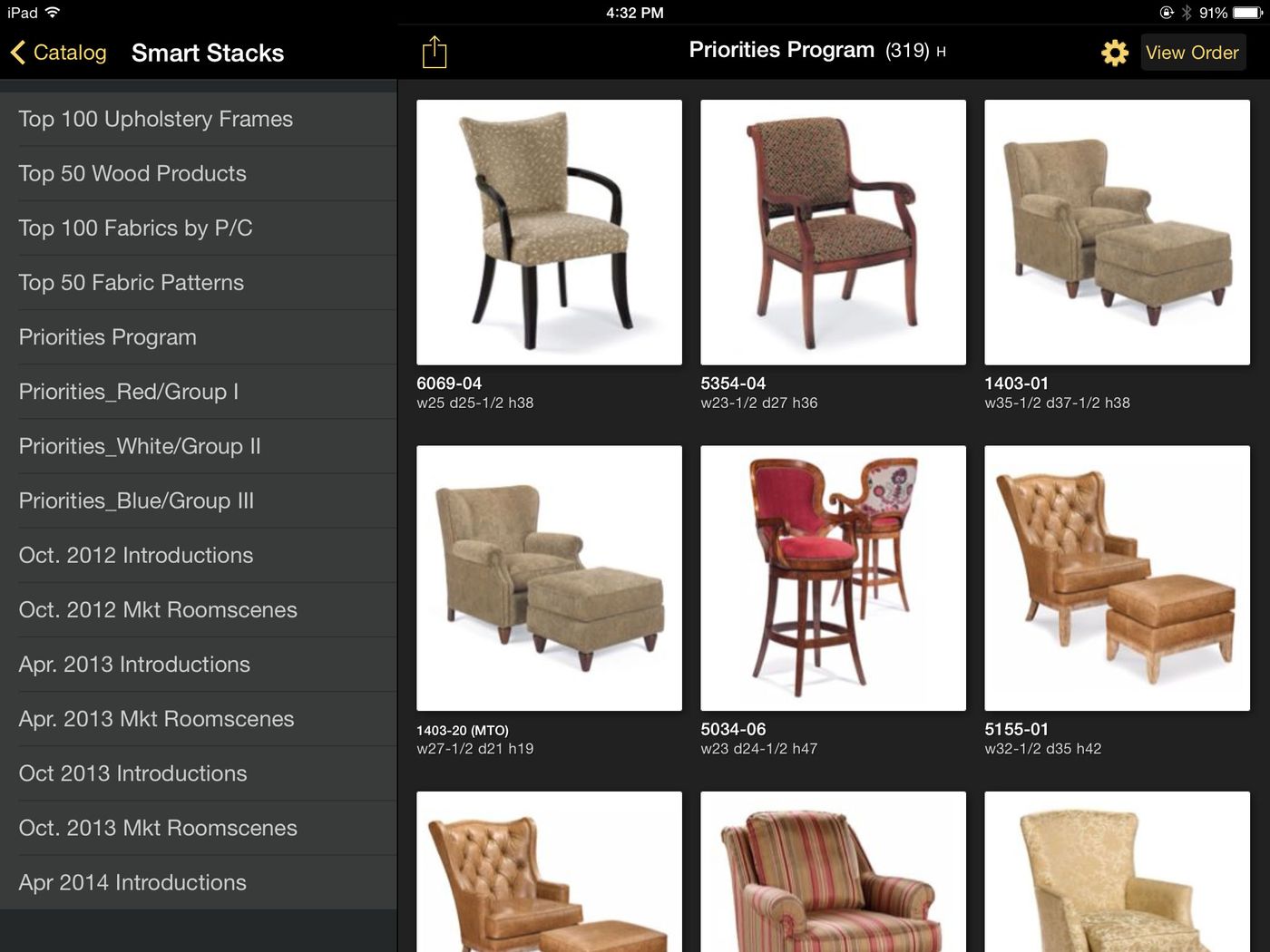
SmartLists are named product selections sent to eCat by your company. They can be published selectively based on user group. Any desired product list can be displayed in an eCat SmartList.
SmartLists are "smart" because they are self-maintaining. As field values change in the product and inventory files, the SmartList product list automatically changes based on the criteria in a data select statement/SQL query. By maintaining values in your ERP system, your back office staff can control SmartList content.
SmartLists are displayed on the iPad in the same sequence in which they appear in the admin site list. There are two ways to change the display sequence. Click the ‘handle’ to the left of the name and drag it to the new position. Or for long lists, click the ‘Reorder Items’ button, enter new position numbers in the boxes that appear to the left of the name, then click the ‘Done Reordering’ button. The SmartLists will be moved to their new positions.
Create new SmartLists by clicking the ‘New SmartList’ button.
Edit SmartList settings by clicking the SmartList name.
NOTE! The 'Delete' button to the right of the SmartList name permanently deletes the SmartList. There is no “undo”!
Companies use SmartLists for things like...
- publishing special promotions, sales, closeouts
- displaying top sellers or top sellers by category
- showing introductions by market
- listing products by showroom location, for ordering or training walk-throughs
- showing items available for quick shipment
- highlighting recently added items
- listing items not shown in the print catalog
- grouping items that can be consolidated in direct container shipments
- and much more!
Creating SmartLists
Query-type SmartList
To define a SmartList...
- Click 'New SmartList' on the admin portal SmartList page.
- Name the SmartList
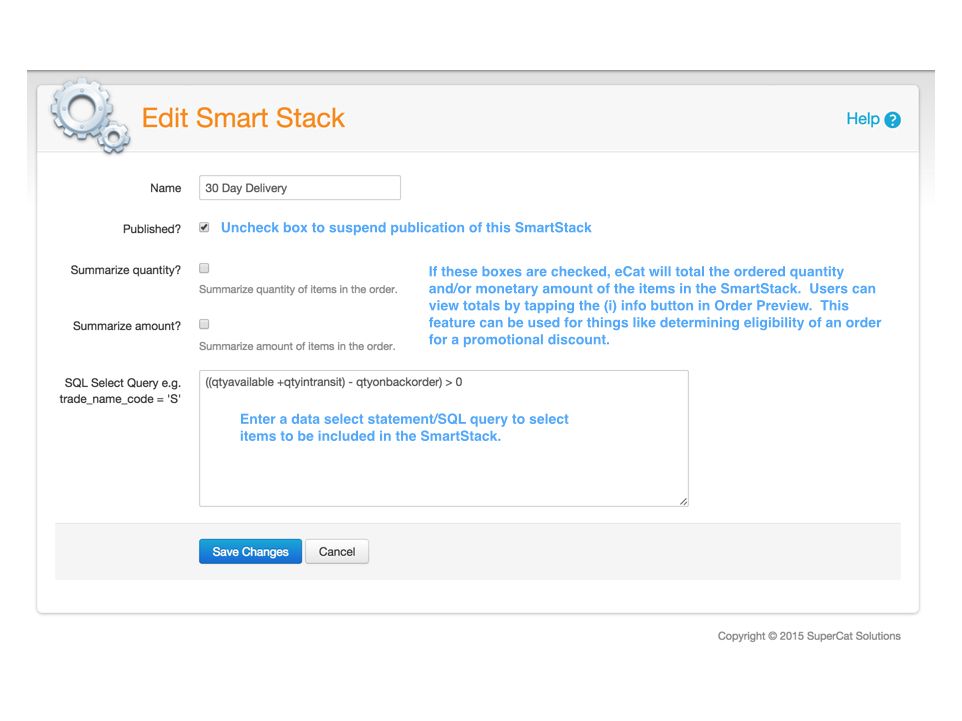
- Enter a data select statement/SQL query to specify which items to include in the new list.
By default, items are sorted in the same order as the product file. You may optionally specify up to 2 columns to sort on. If you do so, the Sort field will be used as a primary sort, the Second Sort field will be used as a secondary sort, and the product file's order will be used as a final sort. That is, if the value you select for sorting is shared by multiple items, those items will be sorted together using the product file's order.
Item-list SmartList
You may also simply enter a comma separated list of items to include in a list.
The items will be shown on the iPad in the order in which they are listed.
Logic Examples
Here are a few example SmartLists and associated logic (the fields and codes in your company's data may differ)
- SmartList Name Data Select Statement / SQL Query
- Only One Left! promotionprice > 0 and qtyavailable = 1
- Non-promo items,
30 day delivery ((qtyavailable + qtyintransit) - qtyonbackorder) > 0 and promotionprice < 1 - Chairs - immediate shipment qtyavailable > 0 and categorycode = 'chair'
- Seating priced under $450 net_price < 450 and category_code in ('chair','stool','bench','sofa')
- Promo items not in showroom qtyinshowroom < 1 and promotionprice > 0
- Series '2345' items on promotion baseitemcode like '%2345%' and promotionprice > 0
- Products priced between $99 and $200. net_price > 99 and net_price < 200
- 30 Day Delivery – Dining Chairs ((qtyavailable + qtyintransit) - qtyonbackorder) > 0 and categorycode = 'DiningChair'
- Top 10 sellers (simply listing baseitemcode numbers) baseitemcode in ('123','321','456','654','789','987','234','432','567','765')
- Pots and Pans $15 and under (longdesc like '%pot%' or longdesc like '%pan%') and netprice <= 15
- Purchase Orders due in next 7 days (to_date(onpo1_date, 'YYYY-MM-DD') - 7) < current_date and onpo1_date <> ''
SmartList Data Field Names
The standard inventory and product file fields below can be used to define SmartLists along with any custom fields your company has added to the product file. Custom product file fields can be created specifically for maintaining SmartLists. For example, to create a showroom walk-through, create a custom field, e.g. 'room', and publish room/vignette numbers for all products shown in the showroom. Create a SmartList for each room using logic like: room = '1', room = '2', etc. NOTE! Be sure to use all lower case letters when referencing custom product file fields in select statements, e.g. 'vignettenumber, not 'VignetteNumber.
Standard eCat field Names that can be used in SmartList Queries
- Product Field NamesType
- item_numbercharacter varying(255)
- long_descriptioncharacter varying(255)
- plist_descriptioncharacter varying(255)
- short_descriptioncharacter varying(255)
- product_dimensions_incharacter varying(50)
- product_dimensions_cmcharacter varying(50)
- shipping_weightdouble precision
- trade_name_codecharacter varying(255)
- collection_codecharacter varying(255)
- category_codecharacter varying(255)
- trade_name_namecharacter varying(255)
- collection_namecharacter varying(255)
- group_namecharacter varying(255)
- category_namecharacter varying(255)
- featurescharacter varying(50)
- materials_descriptioncharacter varying(50)
- minimum_orderinteger
- units_per_cartoninteger
- product_volumedouble precision
- new_itemboolean
- net_pricenumeric(11,2)
- promotional_pricenumeric(11,2)
- Inventory Field NamesType
- qty_availablebigint
- qty_in_showroombigint
- qty_in_transitbigint
- qty_on_backorderbigint
- qty_on_backorderbigint
- qty_on_handbigint
- qty_on_p_orderbigint
- qty_overseasbigint
- qty_reservedbigint
- next_scheduled_receipt_qtybigint
- scheduled receipt date?
SmartList Operators
- Symbol Meaning/Purpose
- = Equal
- <> or != Not Equal
- >
Greater than
- <
Less than
- >=
Greater than or equal
- <= Less than or equal
- !< True if left operand is not less than the value of right operand
- !> True if left operand is not greater than the value of right operand
- + , - Arithmetic operators (used on numeric values)
- ::INTEGER Convert value to integer
- NOT NULL Value not null
- BETWEEN Select values within an inclusive range
- LIKE Search for a pattern. (A '%' sign can be used
to define wildcards both before and after the pattern)
- IN
Allows specifying multiple values
- AND Allows specifying multiple conditions
- NOT Reverses meaning of a logical
- OR Used to combine multiple conditions