Overview
eCat's 'group scanning' feature enables users to scan a single barcode on a showroom label, then quickly select from a list of related items to add to orders and lists. This helps companies write orders more efficiently and conserve expensive showroom space by displaying representative items and enabling easy ordering of item variants not on display in the showroom.
Group scanning is implemented by adding an optional field 'ScanGroupCodes' to the product file and populating the field with one or more codes separated by commas. Products can belong to multiple scan groups. Barcodes on showroom tags can encode an item's UPC value, BaseItemCode (item #), ScanValue (product file field) or a ScanGroupCode.
Possible Applications
Use this feature to enable users to scan a single barcode and
- order an item in various finishes (each with its own item number)
- order from a set of matching items belonging to a product 'collection' or 'family'
- order an item and compatible accessories, e.g. light kits, blade kits and controllers for fans.
- view all items in a showroom section or gallery for fast selection and ordering
- order carpets from a list of different sizes and shapes in the same pattern
Companies that do not need to use group scanning functionality can also use the ScanGroupCode to specify a value other than BaseItemCode, ScanValue (optional product file field) or UPC value to use for scanning items.
How it works
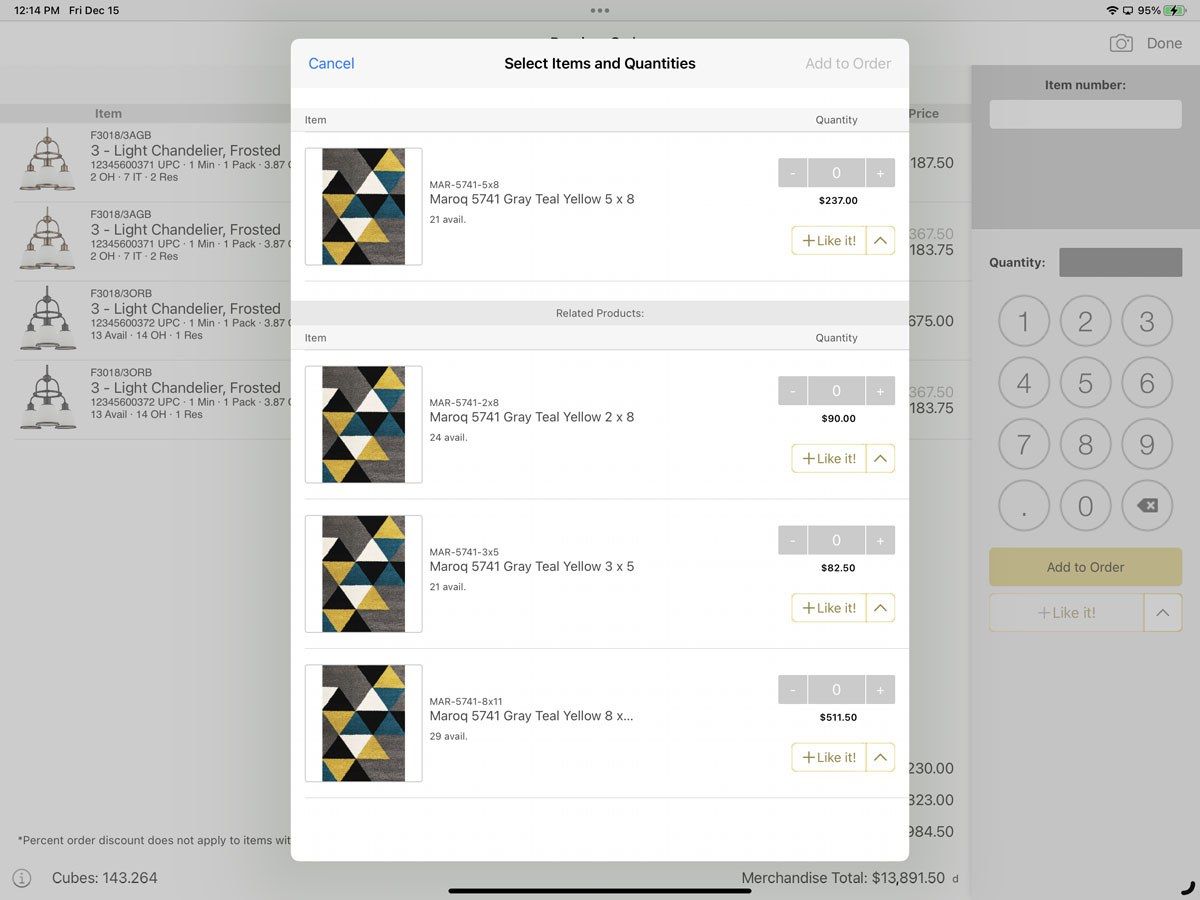
After a user scans an item that has a ScanGroupCode value, eCat displays all items that have a matching code. Users can then specify quantities for the items they choose to add to the order and/or save items to lists for later followup. For example, the selection list in the screenshot below displayed after the user scanned a carpet sample in the 'Spring Cream Multi' pattern. The user can specify quantities of this style in different sizes with a few taps, then tap 'Add to Order' to complete the selection in seconds. Availability and other useful information selected by your company can be displayed with each item to help users make informed selections.
Implementation
Add a new column named "ScanGroupCodes" to products.csv. Populate the field with a comma-delimited list of text codes that will be used to identify a scan group.
Note! ScanGroupCode values may not be the same as an item number (BaseItemCode), a UPC value (UpcValue), or a ScanValue published in the eCat products.csv file.
Group scanning works as follows:
Users may scan 1 of 4 types of things to load a scan group:
- the item number of a product in a scan group
- the UPC of a product in a scan group
- the ScanValue (optional product file field) of a product in a scan group
- a scan group code
If a barcode is scanned that refers directly to a product, e.g. a UPC, ScanValue or item number, it will load a scan group with that product at the top. The other products in the scan group will be products that match the scanned product's first scan group code. In the example below, item 411 was scanned, group "A" is the first group in its list, and the other two items belong to group "A." See below for more examples.
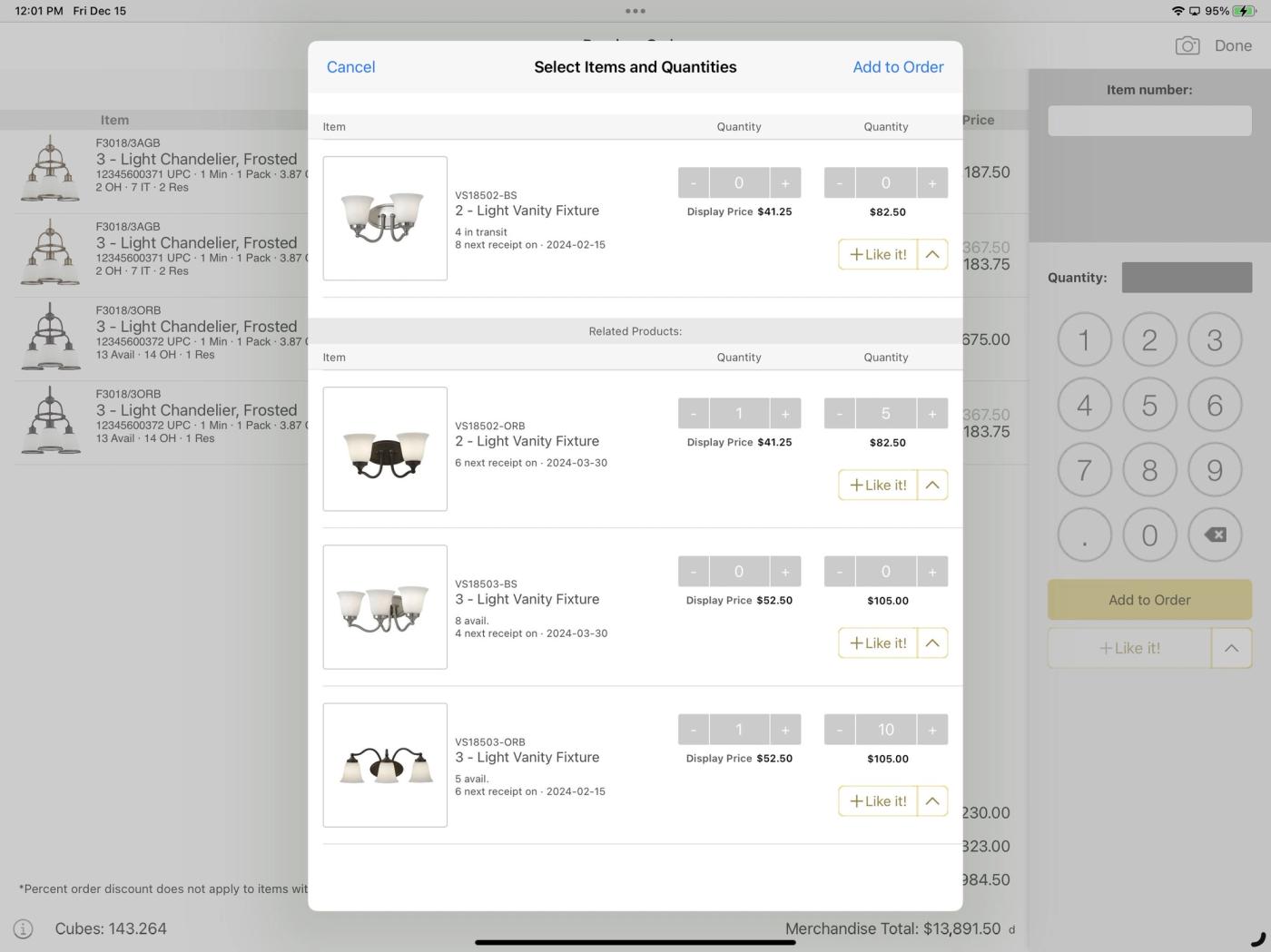
Each product will be displayed with up to 2 quantity choosers: 1. for adding products at the currently selected price (defaulting to the customer's price), and if available, 2. for adding products at a named promo price e.g. 'Display Price'. Items can also be added to an 'Interest', 'Maybe', or other list with a single tap for later follow up.
For example, in the screenshot below users can order items belonging to the same lighting 'family' or 'collection' at a promotional display price or at the customer's regular price for backup stock. The scanned item displays at the top and other items in the same family display in the section below.
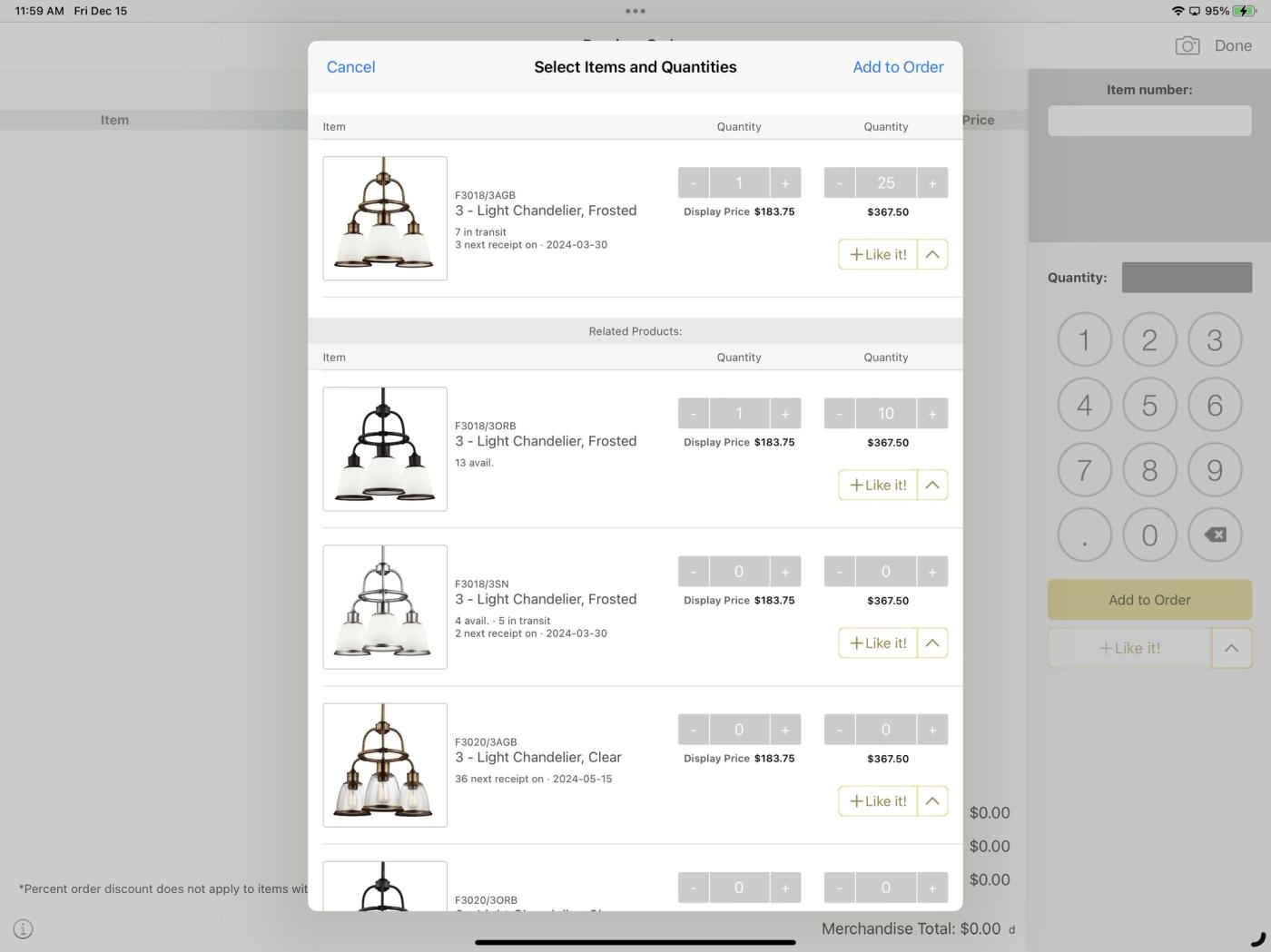
The following example shows how sku's for an item in alternate finishes can be displayed for quick selection after scanning the item in any of its finishes.
After users enter the desired quantities, they can add the items to the order with a single tap. If any of the selected items are already on the order, a warning message will display and a warning tone will sound and order quantities will be incremented.
Example Data Setup
If data is like this:
- BaseItemCode ScanGroupCodes
- sku1 A
- sku2 B
- sku3 C
- sku4 A,B,C
- sku5 C,B
- sku6 C,B,A
- sku7 null/empty/””
- sku8 null/empty/””
Scan behavior should be like this:
- Scanned ID Displayed SKUs
- sku1 sku1, sku4, sku6
- sku4 sku1, sku4, sku6
- sku5 sku3, sku4, sku5, sku6
- sku7 sku7 (displayed without scan group)
- A (this is a group code) sku1, sku4, sku6
- 11000111 (made up UPC for sku1) sku1, sku4, sku6
Additional information
Item number and description display with items in the selection list. To help users make informed decisions, up to 8 additional informational fields (2 rows of 4 fields each) can be selected for display e.g. dimensions, availability, future availability, etc. These are maintained in the eCat admin console under Tools > Company Settings > Product Fields and Labels > 'Kit View Fields and Labels'.
If there is only one BaseItemCode associated with the value in the ScanGroupCode field, the item selection window does not display. This behavior enables scanning items by encoding a value other than the item's BaseItemCode, ScanValue or UPC value in the showroom barcode, e.g. a configured item number or other product identifier.