Index
- ArticleDescription
- Overview
- Creating FlipBook EntriesHow to publish PDF documents as flipbooks in eCat's Library
- Technical ImplementationURL format and other useful information for linking PDFs to eCat iPad and eCat Online data
Overview
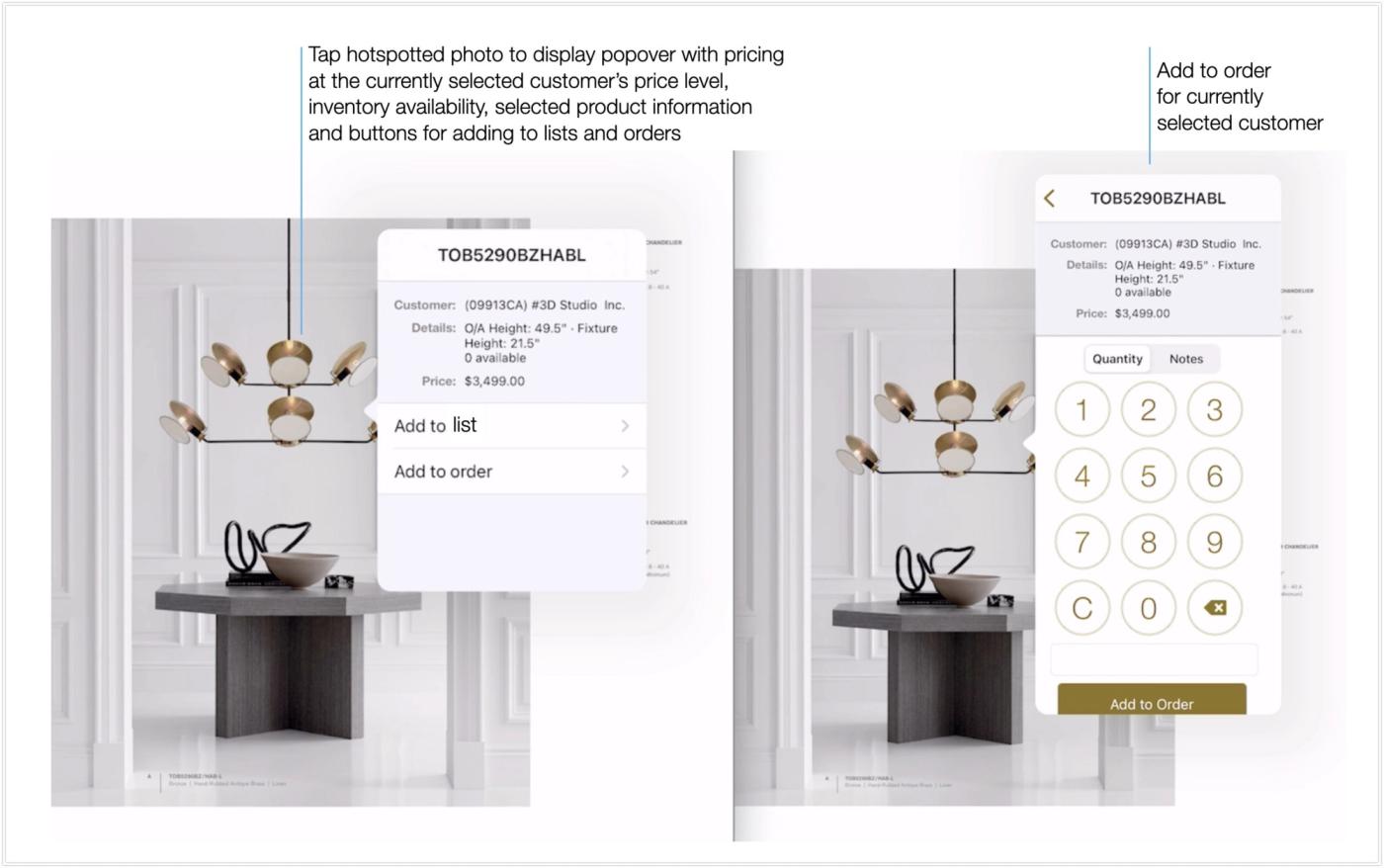
An optional eCat iPad Library upgrade enables sales teams to present and write orders from on-brand catalogs and look books created by their marketing departments using eCat's up-to-date pricing, inventory availability and other product information. Increased data limits enable companies to upload full product catalogs to the Library and link them to eCat data via hot-spots to show current customer pricing, create lists, and write orders. If your company uses eCat Online customers can tap item photos in PDF catalogs emailed to them to view the latest product and inventory information in the product's eCat Online product detail page.
Upgrade Details
- Publish PDFs to eCat (iPad) in flipbook format so users can swipe to 'turn the pages'
- Enables adding to eCat orders, MyLists, and Customer Lists directly from catalogs, look books, and other PDF format marketing materials.
- Enables linking catalog photos to up-to-date availability data and customer specific pricing when catalog viewed online on any device
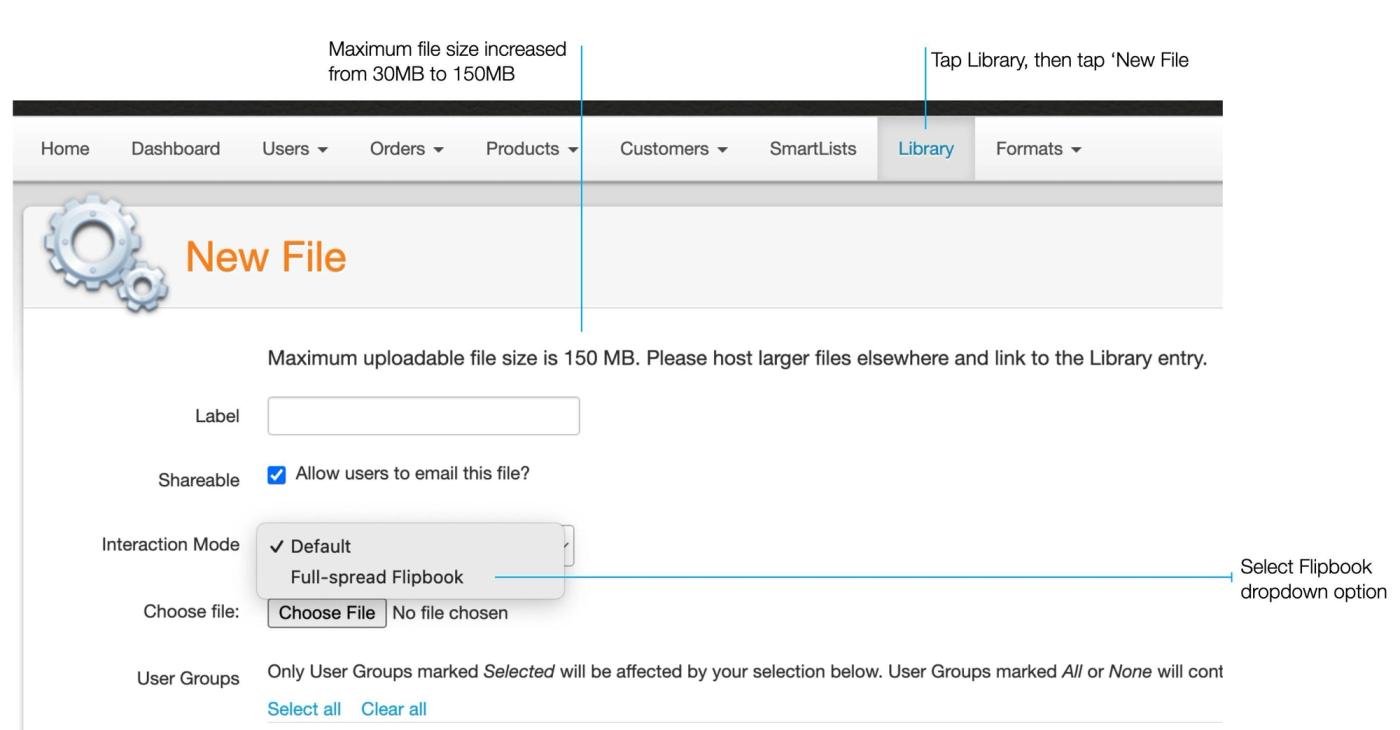
- Increases individual document upload size limit from 30 to 150MB
- Doubles total Library document storage, from 1GB to 4GB
- $195/month flat fee for unlimited hot-linked PDF documents

Creating Flipbook Library Entries
After PDF hot-spotting is complete, it's easy to use your eCat Admin Console to publish a flipbook to eCat's Library.
- Click 'Library'
- Click 'New File' in the appropriate Library section
- Enter a label for the entry, e.g. 'Catalog', 'Look Book', etc.
- Select the desired file sharing option
- Click the Interaction Mode dropdown and select 'Full-spread Flipbook'
- Select the user groups that should see the new entry
- Click 'Save'
That's it!
Technical Implementation
What is 'Hotspotting'?
You can enable your team and customers to immediately access up-to-date product information and pricing by tapping photos in your digital catalogs and other marketing materials. This requires your team to create 'hotspots' in PDF format versions of your marketing documents before publishing them to the Library.
A hotspot is an active area in a document that can be used to link to different areas of the document, to another document, or to a URL. Your team can use specialized software to create hotspots in PDF documents. This involves identifying an area in the document, like a photo or description that you want to be 'clickable', then associating the area with a URL. A number of different tools can be used to do this, including Adobe Framemaker, Adobe InDesign, PDFXpert, and many others. Your team can create and maintain hotspots using the tools they know best. This can often be done with the same software used to lay out your catalogs and other marketing materials.
eCat iPad and eCat Online use the hotspot URL to find the right product.
How eCat Uses Hotspots
Several hotspot URL formats can be used to link PDFs to eCat pricing, inventory, and other data. The following formats are required if you want to make it possible to use the same PDF in the eCat iPad Library and link to eCat Online product information when documents are viewed outside of the Library. We recommend using one of these formats for maximum flexibility.
The simplest URL format is
This 'short URL' format is supported by eCat Online and eCat iPad version 2022.5 or later. <BaseItemCode> should match an item present in your company's eCat product file.
The following 'legacy format' also works. Note that "/<OrgID>/" and "/<SiteID>/" below are specific to your company. Please contact support for what yours is configured to be.
Tapping a PDF hotspot with one of the above URLs in the eCat iPad Library will display a product's price at the selected customer's price level, current inventory or other information you specify in Company Settings. Users can then add the item to lists and order directly from your marketing PDF using the normal flipbook function. If your company also uses eCat Online, tapping hotspots with this format in PDF's emailed to customers will display the eCat Online product detail page for the product.
Additional URL Details for Technical Teams
eCat uses pattern matching to extract the item number from the URL. It will match anything ending with product/itemnumber or product_by_number/itemnumber, so you could even use a URL like https://www.companydomainname.com/product/81134AN or https://www.companydomainname.com/product_by_number/81134AN or https://www.companydomainname.com/pbn/81134N. We use a regular expression to extract the URL: (?:product_by_number|product|pbn)/(.*)$
Tips & Tricks
- Please note that PDFs up to 150MB are synced to and stored on user iPads. So it's important to optimize PDF documents to the minimum size necessary for decent photo resolution. This reduces file transfer times and efficiently use iPad storage space.