Creating New Users
User Group associates the user with a set of permissions common to a specific type of user. Use the drop-down to select the appropriate group for the new user.
Disable a user when they leave your organization by checking the box (not by deleting the user). The next time the user signs in to eCat, the data for your company will be deleted from their iPad.
Admin privileges should be granted to only a few trusted and well trained people. Guard admin user ID’s and passwords well! An untrained person or outsider with admin privileges can cause serious problems. Check the box to grant admin privileges to a user.
Device ID is the license key for eCat on the user's iPad. This number is automatically generated. If a user has not yet signed in to eCat, it will be blank.
Name, email address and phone number are used to automatically fill in the signature lines on orders and emails sent from eCat. SuperCat may also use this information to contact users who need help.
Rep/territory numbers are used to associate users with a list of customers that reference the same number. If a user should see customers from multiple territories, enter the numbers of the territories in the blank, separated by commas with no spaces. Where applicable, the rep/territory number may also be used to automatically sign the rep in to your company’s sales portal inside eCat’s web view.
Usernames and passwords must be typed by users on their iPads. Make this easier by keeping them relatively short and avoiding overuse of capital letters, numbers and punctuation. Include at least two numbers in the password to make it more secure. A password like ‘bobr487’ is better than a password like ‘b0{r4B7’.
Override Company Information for this User enables the user’s company name and contact information to be displayed on tear sheets, emails, and orders prepared with eCat instead of your company’s name and contact information. This is useful for dealers who prefer that their store name and contact information be on emails and proposals sent from eCat to their customers. The default email address and subject line can also be overridden so orders will be sent to the eCat user’s email address, instead of to your company.
Bulk-assigning Users to User Groups
You may occasionally need to move a number of users from one user group to another. For instance, in preparation for a trade show. To do this, you can use the bulk assignment feature.
Start by viewing the list of users in the admin console. You may want to select only users in a particular user group. You can do this as follows:
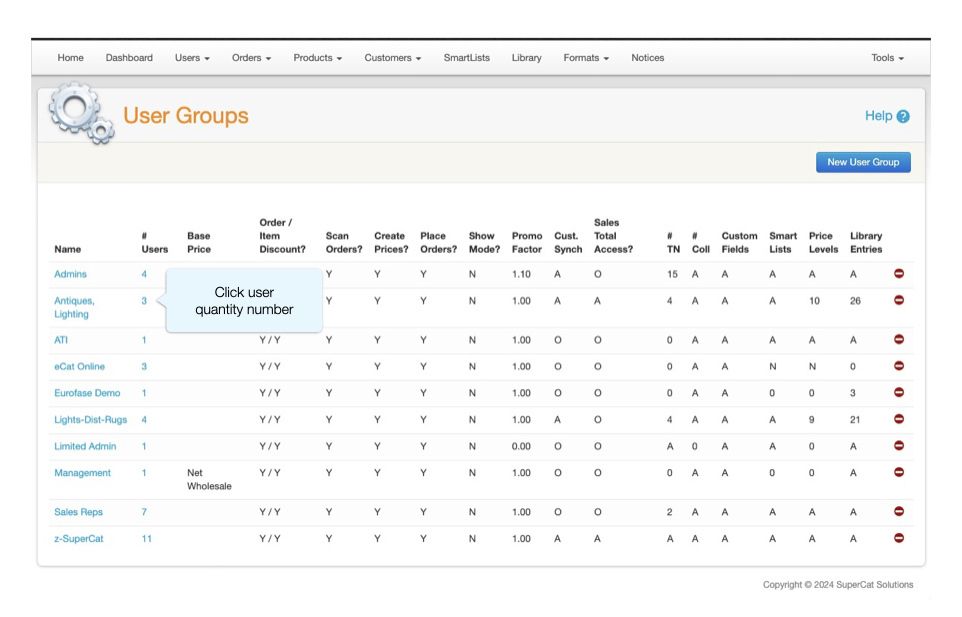
- View the list of user groups
- Below the "# Users" column, click the number corresponding to the source user group
Once you're viewing a list of users:
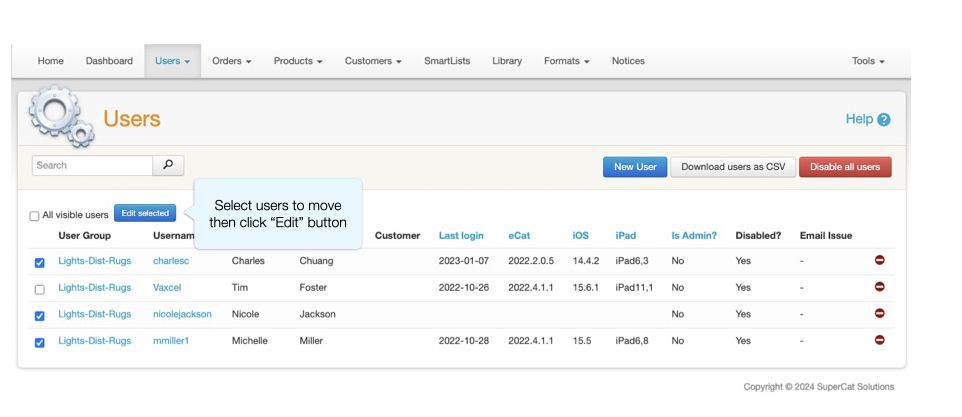
- Select one or more, or all, of the visible users
- Click "Edit selected" at the top
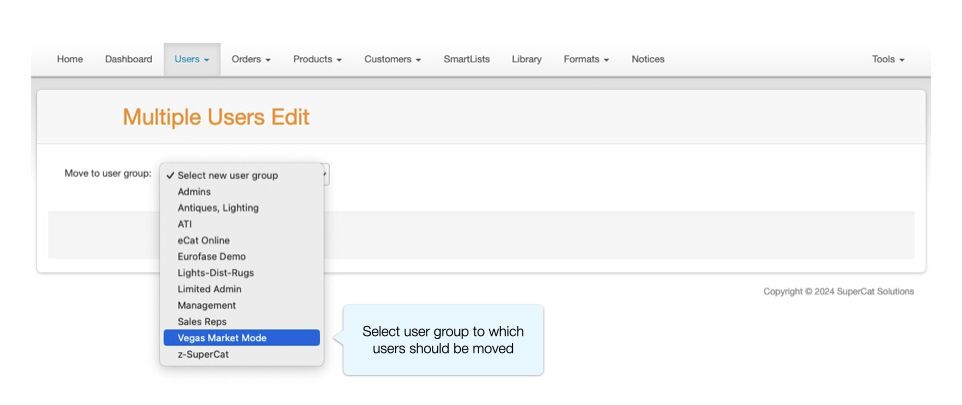
- Select the destination user group from the drop-down
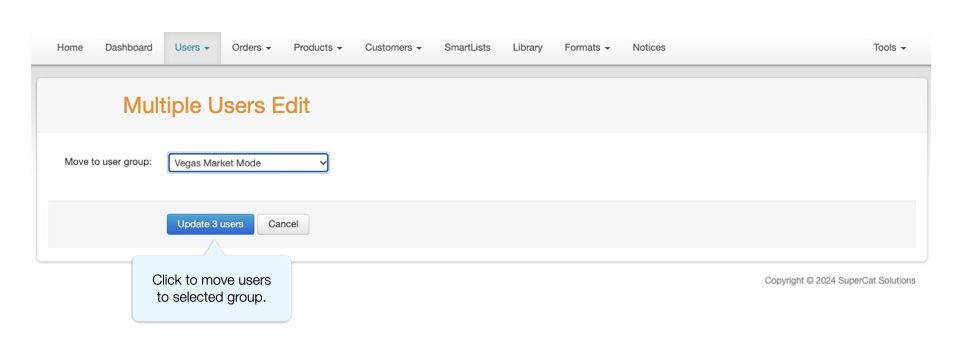
- Click the Update Users button