Overview
SuperCat provides a secure FTP site where files can be put for automatic processing. This enables full automation of eCat data updates and efficient photo processing.
eCat FTP site
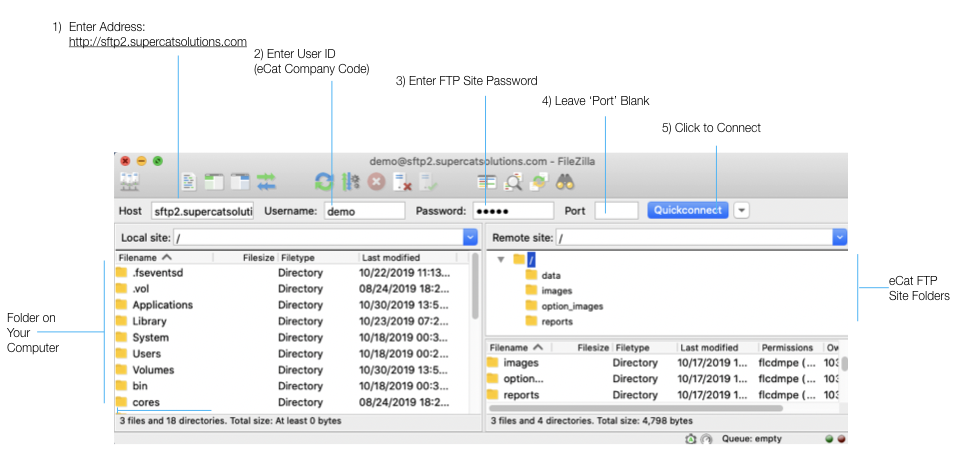
The FTP site host address is sftp2.supercatsolutions.com. SuperCat Solutions provides a username, and password specifically for your company. Please protect these credentials to prevent hacking and preserve the confidentiality of your company's information. You must use SFTP (secure FTP) protocol to connect to your SuperCat FTP site.
There are four pre-defined directories (folders) in the FTP site
/data - put CSV format data files in this directory
/images - put product image and alternate image files in this directory
/option_images - put option image files in this directory
/reports - in special cases SuperCat puts files in this directory for retrieval
The following data files can be put in the ‘/data’ directory for automatic processing. Files uploaded via FTP should be named exactly as shown. All data files should be formatted in CSV text format using the UTF-8 character set.
- products.csv - product data file with item #, descriptions, pricing and custom fields
- stories.csv - paragraphic product descriptions used for sales ‘romance’, instructions, etc.
- options.csv - product options
- option_groups.csv - product option groups
- inventory.csv - inventory balances
- customers.csv - customer list
- sales_data.csv - product sales information by customer
Files put in the /data directory, are automatically processed to update your eCat data. This is usually complete within a couple minutes. Check file upload and processing status in the admin site under 'Tools > Admin Reports > File Import Status'.
After successful processing, data files are renamed with the extension ‘.bak’ and kept on the FTP site for reference and error recovery. If there are import errors, files are renamed with the extension ‘.failed’ and an import status report link is emailed to the recipients specified in your Company Settings admin preferences. Import error log entries provide detailed descriptions of any problems found.
Files can also be uploaded interactively using ‘Tools > Import Data’ on the admin site. After successful processing, interactively uploaded files are renamed with the extension ‘.ibak’. If processing is unsuccessful, they are renamed with the extension ‘.ifailed’. Backup copies of the most recently imported files are kept on the FTP site for reference and error recovery.
Product image files should be put in the ‘/images’ directory. Every 15 minutes, new image files in the directory are automatically picked up and processed to create the various image sizes required by eCat. Image files are usually processed and available for use within 30 minutes after uploading. After successful processing the original images are removed from the directory and backed up elsewhere.
Option image files should be put in the ‘/option_images’ directory. These are usually processed and available within 15 minutes of uploading. Check the admin site option/option groups page to verify import success.
Files can be put on the FTP site using FTP client software or by using command line scripts to fully automate file transfers.
Using an FTP Client
FTP 'client' software makes it easy to exchange data between your computer and FTP sites by dragging and dropping files. FileZilla is a free FTP client that works well on both PC's and Mac's. You can download it here.
FileZilla setup
After installing FileZilla, enter information as shown below to connect to your secure eCat FTP site. You will know the connection is successful when you see the following three directories/folders on the eCat site.
/data
/images
/option_images
FileZilla shortcut
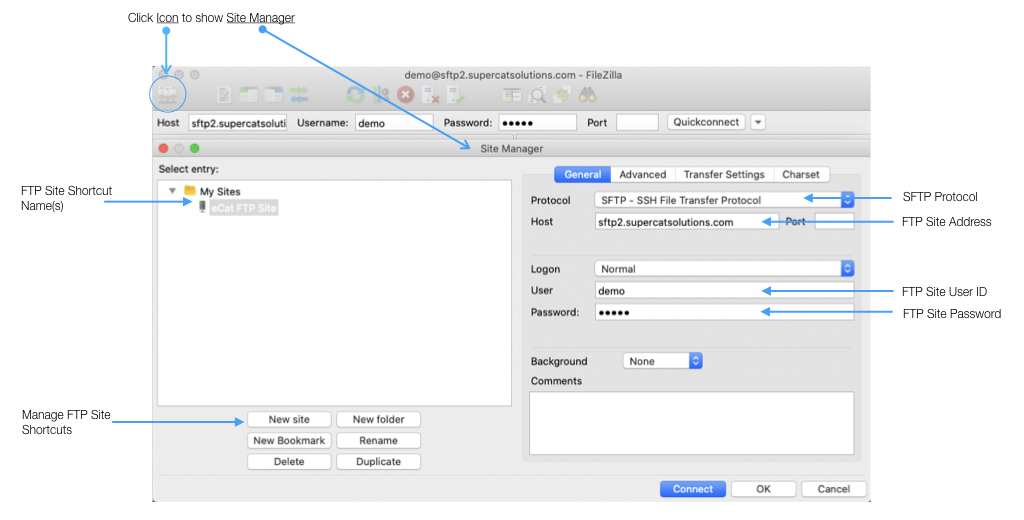
After successfully connecting, open the FileZilla site manager and set up a named shortcut to your site. This will make it easier to connect in the future.
Using FileZilla
FileZilla shows your computer's folders in the left hand pane and your eCat FTP site's folders in the right hand pane. To transfer files from your computer to the eCat FTP site, just drag and drop them from your computer to the appropriate folder on the eCat FTP site. For example, to upload product images to eCat, select the images in the right hand panel and drag them to the eCat '/Images' directory.
SSH Public Key Encryption for SFTP (Optional, Advanced)
If you prefer to authenticate using SSH public keys, we allow that option. Please send your public key to support@supercatsolutions.com and let us know what it's for, and we will get it set up free of charge. The key should be in the standard authorized_keys file format (see AUTHORIZED_KEYS FILE FORMAT here: authorized_keys (5)).
Please be sure to send us your public key, not your private key.
Best Practices
File Preparation
- Always use .csv format for data files (not .xlsx or .xls)
- Ensure files are UTF-8 encoded
- Name files exactly as documented (e.g., 'products.csv', not 'Products.csv' or 'products_v2.csv')
Uploading Files
- Wait for file uploads to complete before disconnecting. Partial uploads during sync can cause import errors.
- Verify images are not corrupted before uploading. Open each image locally to confirm it displays correctly.
- Upload to the correct directory ('/data' for CSV files, '/images' for product images, '/option_images' for option images).
Security
- Rotate your FTP password every 6 to 12 months if managing credentials internally.
- Limit FTP access to only team members who need it.
- Avoid sharing passwords over email. Use secure tools like 1Password or encrypted messaging.
Troubleshooting
My file upload failed or shows .failed extension. What happened?
- Check the import status report emailed to your admin contacts, or view the import log in Admin Console > Tools > Admin Reports > File Import Status. The log provides detailed descriptions of any problems found.
My password isn't working
- Verify you're using SFTP (not regular FTP) and connecting to the correct host: sftp2.supercatsolutions.com. If the password still fails, it may have expired. Contact support@supercatsolutions.com to request a reset.
My images aren't appearing after upload
- Image processing typically takes 15 to 30 minutes. If images still don't appear after an hour, verify the files were uploaded to '/images' (not '/data') and that file names match your product item numbers.
Need more help?
Contact Support with your company name and a description of the issue.