Overview
eCat can display customer sales history and order backlog information in ways useful for serving customers and building sales. Users access sales information by tapping one of three buttons in eCat's customer panel.
In addition to these features, an option to sort the entire catalog by 'territory sales' (sales for all customers in that users territory) or filter for products the 'customer has purchased' or 'customer has not purchased' are automatically added when summary sales data is provided.
Invoices/Favorites
Displays photos of items shipped to the customer during a time frame of your choosing. The list is sorted by descending total invoice amount to show the customer's 'favorite' items at the top of the list. This enables eCat users to quickly profile the types of products a customer likes, propose re-orders, cross-sell similar items, and view what a customer should have on display or in their lineup. 'On-order' quantities and the display sample quantity are shown if provided in the sales data file.
On Order
Displays a list of items the customer currently has on order with the order backlog quantities. The estimated delivery date is shown if provided. This list is also shown in eCat's default sort sequence.
Implementation
To use this feature, upload a file with sales data for a period of your choosing - whatever time frame will be most useful to your eCat users. Many companies send sales numbers for a rolling 24 month period. The file should be named sales_data.csv. Each entry/row in the sales data file corresponds to a customer/product (BillToCode/BaseItemCode) combination. i.e. "for this customer and this product, this is the total invoiced, on order, etc.". Note that there should be only a single record for each customer/product (BillToCode/BaseItemCode) combination. This record should contain the total quantities and values for that customer/item for the reporting period.
The file can contain the following fields/columns.
- Field Name Req? Description
- BillToCode
Y bill-to code of the customer (BillToCodes/customers referenced in sales_data.csv should be present in customers.csv)
- BaseItemCode Y item number of the product (Items referenced in sales_data.csv should be present in products.csv)
- QuantityInvoiced N* total quantity of this item invoiced to this customer during the selected period
- AmountInvoiced N total monetary amount of this item invoiced to this customer during the selected period
- DisplayQuantity N total quantity of this item this customer has (or should have) on display
- QtyOnOrder N* total quantity of this item this customer currently has on order
- AmountOnOrder N total monetary amount of the item this customer currently has on order
- EstShipDate N estimated date the on-order quantity for this item will ship to this customer
* One of either QuantityInvoiced or QtyOnOrder must be provided - both cannot be empty.
Parameters
The first line of the file may contain a parameter to be displayed as a title in eCat. The format is as follows.
:PARAMS,"description=Sales Data from 02/01/13 to 01/31/215 (last updated 02/01/15)"
This parameter would display the following title above the sales lists.
"Sales Data from 02/01/13 to 01/31/215 (last updated 02/01/15)"
When using a spreadsheet to modify sales_data.csv, the parameters string should be in the first two columns of row one. The first column should contain the string ":PARAMS" and the second should contain "description=<the data time frame label to display>".
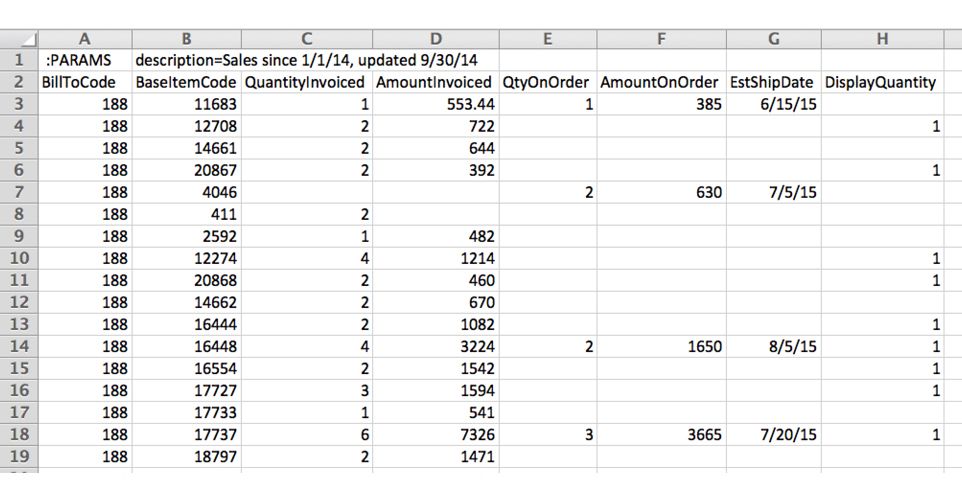
The sales_data.csv file should look like the following example.
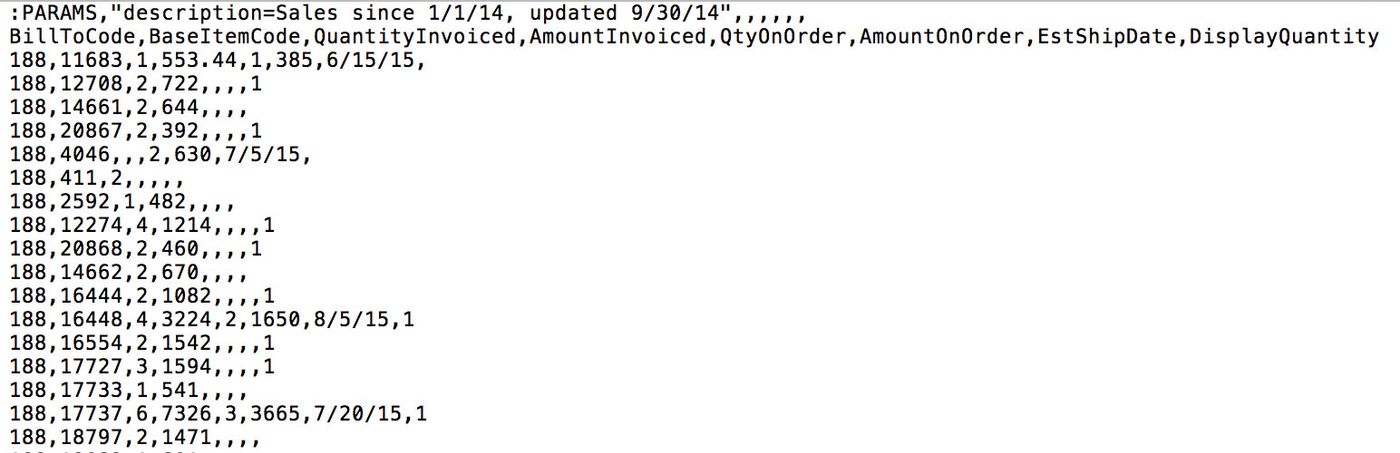
Tips
- Sales data entries are associated with the bill-to code value. If the selected customer has a ship-to selected, it will be ignored.
- The 'Invoices/Favorites' list sorts by descending amount invoiced. Items without amount invoiced values are sorted after those with, in order of quantity invoiced (largest first).
- If there is no sales data relevant to a specific sales data button, the button will be grayed out.