Overview
eCat's resource library provides a central location for maintaining your company's sales literature, newsletters, forms, price lists, links to videos, and other materials. These can be distributed selectively to users' iPads based on their user group. eCat users can view and open library documents on their iPads, and forward them to others by email. The Library viewer includes speedbar and page thumbnail navigation for PDF documents as well as search for finding information in larger documents.
Library sections
Your library is organized into sections. Create as many sections as needed to make entries easy to find. Sections can be labeled as you choose.
Library entries
Items in the library are called 'entries'. To keep the library organized, each library entry is associated with a single library section. Entries are automatically sorted within their section.
Entries can be either files or links. Files can be uploaded for forms or other documents. Specify a URL to link to videos stored in services like Vimeo or YouTube. Links can also be used to reference documents like large catalogs stored on your server. Both files and links are available to users in eCat for viewing, opening, and forwarding by email. However only files will be available for viewing in eCat when the iPad is offline.
File size guidelines
We currently restrict uploaded file size to 30MB. The total storage in use is shown at the top of the admin site library entry page. Please contact SuperCat customer service if you need more than 2GB of storage.
Videos, virtual showroom tours, and documents larger than 30MB should be hosted somewhere like Vimeo, YouTube or your own website and referenced by URL in the Library.
All files are sent to the iPad so they can be accessed when the iPad is offline. If the file is larger than 5MB, eCat will attach a link to the document instead of sending the actual file. So larger files can be viewed in eCat only when the iPad is online. Links to the files can be attached to emails whether or not the iPad is online.
Creating and maintaining your library
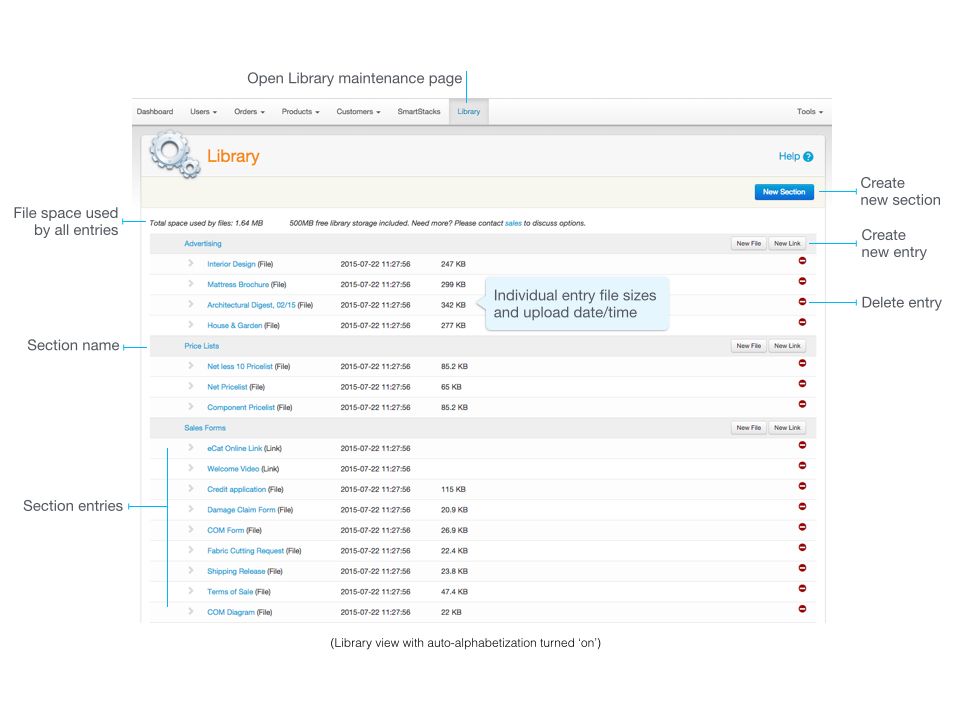
Libraries are maintained on the eCat admin portal 'Library' page. To start your library, first click the 'New Section' button and create a library section. Create as many sections as needed to organize the library. Then click the buttons under each section to add entries (files and/or links) related to the section.
Controlling Library display sequence
Library sections and entries display in eCat in the sequence in which they are shown on the admin portal.
Check the 'Alphabetize Library' option in Company Settings/eCat App Behavior to automatically sort library sections and entries alphabetically, with numbers first. The alphabetized library display will look like the above screen shot.
For full control, uncheck 'Alphabetize Library' in Company Settings. The library will display like the screen shot below, with 'handles' and a 'Reorder' buttons. Click and hold the 'handles' to the left of Section and Entry names and drag them to the desired display sequence. When working with long lists, it's easier to click the 'Reorder' buttons and enter numbers to specify the display sequence.

Creating and editing library entries
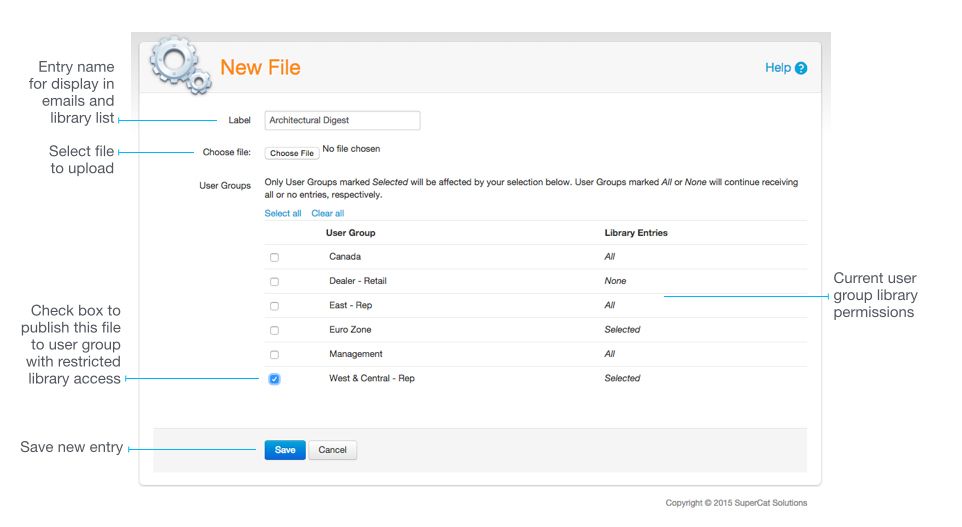
Click the 'New File' button under the appropriate section. Then fill out the form and click 'Save' to upload the new file to your eCat Library.
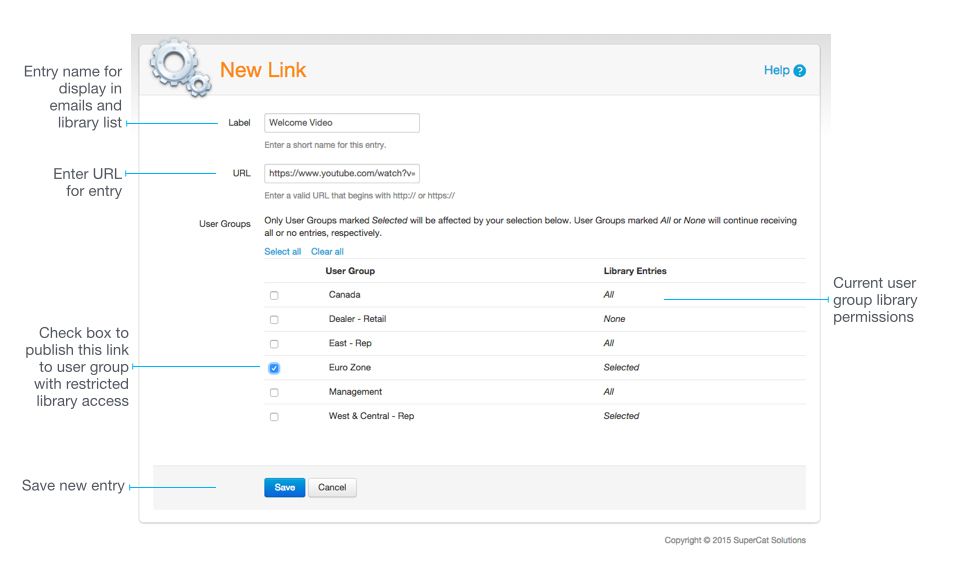
Click the 'New Link' button under the appropriate section. Then fill out the form and click 'Save' to enter the new link in your eCat Library.
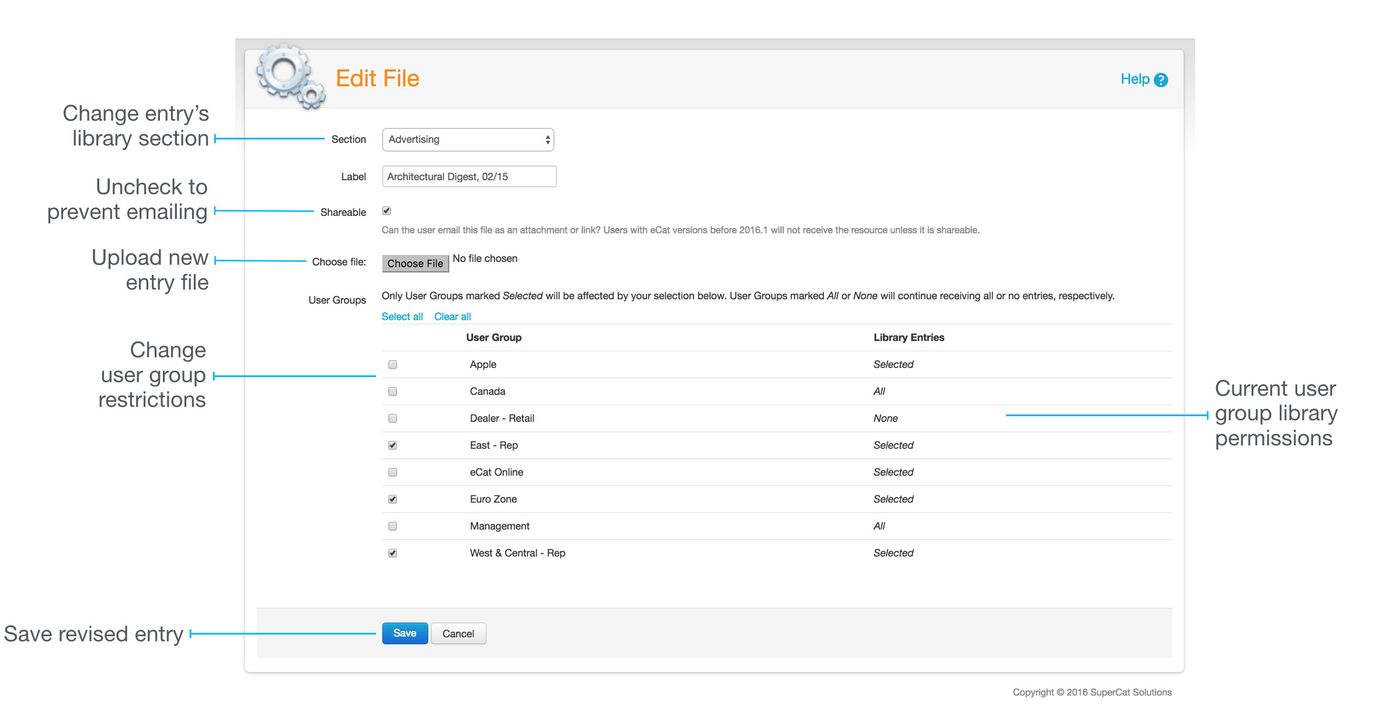
To change the labels, files, or links associated with existing entries, click the entry title. Then make the changes on the 'Edit Entry/File' page.
Assigning entries to user groups
As a convenience, you can restrict publication of an entry to specific user groups while editing the library entry. This only works for user groups already set up to see only selected library entries. To avoid exposing sensitive information to the wrong people, keep in mind that if a specific user group is configured to receive “All” library entries, members of the group will see the entry even if their user group box on the entry is not checked. If the user group library setting is 'None', members of the group will not see the entry, even if the box is checked for their group in the entry definition.
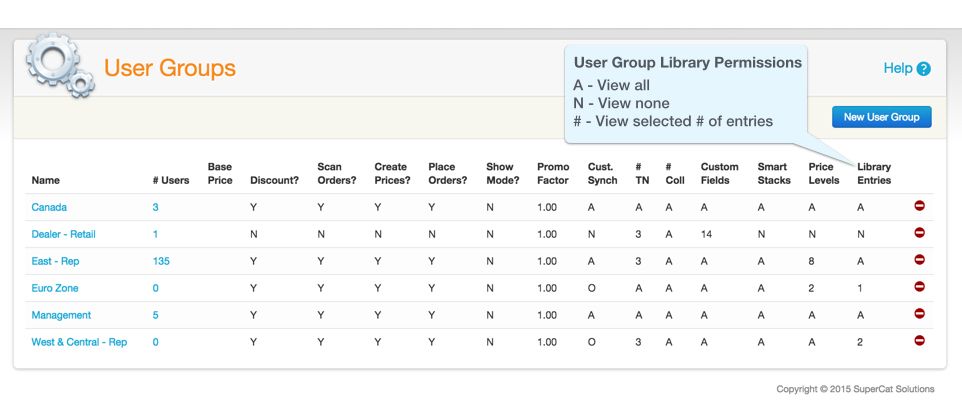
Check the user group permissions summary under 'Users >User groups' for a quick view of Library permissions for each user group.
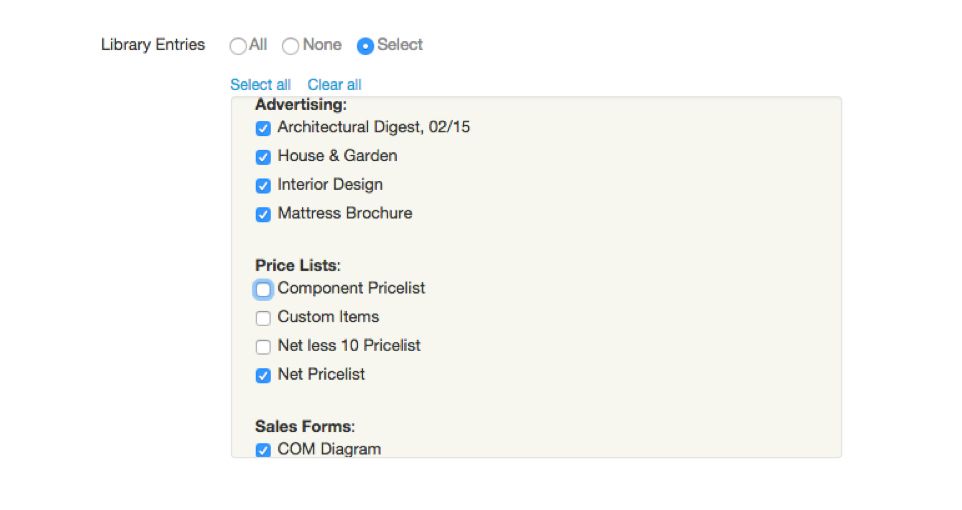
In addition to setting user group library permissions when creating entries, library entry distribution can also be managed in the Library Entries section of the user group maintenance page.
Tips & Tricks
- If your company uses eCat Online, create a library entry with the label 'Install eCat Online' and associate it with your eCat Online installation URL. Users will be able to forward the link to dealers so they can simply tap to install your eCat web app catalog on their mobile devices.
- To ensure accurate color rendering across different types of displays, documents with photos should be published in the sRGB color space. CMYK format documents will not display properly on some devices.