Summary
In eCat, a rep-created customer on an iPad is called a local customer. Whenever a rep places an order for a local customer, that order includes a LocalCustomerCode (UUID) — a unique identifier that marks the record as device-created.
You can use this code to:
- Identify new customers created by reps
- Merge them into your official customer database
- Prevent future duplicates
Key Terms
- TermDescription
LocalCustomerA customer record created on a rep's iPad (not yet in your master list)LocalCustomerCodeUnique identifier (UUID) attached to orders from device-created customersMappedBillToCodeField on customer file for UUID merge. Not the same asBillToCode.customer.csvYour official customer list uploaded to SuperCat
Why This Happens
When reps create customers directly on their iPads (instead of from your master list), those records exist locally until merged. Each generates a LocalCustomerCode stored with their orders — your signal that the record originated on a device.
Without a merge process, these records remain separate, creating duplicates and inaccurate reporting.
Part 1: Pulling New Users (Local Customers) Without the API
- In eCat, go to Orders → Orders and select Download / Export All Orders.
- Make sure the export includes the desired customer fields and Local Customer Code.
- Open the CSV file and use the filter option to select rows where the Local Customer Code is not blank.
- Each row that contains a Local Customer Code represents a rep-created local customer. Use this filtered list to identify your new customer list and begin the merge process.
Note: There is not currently a way to list all local customers who have never placed an order. Local customers only become visible once an order exists.
Pulling Local Customers (API)
Use the Orders API to retrieve and filter orders containing local_customer_code.
- Lightweight: No additional cost; a simple scheduled pull is often sufficient
- Real-time: Add a webhook listener for immediate updates (requires IT setup)
Contact Support to enable helpful API settings.
Part 2: Merging Local Customers into Your Master Database
Once you have identified orders with a Local Customer Code (UUID):
- Review and Match:
- For each unique UUID, decide if it is a new customer or a duplicate of an existing one. - Update Your Customer File:
- Locate the matching official customer record in your customer.csv file. Copy the Local Customer Code (UUID) into the Mapped Bill To Code field for that customer.
- Important: Do not overwrite the BillToCode field. The MappedBillToCode is a separate field. - Upload to SuperCat:
- Upload the updated customer.csv file.
- On the next iPad sync, eCat detects the UUID match and merges the device-created record with the official record (removing the duplicate). - Track What You Have Handled:
- Maintain an internal log of processed UUIDs to avoid duplicate merges.
💡Tip: If an order has no Local Customer Code, use your customer number as the authoritative match key.
Preventing Duplicates
Ask Support to enable Customer Duplication Mitigation.
When enabled:
- Create customer flow starts with email or phone
- If identifier exists, eCat shows the existing record
- Significantly reduces accidental duplicates
Weekly Workflow
- Export orders with
LocalCustomerCode - Filter rows where code is present
- Match each UUID to new or existing customer
- Add UUID to
MappedBillToCode - Upload and verify merge
- Spot-check a rep iPad after sync
Common Mistake: BillToCode vs MappedBillToCode
⚠️ Important: Many customers confuseBillToCodewithMappedBillToCode. These are two separate fields on your customer file.
BillToCode— Your organization's unique customer identifier. Do not overwrite this field.MappedBillToCode— A separate field specifically designed for the UUID merge. Place theLocalCustomerCode(UUID) here.
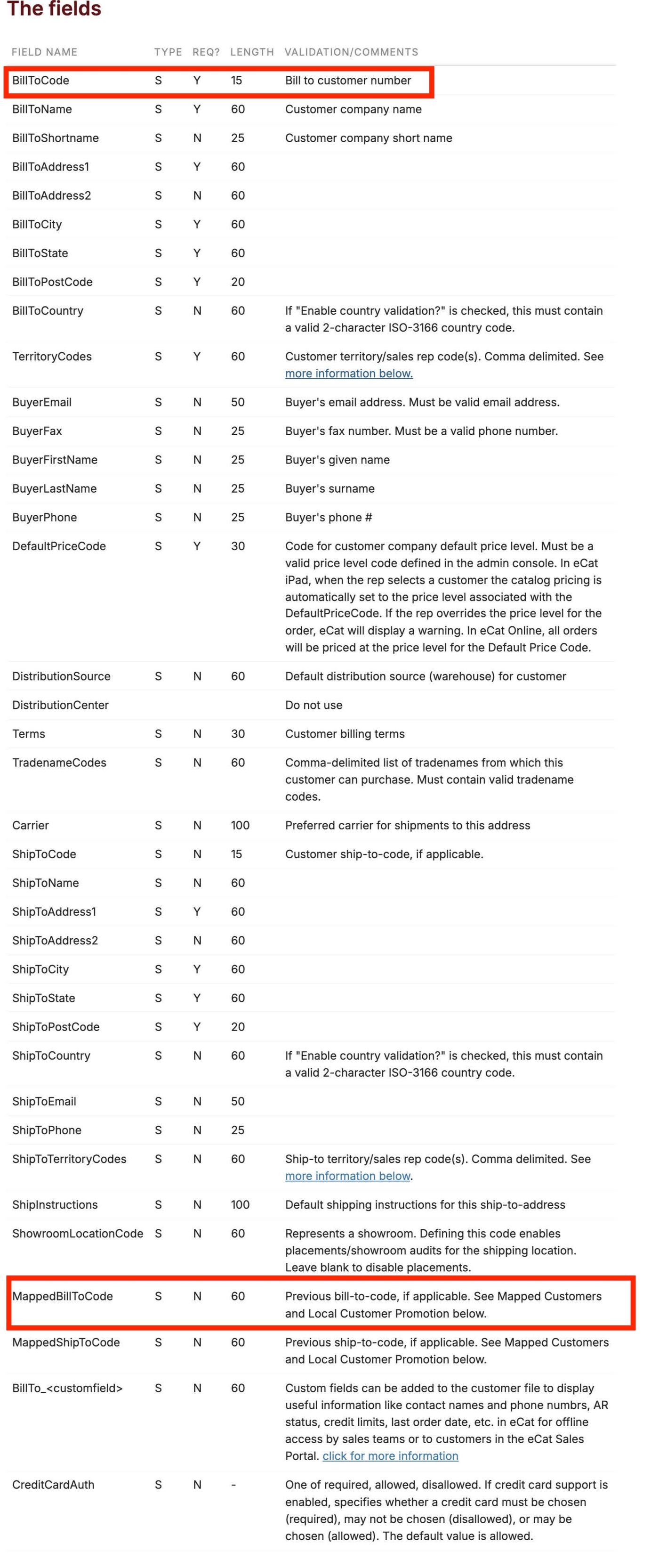
If your customer file does not currently have a MappedBillToCode column, simply add it as a new column header and populate it with the UUID for customers you want to merge.
See the Customer File documentation for the complete field specification.
Troubleshooting
Customer not visible after upload
If you uploaded your customer file with the MappedBillToCode but the merged customer is not appearing on the iPad:
- Check import status — Verify the customer file import completed successfully in the Admin Console (check for errors).
- Wait for sync — After upload, it may take 30-45 minutes for changes to propagate. Have the rep refresh/sync their iPad.
- Verify territory assignment — The customer must be assigned to a territory that the rep has access to. If no territory codes are in your file, check user permissions.
- Confirm UUID match — Ensure the UUID in
MappedBillToCodeexactly matches theLocalCustomerCodefrom the order (no extra spaces or characters).
Import shows errors
Resolve all file validation errors before the merge will take effect. Common issues:
- Missing required fields
- Invalid characters in customer codes
- File not named
customers.csv - Incorrect column headers
Contact Support if you need help diagnosing file errors.
Troubleshooting Questions
Can I list local customers with no orders?
No. Local customers only surface once an order exists.
Is there a cost for API access?
No. The Orders API is included.
How do I know if already merged?
Keep a record of processed UUIDs.
File shows upload errors?
Common issues: missing fields, invalid characters, incorrect filenames or headers.
Customer not visible after upload?
- Check import status for errors
- Wait 30-45 min, then have rep sync iPad
- Verify territory assignment
- Confirm UUID matches exactly (no extra spaces)
BillToCode vs MappedBillToCode?
BillToCode = your customer ID (don't overwrite). MappedBillToCode = where you put the UUID for merge.
See Customer File docs for full specs.
Need more help?
Contact Support — we'll walk through your first merge or API setup.
Need Help?
- Want us to enable Customer Duplication Mitigation?
- Need assistance setting up the Orders API or webhook?
- Having issues validating your customer file?
Contact Support — we will review your first export + merge cycle or walk through your API setup.