Overview
When users finalize orders on their iPads, eCat automatically generates an email to send to the customer, rep, and your order desk. A PDF version of the order is attached to the email. You can customize the order email and email subject line to meet your company's specific needs by maintaining HTML format templates in the admin portal Company Settings / Email Templates section.
The company default order email subject and email templates can be overridden by user group. So different order formats can be specified for sales people selling different types of customers, international distributors using other languages, your customers who are using eCat to sell your products at retail, etc.
Separate sets of templates are provided so you can define order formats for when prices are shown and when prices are hidden in eCat. This enables customization of product information sent to customers with and without pricing.
Variables can be used to customize the information shown in the emails to your company's needs. Variables are not case sensitive and are distinguished from other text by bracketing them with a ‘%’ symbol.
There are three separate template areas.
Order email subject template defines the order email subject line format.
Order email message template defines the order message body format.
Order email item line template defines information shown in the order detail lines.
Here's an example order email. Recipients can click thumbnail images to download tear sheets.
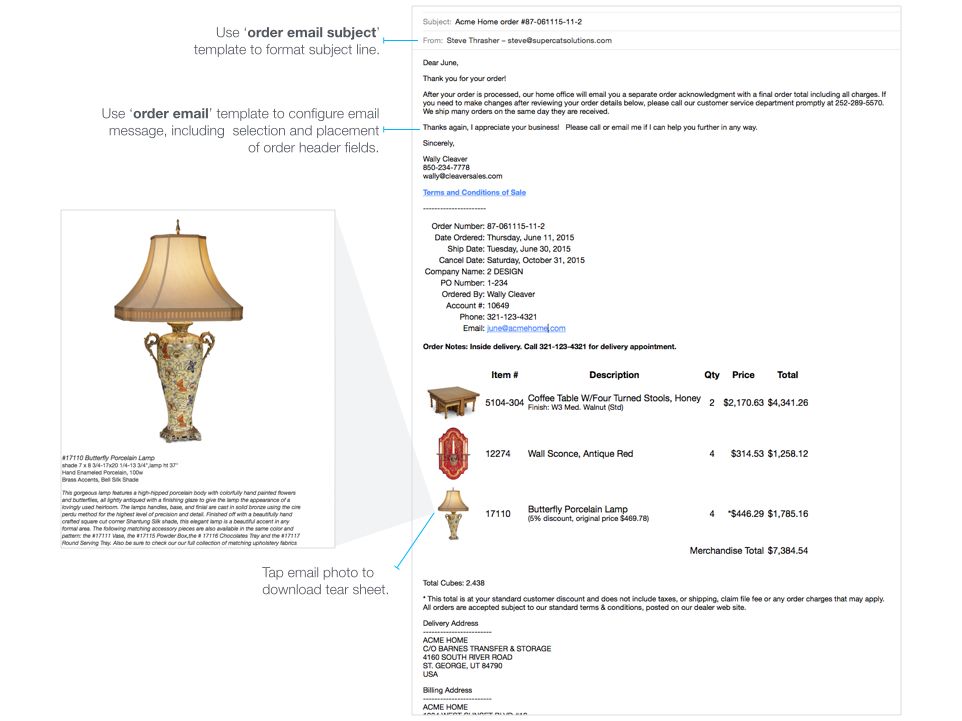
Email templates are maintained in the eCat admin site Company Settings and user group definition pages as shown below.

Order email recipients
When orders are submitted, they are delivered to the rep, the customer, and your order desk.
We have two ways of delivering to your internal order desk: via the Order Email Recipient, and the Backup Order Email Recipient.
In eCat the Order Email Recipient will be added to the CC line on the email order draft that is created after the user submits an order. Because the email is a draft, and is using the Apple mail program, we cannot guarantee that the email will be sent. For instance, the rep could delete the draft.
The Backup Order Email Recipient will receive a copy of the order as soon as the order is received by our servers. This is more reliable than the primary Order Email Recipient, so if you are having difficulties with receiving order emails, we recommend setting this. Please note: It will result in many duplicate order submission emails, so generally we recommend leaving this blank.
Order email subject line template
Your company's default order email subject is defined in Company Settings. This can be overridden by user group.
Selected variables can be used in the subject line. For example, the subject line:
Acme Home Emporium Order #87-052215-9, $98,765.43
would be templated as:
Acme Home Emporium Order #%orderNumber%, %total%
Order email subject line variables
The following variables can be used in both the order email subject line template and in the order email message template. Variables are distinguished from other text by bracketing them with a ‘%’ symbol.
- Order Subject Line Variable Notes
- BillToAddressCity customer company's bill-to city
- BillToAddressCompanyName customer company's bill-to company name
- BillToAddressCountry customer company's bill-to country
- BillToAddressLine1 customer company's bill-to address line 1
- BillToAddressLine2 customer company's bill-to address line 2
- BillToAddressState customer company's bill-to state
- BillToAddressZip customer company's bill-to postal code
- BuyerFirstName first name of person who placed the order
- BuyerLastName last name of person who placed the order (entered by eCat user)
- CancelDate Date before which order should be shipped
- CompanyName customer company name
- CustomerEmailAddress customer company's email address
- CustomerNum customer's bill-to account number
- CustomerPONum customer's purchase order number for order
- CustomerPhoneNumber customer company's phone number
- OrderFooterText Standardized text maintained in Company Settings order preferences
- OrderHeaderCustom1Label Customizable order field label
- OrderHeaderCustom1Value Customizable order field value
- OrderNumber Unique eCat-generated number for this order
- OrderOrigin Company defined origins like 'Market', 'Write-in', 'Road'
- OrderType Like 'Confirmed', 'HFC', 'Quote' (maintained in Company Settings/Order Preferences)
- OrderTypeAndNumber Order type, e.g. 'Confirmed', 'Quote', etc. followed by order #
- OrganizationAddress1 your company's address line 1 (maintained in Company Settings)
- OrganizationAddress2 your company's address line 2 (maintained in Company Settings)
- OrganizationCity your company's city (maintained in Company Settings)
- OrganizationCountry your company's country (maintained in Company Settings)
- OrganizationEmail your company's email address (maintained in Company Settings)
- OrganizationName your company name (maintained in Company Settings)
- OrganizationPhone your company's phone number (maintained in Company Settings)
- OrganizationState your company's state (maintained in Company Settings)
- OrganizationWebsite your company's website URL (maintained in Company Settings)
- OrganizationZip your company's postal code (maintained in Company Settings)
- PriceComparison If you configure a Comparison Price Level in Company Settings, this variable will display a message like, "You saved <amount>" where the amount is the difference between the item price at the comparison price level and the price on the order.
- PriceLevelCode Code for price level associated with the order
- PriceLevelCue 1-2 character abbreviation ('cue') for price level associated with the order
- PriceLevelName Label associated with price level associated with the order
- RepEmail Sales rep's email address. In eCat, this is the user's email. In eCat Online, this is the rep of record's email.
- RepFirstName Sales rep's first name. In eCat, this is the user's name. In eCat Online, this is the rep of record's name.
- RepLastName Sales rep's surname. In eCat, this is the user's name. In eCat Online, this is the rep of record's name.
- RepNumber First entry in sales rep's Rep/Territory Code(s) field. In eCat, this is from the user. In eCat Online, this is from the rep of record's.
- RepPhone Sales rep's user's phone number. In eCat, this is from the user. In eCat Online, this is from the rep of record's.
- ShipAfter customer's desired 'Ship After' date
- ShipBefore customer's desired 'Ship Before' date
- ShipDate date after which order should be shipped
- ShipmentPreference shipping preference, e.g. 'Ship As Available', ' Ship Complete'... (maintained in 'Company Settings/Order Preferences')
- ShipToAddressCity ship-to address city
- ShipToAddressCompanyName ship-to company name
- ShipToAddressCountry ship-to address country
- ShipToAddressLine1 ship-to address line 1
- ShipToAddressLine2 ship-to address line 2
- ShipToAddressState ship-to address state
- ShipToAddressZip ship-to address postal code
- TagFor note field for associating order with a customer's client ('Mark for')
- Today today's date
- Total net order total with surcharges and after all discounts
Order email message template
Use the order email message template to define information to display in your order email message and where it should be displayed. All standard HTML tags can be used in the order message template, including color, bold text, and embedded links.
Sample order email template
Order email message template variables
In addition to any of the variables listed in the subject line list above, the variables below can be used in order email message templates. Variables are distinguished from other text by bracketing them with a ‘%’ symbol.
- Email Order Variable Notes
- EmailBannerHtml Inserts the email banner image into the document. (The email banner is uploaded separately under 'Tools/Import Images'.)
- EmailBannerUrl URL to associate with email banner image
- OrderDetail (*see below) This indicates where the order line items will be inserted
- TotalCBMLine Total cubes of items on order (based on product file PackedVolume field)
- TotalShippingWeight Total shipping weight of ordered items (based on product file ShipWeight field)
- TotalVolumeLine Total shipping volume ('cubes') of ordered items (based on product file PackedVolume field)
- Notes Order notes entered by user
- Terms Payment terms entered by user
* This can be customized using the order item line template. The variable 'orderDetail' generates the content for the order lines in a format like the following.
Order email item line template
Use the order email line template to customize the information displayed in your order email order lines. If this template is left blank, eCat will use the built-in default settings. The defaults work well for most companies.
Line/Item Template Variables
The variables below can be used in order email item lines. Variables are distinguished from other text by bracketing them with a ‘%’ symbol.
- Email Item Variable Description
- Everything in the HTML Email Template, plus See the HTML Email Template documentation for more variables.
- DescriptionHTML pre-built HTML including long description, option description, line notes, and discounts creates content like the following: %itemDescription% <font size="-1"> %optionDescription% (for each option) %lineNotes% (if present) </font> <font size="-1"> %discountDescription% </font>
- DiscountDescription pre-built HTML listing discount notes
- ExtendedPrice the calculated extended price
- ImageHTML pre-built HTML including a thumbnail image linking to the customizable tear sheet
- ImageName the filename of the product's image
- ItemDescription Deprecated. Use LongDescription
- ItemNumber the product's item number, using the matrix version if available
- LineNotes item line notes entered by the eCat user
- LongDescription the product's long description
- OptionDescription pre-built HTML listing options configured for this order item. Used in descriptionHTML
- Price the calculated unit price
- Quantity the quantity ordered
- UnitsPerCarton pack size/units per carton
- UpcValue the UPC code numeric value
Example
The following order email item line template adds UPC value and pack quantity to the order lines and omits optionDescription and discountDescription.
Tips & Tricks
Web hosted content, like banners, can be used in the email template. You can also use any of your company's graphic assets on your eCat server. These include the document logo, nav panel logo, and button logo.
For example, to include the 'document logo' image in the email, include HTML like the following at the top of the email, replacing '###' with your eCat org number. (Ask SuperCat for this number if you don't know it.)
Banners should not exceed 720 pixels width and should be uploaded via the admin portal 'Tools/Import Images' feature. Specify the image width in the order message template to prevent distortion. If banner images are kept to a standard size a non-technical person in your marketing department can easily change them simply by uploading a new image.