Overview
eCat enables grouping sets of individual items (components) that may or must be sold together into kits that relate to parent items.
Kits can be used to simplify ordering separate items that typically ship together, or to enforce ordering items that must be ordered and shipped together. They can also be useful for increasing sales by offering companion items like accessories or consumables when an item is ordered.
Quick Start
Ready to create your first kit? Here are the basic steps:
- Prepare your 'kit_items.csv' file with columns: 'ParentBaseItemCode', 'BaseItemCode', 'ItemGroupCode'
- Add the parent row first: both 'ParentBaseItemCode' and 'BaseItemCode' should be the same SKU
- Add component rows: each row references the parent SKU in 'ParentBaseItemCode'
- Set optional fields: 'Required' (1 or 0), 'Quantity', 'Preselected', 'Repeatable', 'Orderable'
- Save as UTF-8 encoded CSV
- Upload via Admin Console > Products > Kit Items Import or FTP
- Test the kit in eCat by adding the parent item to an order
Note: Use 1/0 for boolean fields (Required, Repeatable, etc.), not Yes/No.
Using eCat's Kitting Feature
Use kits whenever there are sets of items that may be or should be ordered together. For example:
- Items that are assemblies of multiple components, like beds (headboard, footboard, rails, slats), table lamps (body, shade, base options), or buffets (base, hutch)
- Grouping items for sale as a package, like dining tables and chairs, bedroom sets, throw pillows included with sofas, display vignettes (POP) displays with accompanying SKUs, or triptychs and complementary wall art
- Selecting and configuring items that can be ordered different ways, like sectional sofas
- Offering add-on items like bulbs with lighting fixtures or batteries with powered furniture
Data Concepts
Each kit is defined in terms of its components. Kits are defined separately from the main set of products and have the following properties:
- A parent item. This item must be a product included in the products database. When it is added to an order, eCat starts the kit ordering process. There can be only one kit definition per parent item. Parent items may be orderable or un-orderable.
- More than one item group. Item groups contain one or more items, one of which will fill a single slot in the kit. For a sofa, an item group could contain all valid cushion SKUs. For a lamp, an item group could contain all valid lamp shade SKUs.
- More than one item, including the parent item. Each item belongs to an item group, even if the item group only contains one item.
- Each item may have a discount, which affects how it is priced when ordered as part of the kit.
Other characteristics:
- Item groups and items are presented in the order they appear in the CSV file.
- The kit parent may be shown on the order, or not. If not, only the selected kit components are shown.
- Selection of an item from an item group may be optional or required before the order can be placed.
- A quantity must be specified for each kit item required to build the kit.
- The kit may specify that either a single item or multiple items may be selected from an item group.
- Ship with notes may be optionally generated and shown on orders for kit components.
- Kit items may be configured with options like fabric or finish during the kit ordering process. A common set of options can be selected for all kit items to which they apply.
- If an item group contains a single item, the item is automatically pre-selected when the kit is ordered.
Import
Kits are configured via a CSV file named 'kit_items.csv', where each row represents a kit component item.
The kit file columns/fields are as follows:
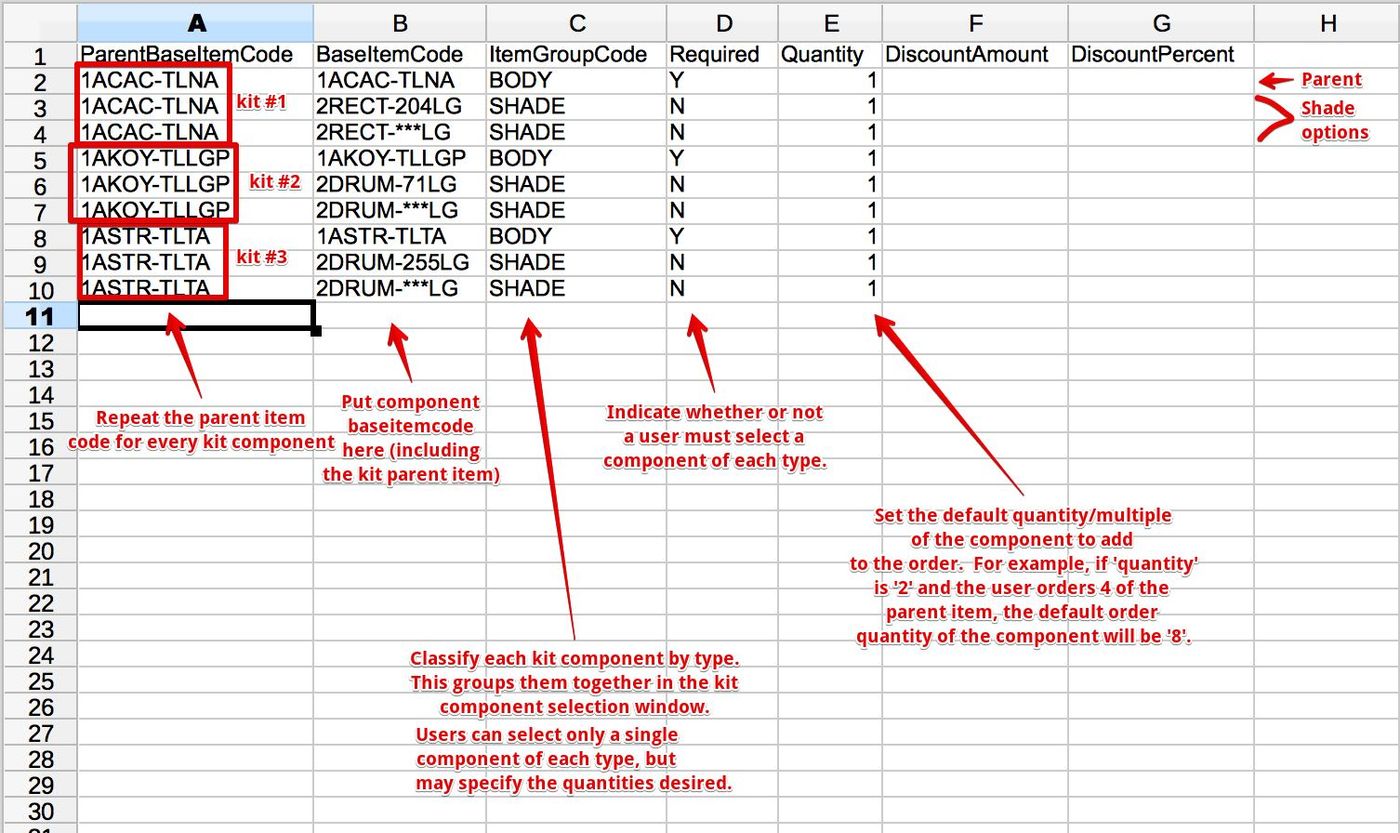
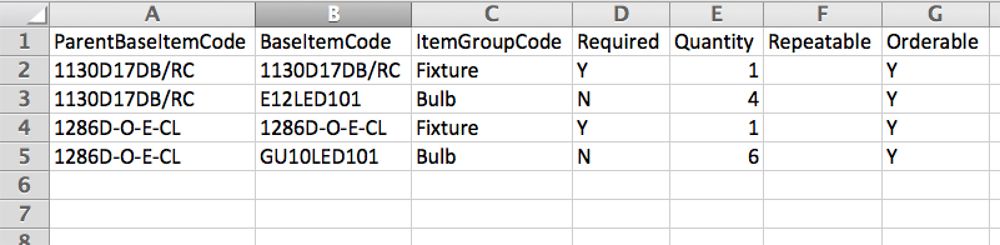
- 'ParentBaseItemCode': Every item in the kit, including the parent item itself, should have the same 'ParentBaseItemCode'. For the first line in a kit, the 'ParentBaseItemCode' and 'BaseItemCode' should be the same.
- 'BaseItemCode': This represents the kit item. It must exist in the products file.
- 'ItemGroupCode': This represents an item group. It needs to be a unique string shared by all items in the item group.
- 'Required' (optional): 1 if the items in this item group are required, 0 if not. This value must be the same for all items in an item group. Default is 0.
- 'Quantity' (optional): The quantity of this item in the kit (e.g., 2 throw pillows, 6 chairs). Default is 1.
- 'Preselected' (optional): Boolean to indicate whether to automatically add component. Can be used to make it easy to order kits with optional components as shown in photograph. The kit parent item is automatically added, so 'Preselected' should be 0 for the kit parent.
- 'Repeatable' (optional): Boolean to indicate whether multiple items can be selected from an item group. Default is 0.
- 'Orderable' (optional): Boolean to indicate whether the kit parent can be added to orders. If not present, all items are orderable. All kit items (not parent) must be orderable.
- 'DiscountAmount' (optional): Specified as an absolute amount.
- 'DiscountPercent' (optional): Specified in percent, e.g., 90 for 90%.
Note: Save your CSV in UTF-8 encoding. Google Sheets exports are fine; modern Excel typically defaults to UTF-8. For FTP uploads, filenames must match the expected pattern exactly. For web tool uploads, the filename is flexible but keep the .csv extension.
Specific Kit Scenarios
Table Lamp Kit
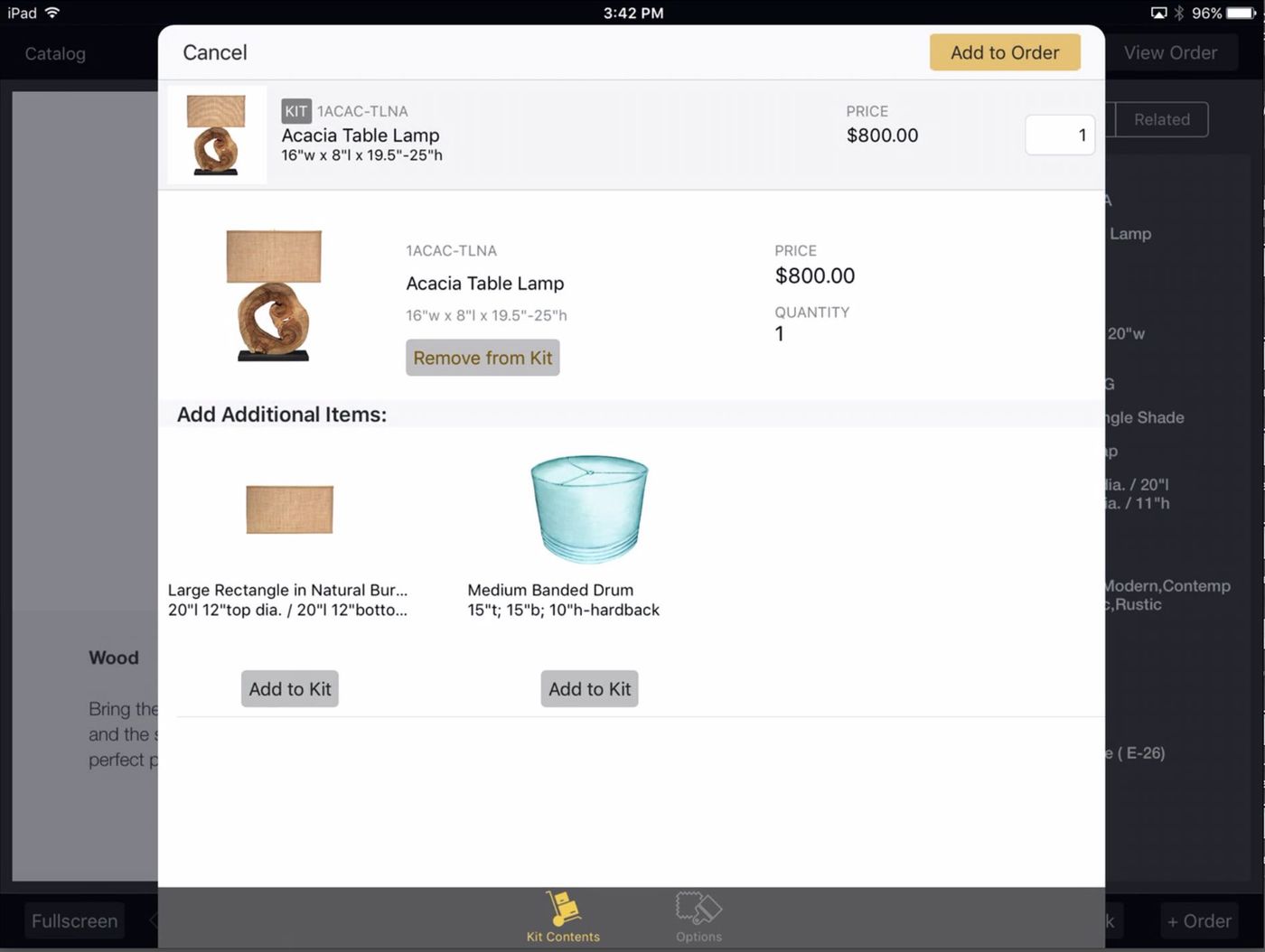
The following table lamp kit has 2 item groups: one to contain the table lamp body and one to contain a set of possible shade selections.
- The lamp body is the parent item and is marked required, so must be ordered.
- The shades are not marked required, so it is possible to purchase the body by itself without a shade.
- Two shades are offered in the lamp kit: a standard shade with preselected fabric and trim, and a configurable shade that enables customers to select their own fabric and other shade options. Users may order one shade or the other, but not both.
Upholstery Sectional Kit
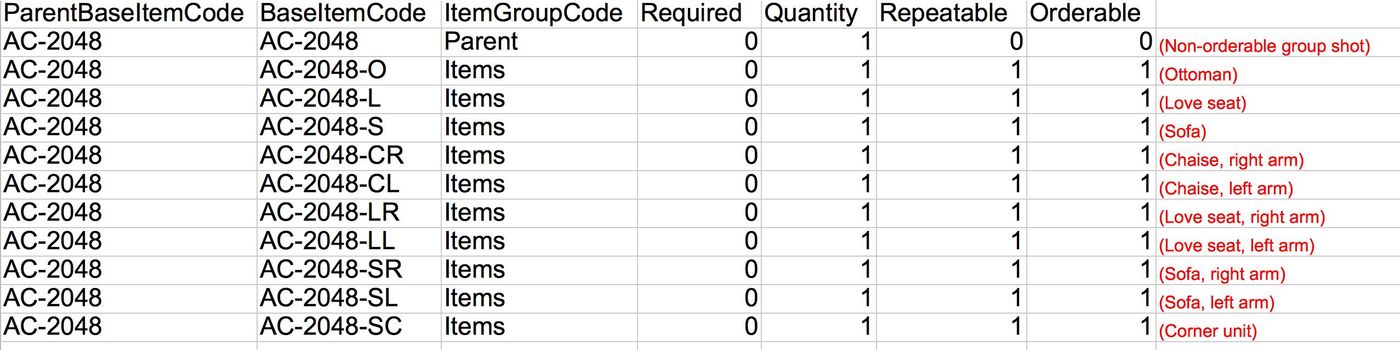
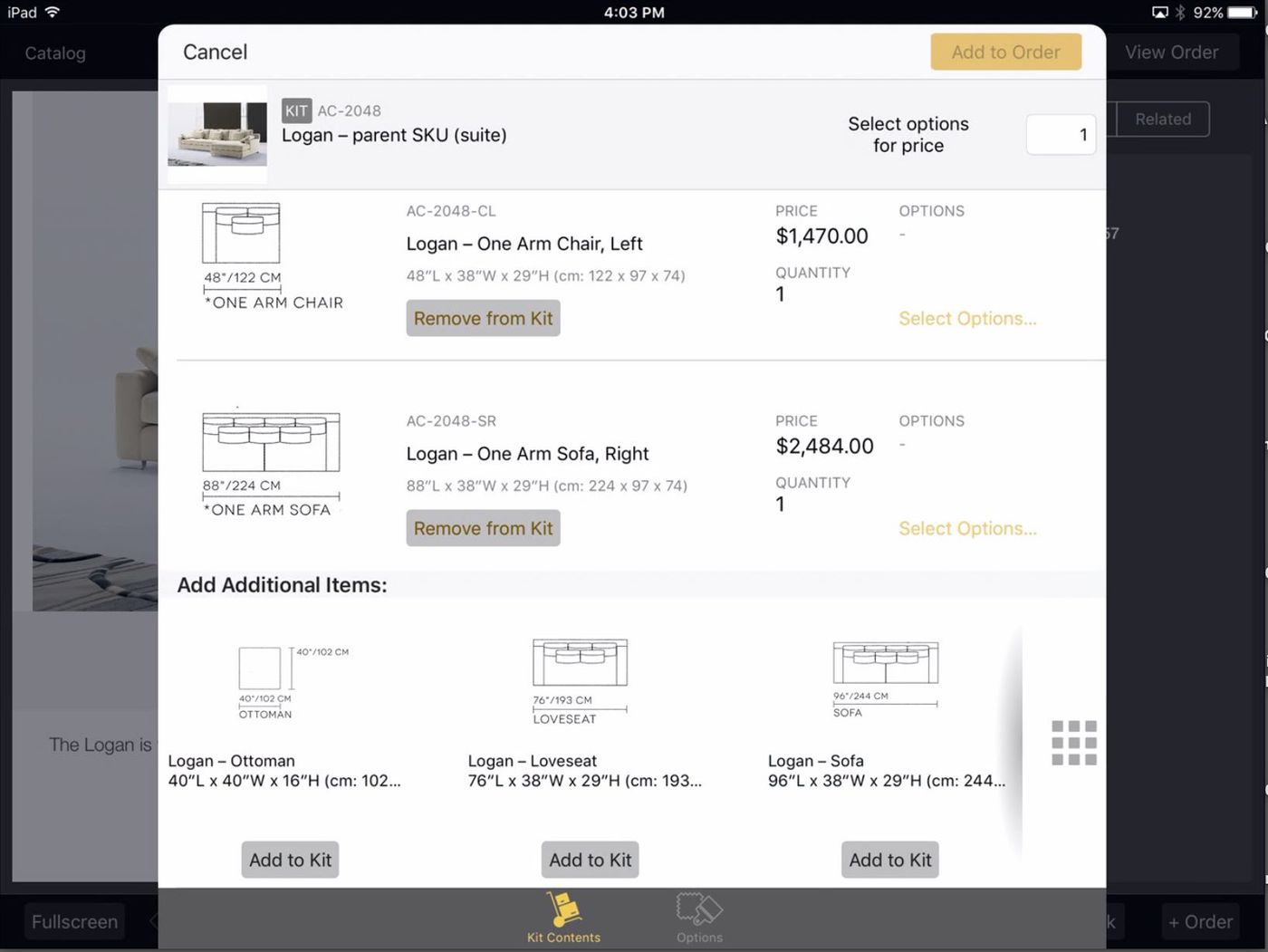
With this kit configuration, users may view a grid of sectional component photos. Any combination of sectional components can be selected in any quantity for each selection. If the components are configurable with options, the same fabric and other options can be specified for all selections in a single step.
Art Triptych Kit
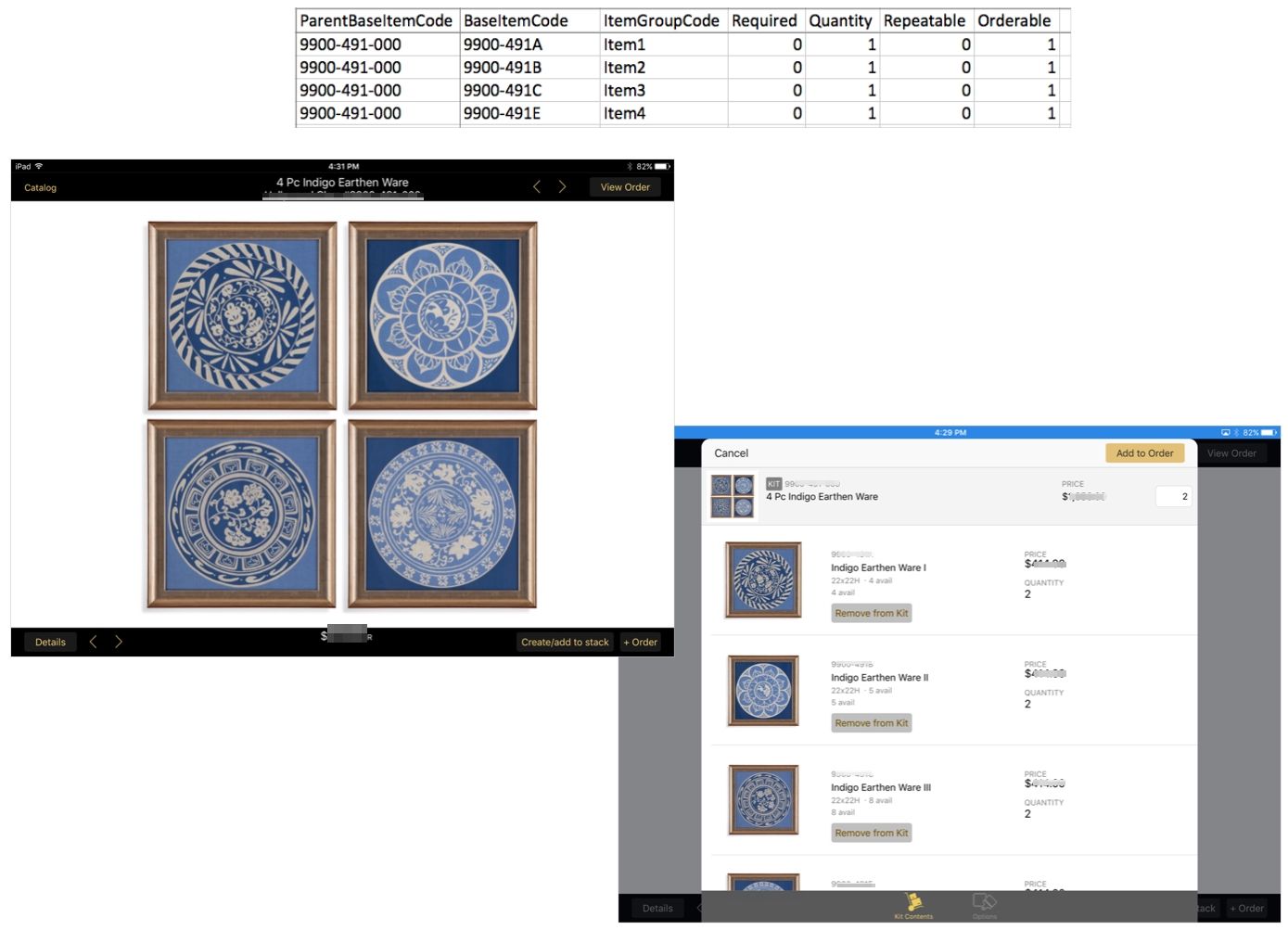
In the following kit configuration, users see a parent photo with an arrangement of four related wall art items. Each piece is a different SKU. Tapping +Order on the parent item displays each of the four items as a selected kit component, showing the appropriate order quantity and current availability. Changing the parent order quantity changes the quantities of all the kit components. Users can remove kit components and change quantities as desired. Tapping Add to Order adds the kit components to the order in a single step.
Dining Set
This example demonstrates quantity settings and kit discounts.
- Contains 3 item groups: one for a table, one for matching side chairs, and one for arm chairs.
- The parent item may be the table or a dining set SKU that is not orderable.
- None of the items are marked required.
- The quantity is set to 1 for the table, 4 for the side chairs, and 2 for the optional arm chairs.
- A 5% discount is applied to the chairs when they are ordered with the table.
Behavior
There are a few default behaviors worth being aware of.
Item Preselection: Singleton Kit Items
If an item is the only item in its item group (the only item with a certain item group code), it will be automatically selected.
Item Preselection: Using the Preselected Flag
If an item is marked preselected, it will be automatically selected.
Nested Kits (Kit Within a Kit)
Nested kits are fully supported. A nested kit is created when one kit references another kit as a child item. For example, a sectional sofa kit can include corner pieces, left arms, and right arms where each piece is itself a kit that allows customers to select throw pillows.
How nested kits work:
- When you add the parent kit to an order, the system processes the parent kit first
- If any child item is also a kit parent, the system then processes that nested kit
- This allows cascading options: select the sectional configuration, then select throw pillows for each piece
Example structure:
Testing Nested Kits
Before deploying nested kits in production, test with a matrix of combinations in a test system:
- Parent orderable with sub-kit orderable
- Parent orderable with sub-kit non-orderable
- Parent non-orderable with sub-kit orderable
- Parent non-orderable with sub-kit non-orderable
Troubleshooting
Parent item number X does not refer to a valid kit item
This error occurs when the kit file references a parent that is not properly set up. Check the following:
- The parent SKU exists in the product catalog
- The component SKUs exist in the product catalog
- The parent row is included in the file: 'ParentBaseItemCode' and 'BaseItemCode' must both be the same parent SKU on the first row of that kit
- No contradictory self-references exist unless explicitly intended
- Review the Import Status Report for specific line numbers with errors
This kit requires more items to be selected
This typically indicates an issue with your kit file structure:
- Check for duplicate rows (the same 'ParentBaseItemCode' + 'BaseItemCode' combination appearing multiple times)
- Verify all 'BaseItemCode' values exist in your product file
- Sort your kit file so all rows with the same 'ParentBaseItemCode' are adjacent to each other
Import errors with boolean fields
If you see unexplained import errors, ensure boolean columns (Required, Repeatable, Orderable, Preselected) use 1/0 rather than Yes/No or Y/N.
Need More Help?
If you continue to experience issues after following the steps above, our support team is here to help.
Contact Support with:
- Your 'kit_items.csv' file
- The Import Status Report showing any errors
- Screenshots of the behavior you are seeing