Overview
Use Custom product fields to supplement the standard information in eCat's product file and to define SmartStacks and eCat product filters. Create as many custom product fields as needed to fully describe your products and meet other business needs.
Custom fields can be published selectively to different types of users. So groups like customers, reps, vendors, and management can be shown different product information.
Custom fields can be displayed in eCat's Details view, under product thumbnail photos, in product emails, and in PDF catalogs. If there is data in a custom field, the field label and contents display. If there is no data in a custom field, the field label is hidden and nothing is displayed. This effectively tailors information shown by product type.
Long field labels and field contents wrap into multiple lines in eCat's Details view. Labels and data can be up to 250 characters long. For best visual results keep custom field labels under 10 characters long so they will display on a single line.
Creating & Editing Custom Fields
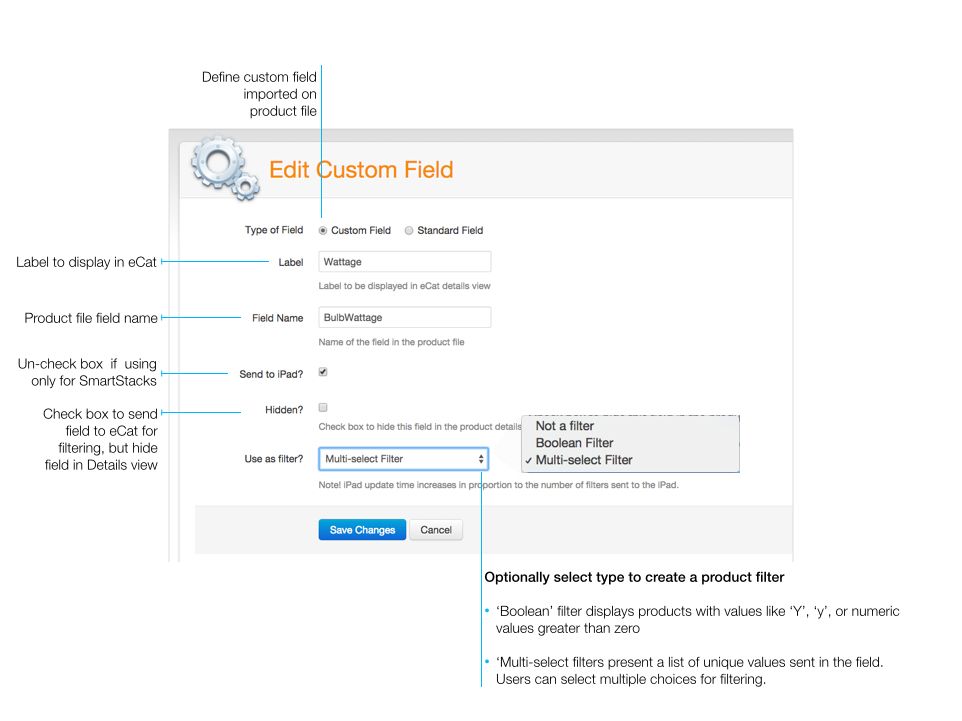
On the admin portal Products/Custom fields page, create new custom fields by clicking the ‘New Custom Field’ button. Edit custom field settings by clicking the custom field name. The “Delete” button permanently deletes the custom field. There is no “undo”!
If a custom field is intended only for use in SmartStack selections, leave ‘Send to iPad’ unchecked.
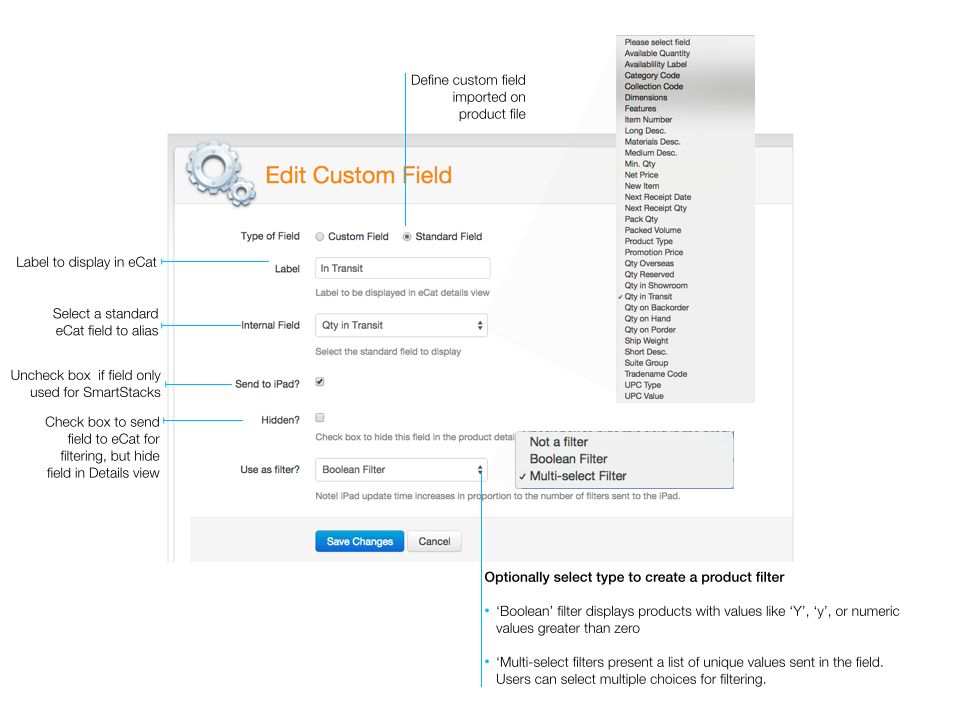
Standard eCat fields can be "aliased" as custom fields so they can be displayed in the Details view and Quick view and used as product filters. To alias a standard field, check the 'Standard field' radio button when creating the field, then select the desired standard field from the field name drop down list.
Organizing Custom Fields
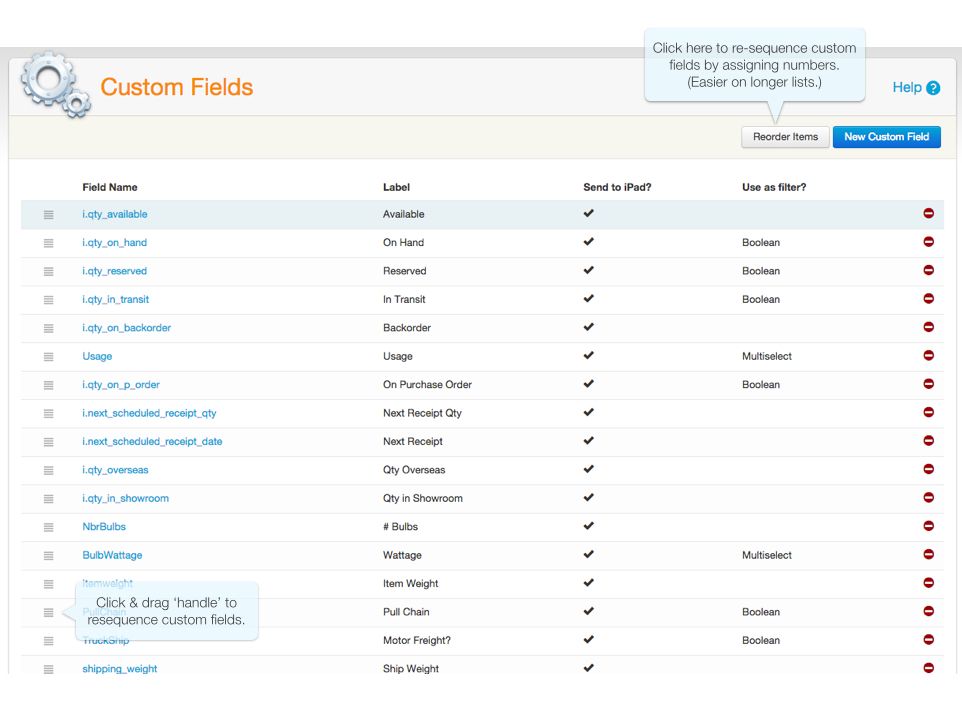
Custom fields display in eCat's Details view in the sequence in which they are listed in the admin portal field list. Click and drag the 'handles' to the left of the field name to change the display order.
Product filters
Filters enable users to select groups of items items that meet specific criteria, then browse by category, collection, etc. Multiple filters can be applied together to create a very specific search. If set up correctly, custom product filters can be a powerful tool. For example, in seconds users could use custom fields to identify groups of products like the following.
- Best selling items in selected product categories available for immediate shipment
- Best selling items that are sold out and not on purchase order
- Obsolete items that should be pulled from showroom display, or best selling items that are not on display in a showroom.
- Chandeliers or fans in a specific diameter range and style that are available in a specific warehouse
- Product development items from a specific vendor that are not yet priced.
Your imagination is the only limiting factor to the usefulness of custom filters in your company.
Built-in filters
In addition to the built-in sorts above, eCat provides some default filters for those companies providing sales data.
- Has Purchased - filter the catalog to only show products a specific customer has purchased. Requires a customer is selected and the org has sales data (New with eCat 2023.5)
- Has Not Purchased - filter the catalog to only show products a specific customer has not purchased. Requires a customer is selected and the org has sales data (New with eCat 2023.5)
Creating custom product filters
Custom fields can be used to create filters for product selection. To create a filter, select a filter type in a custom field definition. (‘Send to iPad’ must be checked in order to use a custom field for filtering.) There are two types of filters.
‘Boolean’ filters present a radio button to users. Products are selected if the field value is ‘Y’, ‘y’, or greater than zero. Boolean filters can be used to select items like ‘Top Seller’, or ‘Available in <location>’ (quantity > zero).
Multi-select filters show a selectable filter option for every unique value found in the custom field. These are useful for finding products by attributes like finish, size range, style category, etc. that have multiple values. If a field with boolean values like ‘Y’ and ‘N’ is defined as a multi-select filter, eCat users can select for either true and false values. For example, items that 'are in inventory’, or are ‘not in inventory’.
Custom field & filter applications
Here are examples of how companies are using custom product fields. (Consider using italicized fields for catalog filtering and bold fields for sorting.)
General: packing carton dimensions, inner pack dimensions, number of cartons per unit, required shipment method, dimensional weight, pack quantity, introduction date, best seller?, inventory availability by distribution center, order lead time, assembly required?, UPC #, NMFC #, item highlights, next available quantity(s) and date(s), product status (active/discontinued), minimum order quantity, introduction date, product rank
Executives & product managers: sales rank, unit/monetary sales for rolling period, monthly demand, last price change date & previous price, vendor name, country of origin, first cost, markup, gross margin, gross margin rank, quantity in showroom(s)
Furniture: seat depth/height & arm height, height to table apron, headboard/footboard height, COM yardage, max. TV size, drawer & shelf details, wood species, ships with cushions, standard cushion type, trim options, finish description/name, hardware finish description, description of hidden/interior features, etc.
Lighting: style e.g. 'traditional' / 'contemporary', design origin e.g. 'Early American', '18th century', primary material e.g. 'brass' / 'glass', bulb type e.g. E12 candelabra, E26 medium..., lamping e.g. 'incandescent', 'LED', etc.), voltage, max. wattage, 'Energy Star' (Y/N), dimmable (Y/N), number of bulbs, color temperature, rated lumens, direction (up/down/both), height, length, width, hanging weight, length of chain provided, top-to-center measurement, finish, install direction, application (interior/exterior), safety rating (wet/dry), shade(s) included?, shade dimensions, ADA?, assembly instructions PDF (url), installation video (url), 3D scan/video (url), product specifications PDF (url), line drawing PDF (url),
Fans: CFM output at various speeds, blade pitch, motor wattage, motor size, blade composition, blade length, rating - dry/wet, motor size, light kit?, bulb size & type
Fabric Industry: direction, UFAC class, sub-class, repeat, material type, cleaning instructions
Tips & Tricks
- User groups can be used to publish custom fields exclusively to specific types of users. So you can customize eCat to show executives, reps, customers, vendors, international users, etc. specifically what they need to see in eCat.
- If a URL (‘http://<something>’) is sent in a custom field, eCat displays a ‘Tap Here’ link in Details that opens the page in a web view inside eCat when tapped. (The iPad must be online.) This can be used to associate web hosted user manuals, assembly instructions, videos and other product specific information with products. Users have the option of emailing these links to customers.
- For best results, limit the number of multi-select filter values to 10-15 choices.
For additional information on using custom fields to sort your catalog see Sorting Products with Custom Fields| Knowledge Base| SuperCat Solutions