Overview
eCat can display customer sales history and order backlog information in ways useful for serving customers and building sales. Users access sales information by tapping one of three buttons in eCat's customer panel.
- SectionDescription
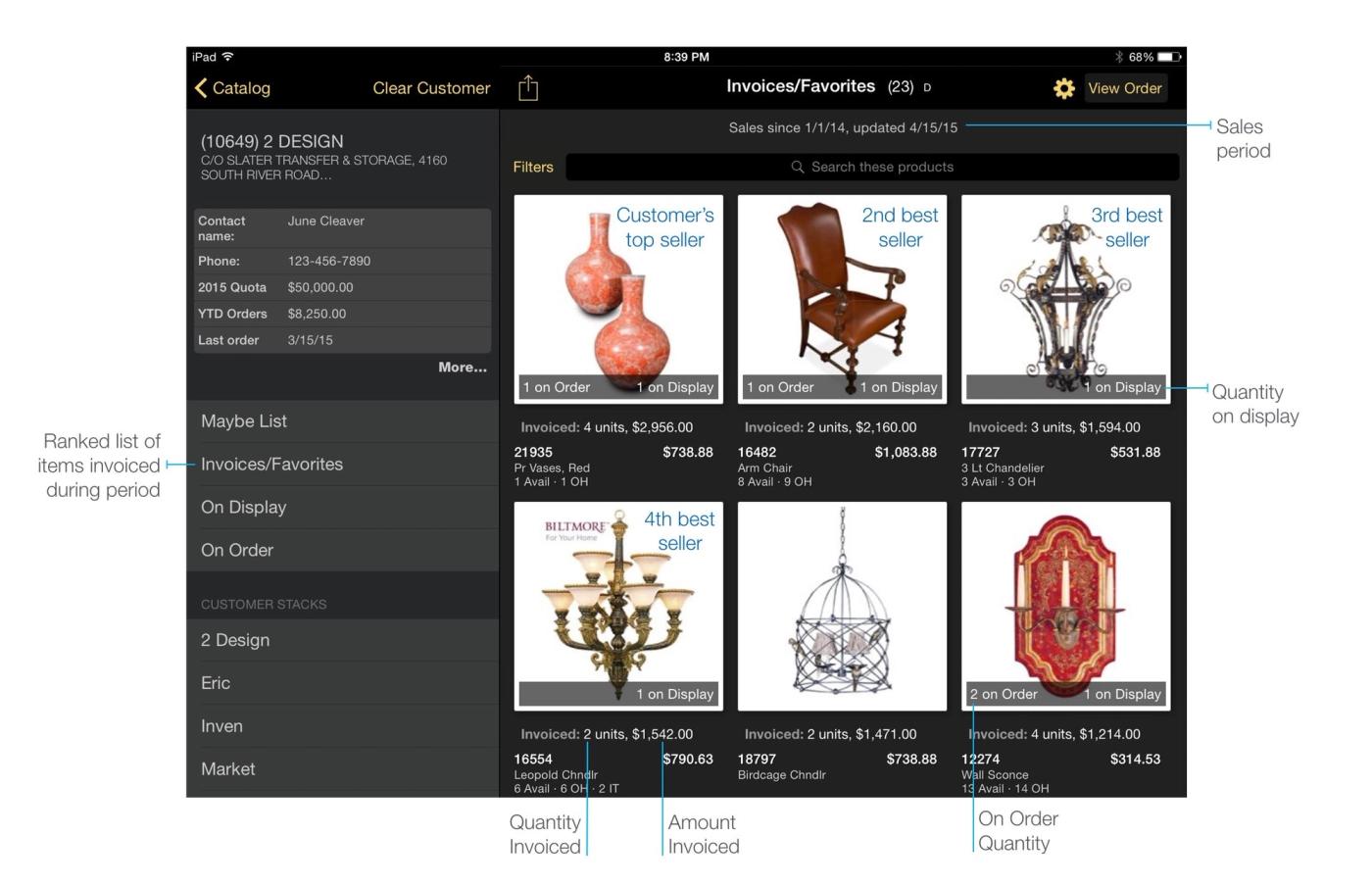
- Invoices/FavoritesIdentify the items and types of items the customer sells best
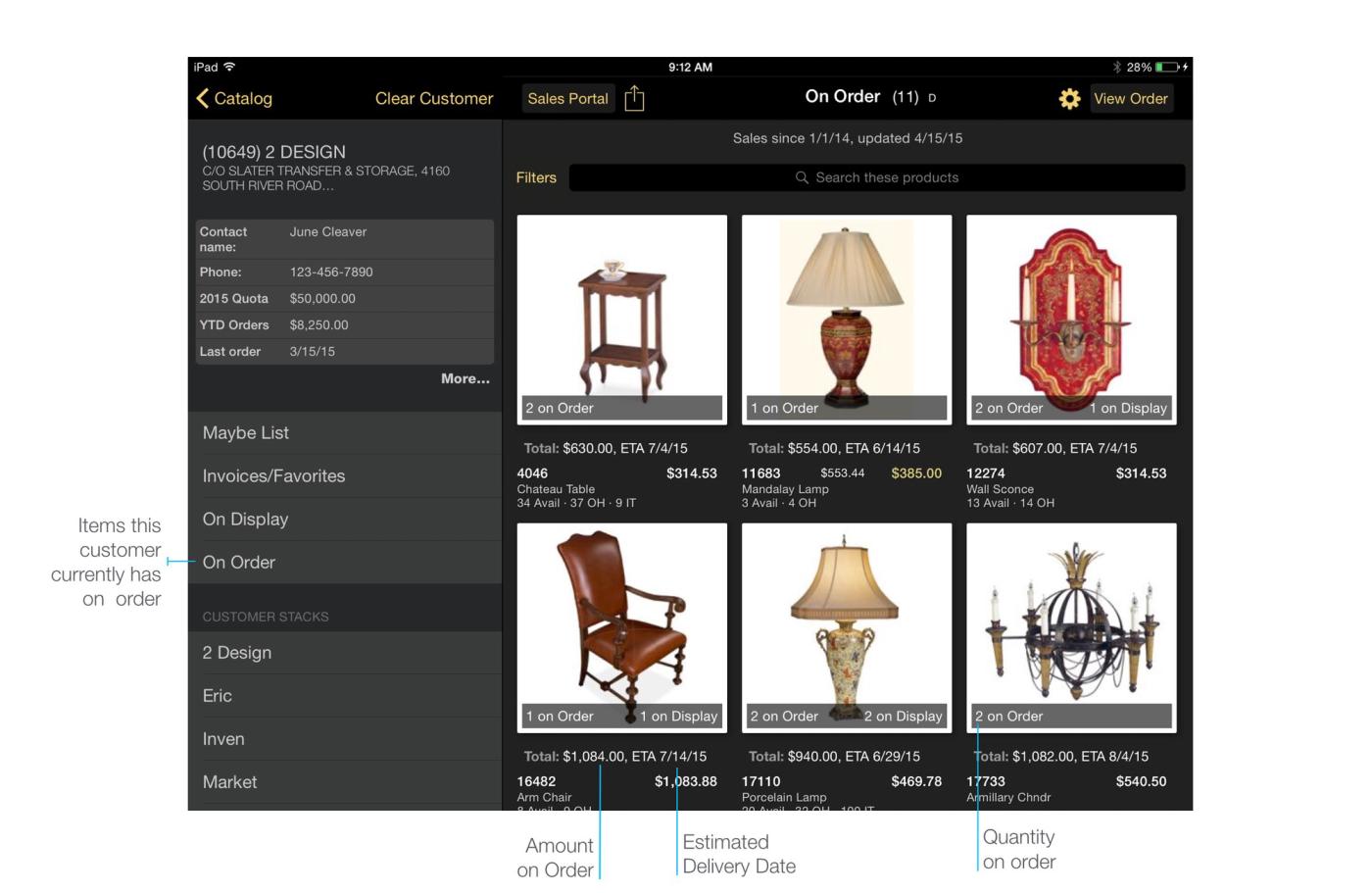
- On OrderCompare the customer's items on order with back ordered quantities and dates
- On DisplaySee items the customer has, or should have, on display
- SmartPicksView regional best sellers the selected customer is not buying
- Publishing Sales DataDetails the requirements to create and upload your SmartPicks
- Auto Generate Sales DataUnderstand how to create and upload Sales Data
- TipsSee popular tips when working with Sales Order data
- Watch VideoWatch a short video on how sales data can be used in eCat to enable 'Smart Selling'
Overview
The Favorites and SmartPicks features enable eCat users to
- quickly understand and show customers which products and types of products sell well for the customer, and
- increase sales by generating reorders, suggesting other items that fit the customer's purchase profile, and recommending regional best sellers the customer has not recently purchased.
Invoices/Favorites
Displays photos of items shipped to the customer during a time frame of your choosing. The list is sorted by descending total invoice amount to show the customer's 'favorite' items at the top of the list. This enables eCat users to quickly profile the types of products a customer likes, propose re-orders, cross-sell similar items, and view what a customer should have on display or in their lineup. 'On-order' quantities and the display sample quantity are shown if provided in the sales data file.
On Order
Displays a list of items the customer currently has on order with the order backlog quantities. The estimated delivery date is shown if provided. This list is shown in eCat's default sort sequence.
On Display
Shows a list of items a customer has (or should have) 'floored'/on display in their showroom, with on-order quantities.
You can provide this directly to us in sales_data.csv in the DisplayQuantity column.
However, if you are using our Placements feature, we will calculate the value from there. For more information, see Display Inventory Setup.
SmartPicks
'SmartPicks' make it easy for sales teams to discover and recommend items that be attractive to and sell well for specific customers. eCat makes it easy to quickly share and write orders for SmartPicks selections.
How SmartPicks Work
Select a customer in eCat then tap the 'SmartPicks' button to show an automatically generated list of top selling items the selected customer has not purchased recently (within the sales_data.csv time frame). Item sales quantities and dollars, availability and other information can be displayed with each item. Since the 'top sellers' are specific to the user's customer list, they represent only items that sell best in the user's territory. So for some types of products, this may reflect regional product preferences.
Items are recommended based on territory sales ranking and the customer's purchase history. The top ten best selling items in the eCat user's territory (the customer list sent to the iPad) from each of the currently selected customer's top selling categories are listed, followed by other top selling items in the territory. The recommendations include only items the customer has not purchased within the sales history time frame.
For example, if a customer's top category is 'Chandeliers', the top ten chandeliers the customer has not recently purchased will be listed first. If the customer's second best category is 'Landscape Art', the top ten items in that category will be shown next. After listing the 'top-10' for the top categories, additional top sellers in the territory are shown, up to 100 total items.
Under each SmartPicks photo, eCat displays the total unit and dollar sales for the item in the territory. (The totals for the user's customer list.) This makes it easier for users to prioritize which items to recommend to the customer.
SmartPicks And Security
SmartPicks show total unit and dollar sales for the customer list sent to the iPad. So if all customers are published to a user's iPad, SmartPicks show total company sales and top sellers for the entire company. The following user group settings will affect SmartPicks as described.
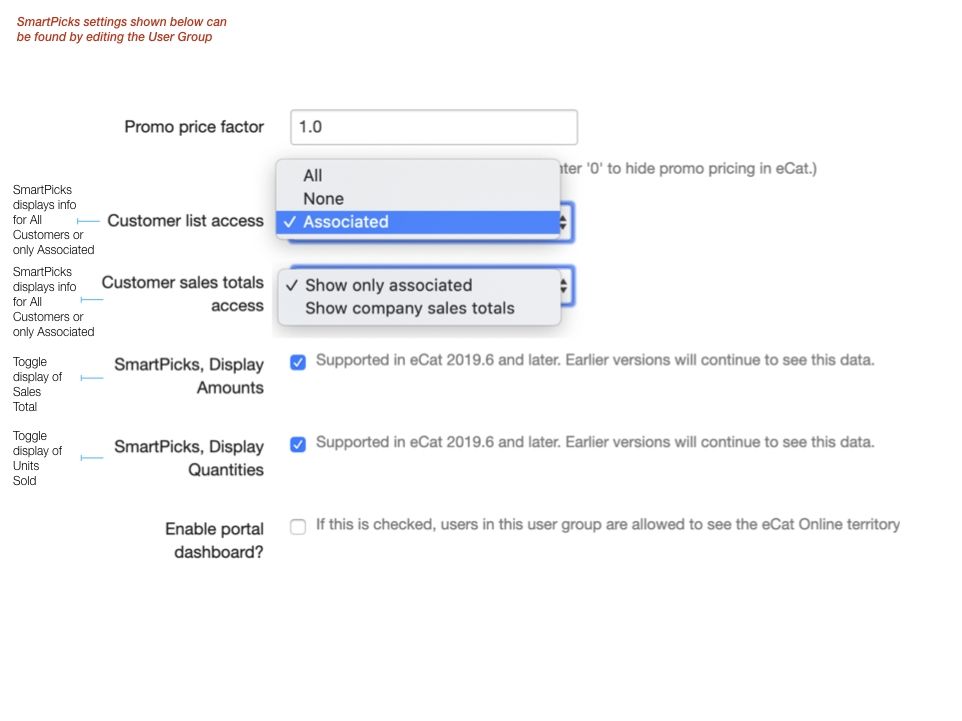
Customer List Access
The Customer List Access is be configured with three different options, All, Associated, and None. Each selection impacts the ability to view SmartPicks as described:
- SettingDescription
- AllData from all active Customers will populate in Smartpicks, including Customers outside the Username's Territory Code.
- AssociatedOnly active Customers associated with the Username's Territory Codes will populate.
- NoneCustomers and their SmartPicks entries will not be accessible when None is selected.
Customer Sales Totals Access
The Customer Sales Total Access can be configured to either Show Only Associated or Show Company Sales Totals from the User Group settings.
- SettingDescription
- Show Only AssociatedWill show the combined totals for an item as found within the Username's Territory Codes
- Show Company Sales TotalsWill show the totals for All active Customers
SmartPicks, Display Amounts
This checkbox will allow you to configure if a User can or cannot view the total sales of an item. When checked, the Total amount of Sales for the Item will appear beneath the image. When unchecked, the items Total Sales will be hidden.
SmartPicks, Display quantities
This checkbox will allow you to configure if a User can or cannot view the total units sold for an item. When checked, the amount of Units sold will appear beneath the image. When unchecked, Units sold will be hidden.
Sorting products by company sales rank
You can optionally enable eCat to sort products by company sales rank in the User Group settings. This works by using your Sales Data to determine the sales rank of each product, then sending that rank to eCat without including actual monetary values.
Use this to provide insight to reps about what products sell well in general, compared to the products a particular customer is buying.
This feature is off by default. To turn it on, make sure "Allow sorting by company sales rank?" is checked, then save the user group. After the user syncs eCat next, they will be able to sort by sales rank.
Publishing Sales Data
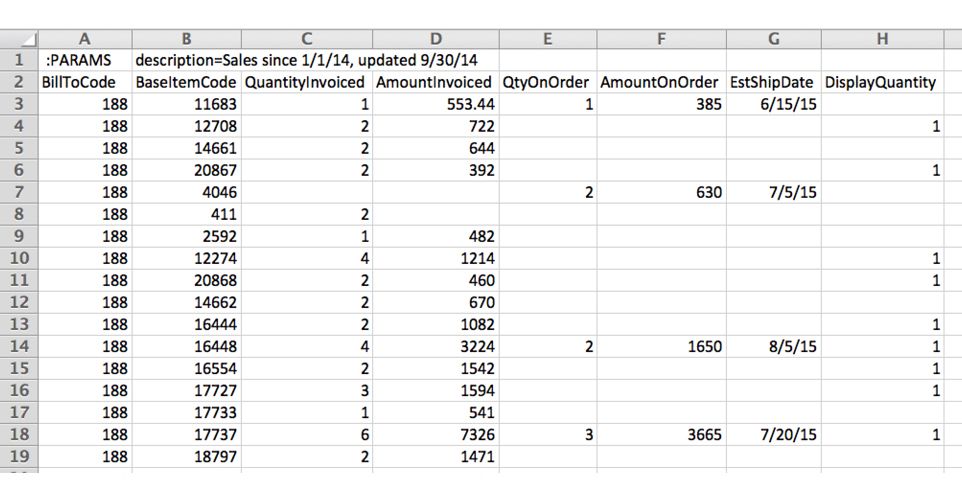
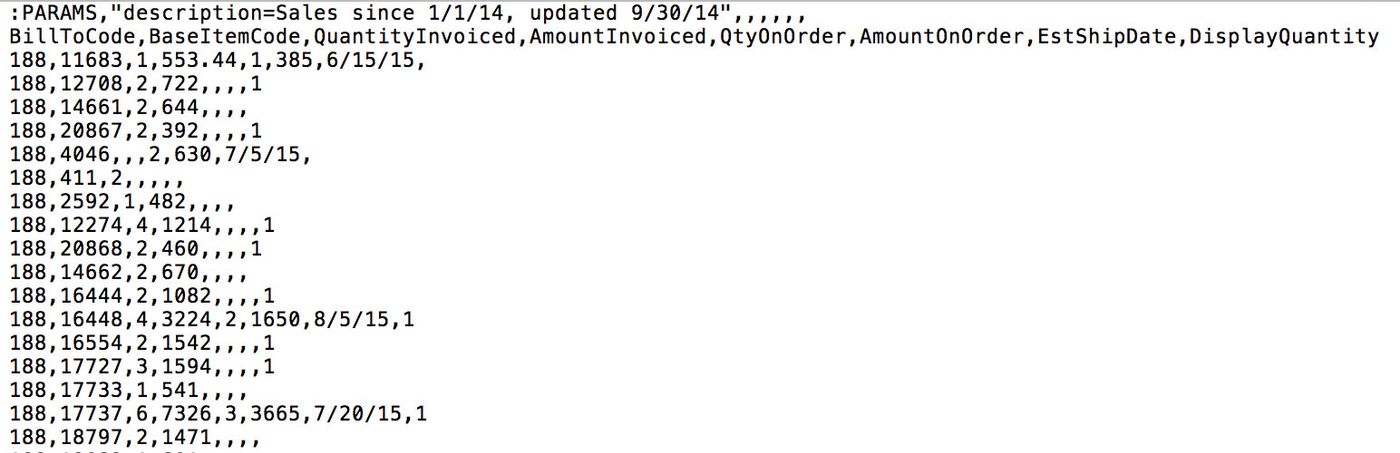
To implement the Favorites/Sales Data features, upload a file with sales data for a period of your company's choosing - whatever time frame will be most useful to your eCat users. Many companies send sales numbers for a rolling 24 month period and update this file daily. The file should be named sales_data.csv. Each entry/row in the sales data file corresponds to a product-customer combination. I.e. "for this customer and this product, this is how many have been invoiced, are on order, etc.".
The file can be uploaded interactively using 'Tools/Data', or put in the 'Data' directory of your eCat SFTP site for automatic processing
The file can contain the following fields/columns.
- Field Name Req? Description
- BillToCode Y bill-to code of the customer to which this row refers
- ShipToCode N ship-to code of the customer to which this row refers; if this optional field is omitted, a user will need access to every ship-to code within a bill-to code to be able to see invoices for any part of the bill-to
- BaseItemCode Y item number of the product to which this row refers
- QuantityInvoiced N* total quantity of this item invoiced to this customer during the selected period
- AmountInvoiced N total monetary amount of this item invoiced to this customer during the selected period
- DisplayQuantity N total quantity of this item this customer has (or should have) on display
- QtyOnOrder N* total quantity of this item this customer currently has on order
- AmountOnOrder N total monetary amount of this item this customer currently has on order
- EstShipDate N estimated date the on-order quantity for this item will ship to this customer
* One of either QuantityInvoiced or QtyOnOrder must be provided - both cannot be empty.
Parameters
The first line of the file may contain a parameter to be displayed as a title in eCat. The format is as follows.
:PARAMS,"description=Sales Data from 02/01/13 to 01/31/215 (last updated 02/01/15)"
This parameter would display the following title above the sales lists.
"Sales Data from 02/01/13 to 01/31/215 (last updated 02/01/15)"
When using a spreadsheet to modify sales_data.csv, the parameters string should be in the first two columns of row one. The first column should contain the string ":PARAMS" and the second should contain "description=<the data time frame label to display>".
Sample sales_data.csv File
Automatically Generating sales_data.csv
To save effort, the sales_data.csv file can be automatically created from the order and invoice data your company sends to support the eCat Online Sales Portal. Simply put a file named sales_data_sentinel.csv in the FTP site 'data' directory two hours after uploading the order_data.csv and invoice_data.csv files*. SuperCat's server will then automatically generate and import the sales data file. The sentinel file contents don't matter. The import system merely checks for presence or absence of the file.
*NOTE: The sales_data.csv file is automatically generated from data in the sales portal data warehouse. It can take up to 1.5 hours for the warehouse to update after uploading the order and invoice data files. To ensure the sales data file is created with current data, schedule the sentinel file upload for two hours after the sales data files are uploaded.
Specifying a date range
By default, we generate 2 years of sales data. If you want to use a different range, you may optionally specify a number of months in the sales_data_sentinel.csv file, as follows:
That is, the whole file will contain only that, and we will generate the sales data file using 12 months instead of the default 24 months.
Tips
- Sales data entries are associated with the bill-to code value. If the selected customer has a ship-to selected, it will be ignored.
- The 'Invoices/Favorites' list sorts by descending amount invoiced. Items without amount invoiced values are sorted after those with, in order of quantity invoiced (largest first).
- If there is no sales data relevant to a specific sales data button, the button will be grayed out.
- Items that are not included in products.csv should not be included in sales_data.csv.
- Customers that are not included in customers.csv should not be referenced in sales_data.csv.
- Most companies find it works best to send send sales data for the most recent 24 months, or 12-18 months in the case of companies with high sales volumes. The longer the time frame for the sales data, the less recent and relevant the summary information will be. So sending data for too long a period makes the sales_data features less useful.