Overview
For orders that have a credit card associated with them, it is possible to capture funds (aka charge the card) from our admin console. This document describes how that works.
Configuring
In order for a user to be able to capture funds for a given order two things must be true. First, 'Enable charging credit cards' must be checked under company settings for your organization. Second, that user must either be an admin ("Admin?" is turned on in their user record), or they must have the "Manage credit card transactions" permission in the user group permissions for their user group.
Enabling "Manage credit card transactions"
We recommend creating a new user group for credit card management users.
Once you have selected or created a user group, edit the user group and scroll down to the Permissions section. Check the "Manage credit card transactions" permission and save the user group.
Please remember that assigning this permission to the user group assigns the permission to all the users in that user group.
Associating a Credit Card with an Order
Both eCat and eCat Online can allow users to associate a credit card with an order. If the credit card is added through Shuttle, our payment gateway API, credit card transaction managers can capture funds for the order.
For more information on how this works in eCat from a user's perspective, see the document Securely Capture Credit Card Information | Knowledge Base | SuperCat Solutions.
Capture Funds
Once a credit card is associated with an order, view the order in the admin console. Start the process of capturing funds by clicking the "Authorize and Capture Funds" button:
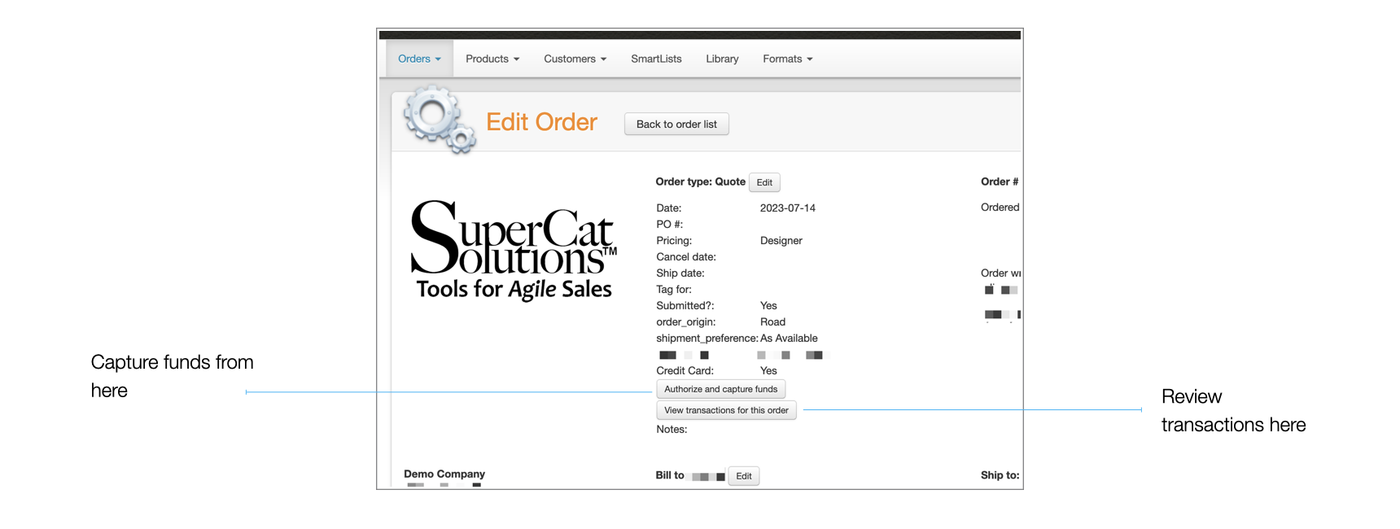
Fill out the payment information and submit. This will authorize and capture funds. You will be able to see this in your payment gateway, as well as in the transaction list for the order.
Please note that orders that do not have an associated credit card will not have this button.
Viewing transactions
For all transactions that were submitted through our admin console interface, you will be able to review a list of historical transactions. Click the "View transactions for this order" button to do that. If there are no transactions for this order yet, the list will be empty.