Summary
The Option Mapping feature gives admin users the ability to define relationships between product options so that selections in one option set dynamically affect available choices in others. This is especially useful for product configurations that depend on specific combinations, such as fabric and trim, ensuring only valid combinations are shown to customers.
This feature is currently in beta.
Overview
What Is Option Mapping?
In many products, particularly those with customizable attributes, some options constrain or influence others. Option Mapping enables you to:
- Restrict options in one set based on selections in another
- Control display logic for dependent options
- Maintain clean, accurate product configurations
For example:
If a customer selects Fabric: Bamboo Chord, only compatible Trim options will be shown (or none, if incompatible).
How It Works
Directional Logic
Option Mapping always flows top-down. You cannot create circular or reverse dependencies.
- Option Set 1 → Option Set 2
- You cannot configure Option Set 2 → Option Set 1
Each mapping begins with an “Option Set 1”, the trigger, and defines how that affects other sets.
Mapping Structure
Mappings are created through the admin console (not via imports).
- Option Set 1: The trigger set (e.g., Fabric)
- Option: A specific choice within the set (e.g., Bamboo Chord)
- Option Set 2: The set being affected (e.g., Trim)
- Option Group(s): Groups of valid options to show in Option Set 2
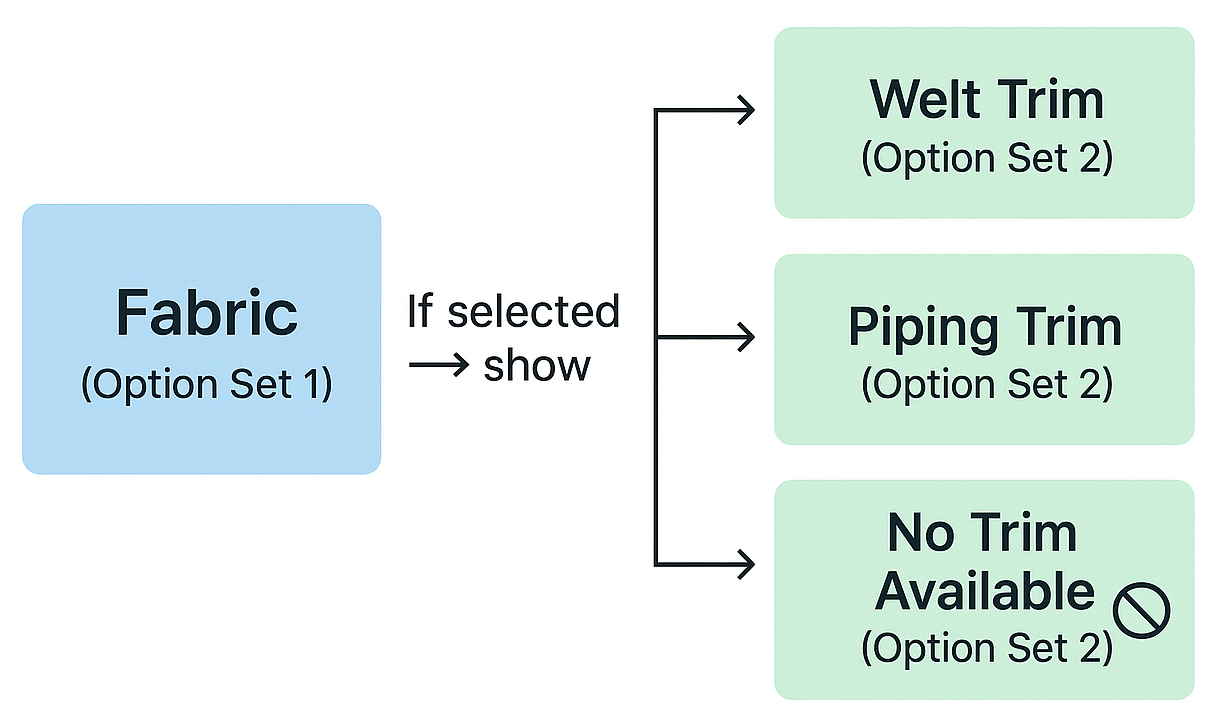
If Fabric: Chord (Option Group: Chord Group) -> Then show -> Trim: Welt (Option Group: Welt Group)
Mappings are managed as connections within a mapping definition. You can:
- Add new connections
- Edit existing ones
- Delete specific mappings
All mappings are grouped under the initiating Option Set (Option Set 1).
Currently, Option Mappings are not supported via product import files due to their complexity.
Admins:
- Import products, product options, and option groups as usual
- Then, manually configure option mappings via the Admin Portal
Access & Permissions
- Option Mapping setup is limited to:Org AdminsSuper Admins
- Requires enablement by the SuperCat Support team
- Not visible unless enabled for the organization
This staged rollout is intentional to limit usage while the interface and experience are refined. To enable this feature, please get in touch with SuperCat Support.
Prepping Your Products for Option Mapping
Options in Option Mapping will be based on how your product options are set up and ultimately, your OptionSetLabels, which are defined under Company Settings and identified in the product file. (See here for a detailed guide on product options.)
Before navigating to the Option Mapping feature, ensure that the following has been set up correctly:
- Option Types are defined:
- Determine the option types required for your products.Admin Console > Tools > Company Settings > Option Types > Define Option Types.
Tip: Remember to assign numbers to option types in the sequence in which they should display in eCat. It's usually best to list option types from which a selection is required and the most frequently used option types first.
- Specify Options in the Options File:
- List and define your product options in the product file.
- Upload Option Images:
- Option photos display in eCat's option picker as a visual reference. Users tap option photos to associate options with products.
- Define Option Groups:
- Use the option groups file to associate Options with Options Groups to create sets of mutually exclusive Options from which users will choose when ordering products.
- Populate product file option sets:
- Option set fields on the product file define which options of each type may be chosen for a product.
- Set up Matrix option Pricing (optional):
- Matrix Pricing in eCat allows automatic, product-specific pricing for options like graded fabrics or finishes. It adjusts prices based on the selected product and options—removing the need for manual calculations or complex price lists.
- See here for more information on Matrix Option Pricing.
Once the above has been set up, you can now begin to design your Option Mapping.
How to set up Option Mapping
A general rule to follow when creating option mapping is to select the independent variable first and add the dependent variables thereafter and in sequence.
Admin Console > Products > Option Mappings > New Option Mapping
- Select an Option Type, e.g., OptionSet1: Finish
(These Option Types pull through from your Option Types defined under Company Settings)
- Add Mapping Connection:
- Select Option Group (These are defined in your option group files)
- Select Option Type (this would be the second dependent variable)
- Select > Add to mapping
- Should you require further dependencies built into your initial OptionSet 1, continue to build dependency mappings until all criteria have been met.
- Don't forget to save your changes: Select Update mapping to save your mapped out options.