Summary
eCat supports special promotion pricing that allows users to apply discounts to selected items with a single tap. This is ideal for BOGO offers, trade show promotions, or limited-time discounts. Promotions are driven by a field in the product file (DiscountPriceLevelCode) that links each product to a specific price level.
Quick Start
Already have your price levels set up? Here is how to enable promotion pricing:
- Go to Admin Console > Pricing > Price Levels and create a price level for your promotion (e.g., "50% Off", "Free Display")
- Add the
DiscountPriceLevelCodefield to your product file - Populate the field with the price level code for each product that qualifies for the discount
- Upload your product file
- Ensure users have permission to see the discount price level in their User Group settings
Note: On the iPad, the discount button only appears if the price level code is valid AND the user is authorized to see it.
How It Works
Simple (Field-Based) vs. Rules-Based Logic
eCat uses a field-based approach to promotion pricing:
- Field-Based Setup: Promotions are driven by the
DiscountPriceLevelCodefield in your product file. Each product points directly to a specific price level. - Rules-Based Logic: If you need advanced logic (e.g., quantity tiers, customer groups, category-based discounts), that logic must be handled outside of eCat by preparing the correct pricing data before upload.
This means eCat does not calculate promotions dynamically based on business rules - it simply applies the price level you specify for each product.
How Promotion Pricing Displays
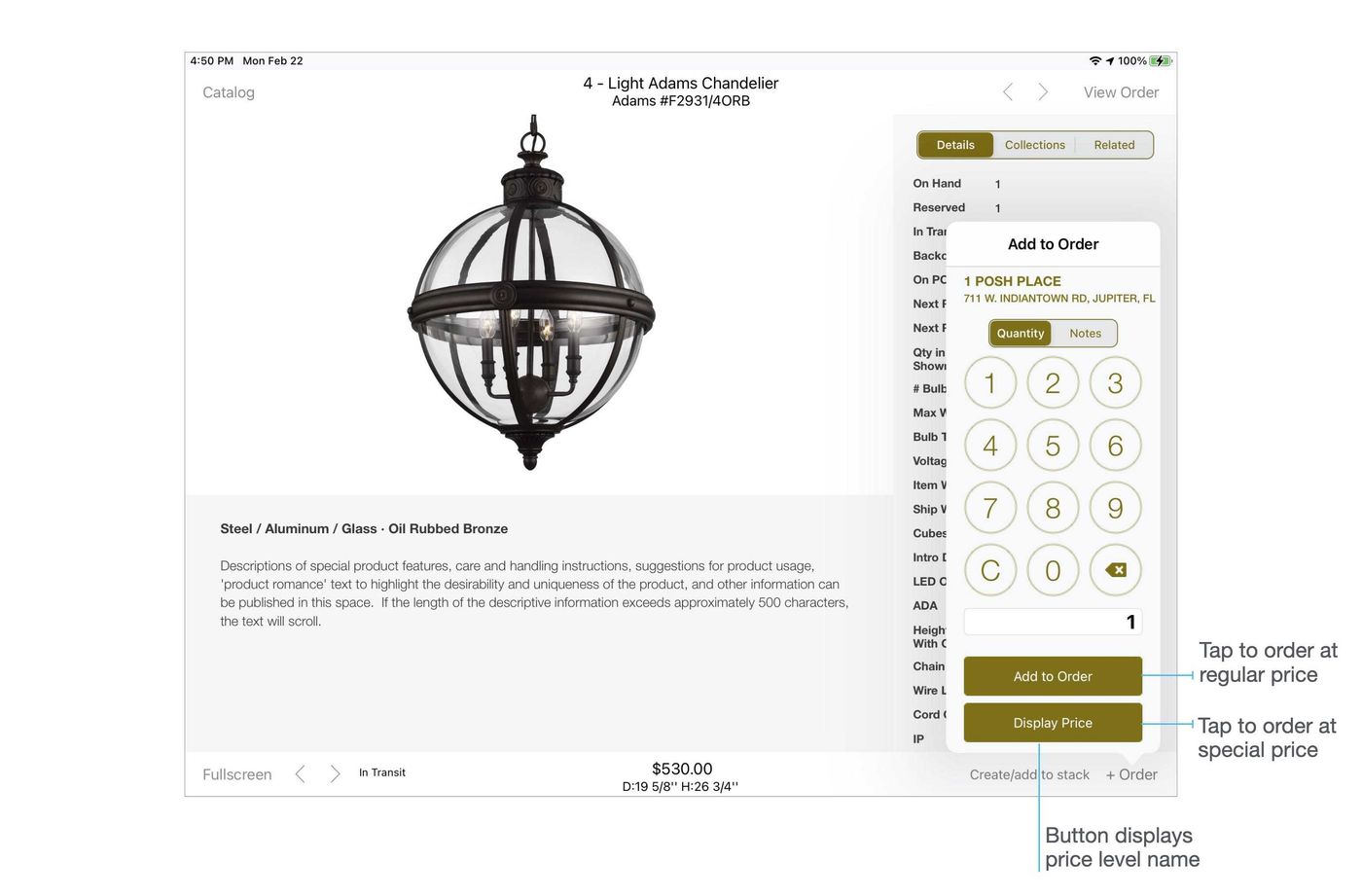
When a user taps Add to Order or scans an item on the iPad, a discount button appears on the order pad if:
- The
DiscountPriceLevelCodefield is populated with a valid price level code for the product, AND - The user is authorized to see that discount price level
Users Can Then:
- Tap the discount button to add the item at the promo price
- Tap Add to Order to add it at the regular price
- Add the same item at both prices if needed
On orders, discounted items display with the original price crossed out and the promo price beneath.
For Example:
Regular Price: $200
Market Promo: $150
Before You Begin
Before setting up promotion pricing, ensure you have:
- Price levels configured in Admin Console > Pricing > Price Levels
- Access to your product file for adding the 'DiscountPriceLevelCode' field
- User groups configured with appropriate price level visibility
Step-by-Step Setup
1. Create Discount Price Levels
In the Admin Console, define a price level for each discount or promotion. Go to Admin Console > Pricing > Price Levels.
Price levels can be:
- Calculated: A percentage discount (e.g., 10% off, 50% off)
- Imported/Ad Hoc: Specific prices per product imported via the product file
Name each level with the label you want displayed on the eCat Add to Order button, such as "50% Off" or "Free Display".
💡 Tip: Keep discount price level names short so they fit on the eCat button without truncation or font size reduction.
2. Update Your Product File
Add a field named 'DiscountPriceLevelCode' to your product file. Populate it with the appropriate price code for each product to which the discount applies.
3. Upload and Verify
Upload your product file and verify that the discount buttons appear correctly on the iPad for authorized users.
Tips and Best Practices
- Calculated vs. Ad Hoc: Use calculated price levels for consistent percentage discounts, or imported/ad-hoc levels for one-off prices.
- Label Length: Keep names short to avoid font resizing or button truncation in the iPad app.
- User Group Permissions: If some users should not access promos, uncheck the relevant price level(s) in their user group settings under Admin Console > Users > User Groups.
- Multiple Quantities: To order the same item multiple times without using this feature, simply add a note to one or more instances (e.g., to indicate promo eligibility or display purposes).
- One Promo Per Item: Only one promotion can be applied per item. If an item qualifies for multiple promotions, prepare your product file to specify the appropriate one.
Troubleshooting
Why is the discount button not appearing?
Check two things:
- The 'DiscountPriceLevelCode' field must contain a valid price level code that exists in your Admin Console.
- The user must have permission to see that price level in their User Group settings.
Why are order-level discounts not applying to promo items?
By default, items already at a promo price are not discounted again when an order-level percentage discount is applied. This prevents double-discounting.
If you need order-level discounts to apply to promo items as well, contact SuperCat Support to enable the "double discounting" setting for your organization.
Can I set start and end dates for promotions?
eCat does not currently support automatic promo expiration dates. However, you can:
- Use the Notices feature (Admin Console > Notices) to warn reps when promos are about to expire
- Adjust the Max Sync Threshold setting to ensure reps receive updates more frequently (contact Support to change this)
- Remove or update the 'DiscountPriceLevelCode' in your product file when the promotion ends
Need more help?
Contact Support - we'll walk through your setup.