(available in version 2.11)
Overview
Use custom fields on the customer file to make customer specific information available for quick reference in eCat - even when users' iPads are offline. This can include information like customer contact details, accounts receivable status, discount level, sales totals and budgets, last order date, and other useful customer information.
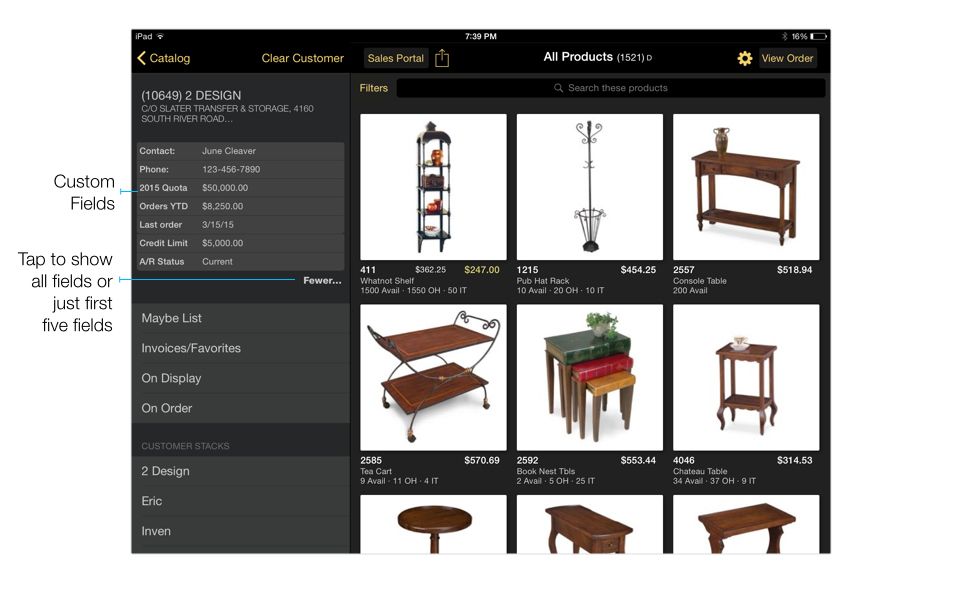
Customer fields are displayed at the top of eCat's customer panel.
Ideas for using
Companies are using custom customer fields to publish information like the following
- Name(s) and contact information for buyer(s)
- Date of most recent order
- Prior year sales, prior year YTD sales, current YTD sales, sales budget
- Purchase amount required to qualify for current discount level
- Accounts receivable aging numbers, A/R balance
- Credit limit, credit type e.g. 'factored'
- Territory code and sales representative name (for management users)
- 'Alerts' related to the customer
How to Set Up
Customer fields are created and maintained like custom product fields.
- Define the custom field(s) in the admin portal.
- Arrange the field(s) in the desired display sequence.
- Add the new field(s)/column(s) to the customer file and import the file.*
Like custom product fields, custom customer fields must be defined in your eCat admin portal before they can be imported.
1) Define custom field in admin portal
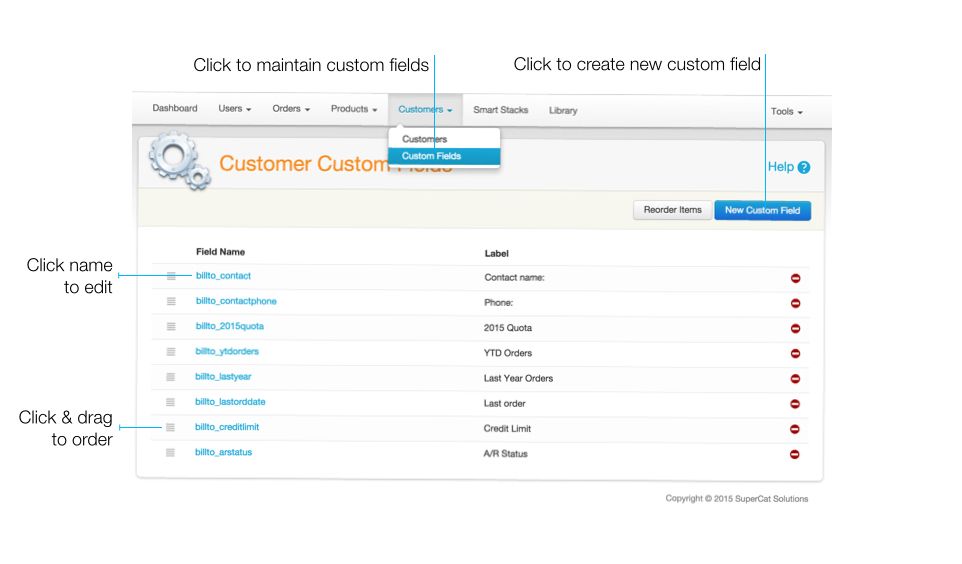
- navigate to Customers > Custom Fields
- select 'New Custom Field'
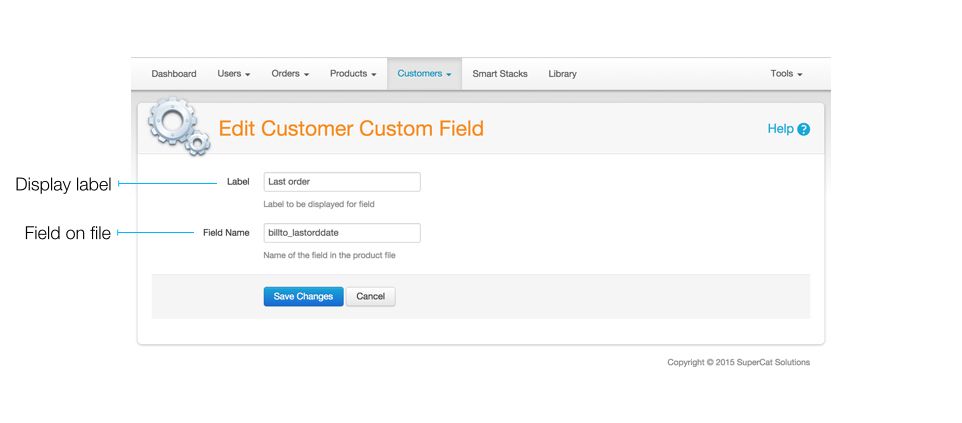
- specify the field (column) name and label, then save.
* Please note that the field name must be prefixed with "billto_"
2) Arrange fields in desired display sequence
Arrange custom fields in the order you want them displayed in eCat. Simply click and drag the 'handles' next to the field names. You can also click the 'Reorder Items' button and enter numbers to specify the field display sequence.
3) Add fields to customer file and import
After customer fields are created, they must be added to the "customers.csv" file, populated, and imported. For example, if you have set up a new custom field with a field name "billto_SalesBudget" you should add a column to the customer file with the same name and populate it with the appropriate value for each customer.
Note! For now, custom fields are associated only with customer bill to, not with ship-to. At some point this may change, so be sure that your custom fields are defined only on the first line for each bill to. For example, if a customer has multiple ship-to lines in the customer file, be sure that the custom fields are populated only on the first line.
Creating Clickable Fields
Starting in eCat 2024.1, if you send a customer custom field that starts with https:// or http://, we will display a button the user can tap to load that URL in web browser.
You can use this to point directly to an eCat Online Sales Portal customer dashboard for that customer to provide reps with access to sales history for that customer. If it's an eCat Online Sales Portal link, eCat will automatically and securely log the rep in.
Or you could use this to link to a printable version of the customer's terms.
This feature is also supported in the eCat Online Sales Portal when viewing a customer's dashboard page.
Restricting customer fields
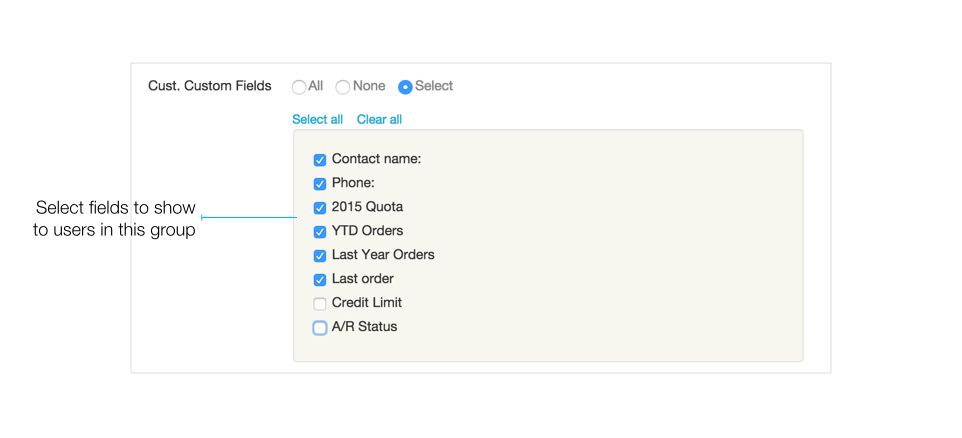
Customer field distribution can be controlled by user group. After defining custom fields, open the admin site user group page (Users/User Groups). Then select the customer fields you would like each user group to see in eCat.
Tips
- The first five custom fields are displayed at the top of the customer navigation panel. Fields six and above are hidden and can be viewed by tapping the 'More...' button. The 'hidden' fields can be used to publish things like A/R status, credit limits, and other information that should not be immediately visible to a casual observer.
- Custom fields and field labels wrap if they are too long to fit on a single line.