Summary
Your reps will ask you questions about eCat. This guide shows you where to find answers in the Admin Console so you can support your team without always escalating to SuperCat.
Overview
As an admin, you're the first line of support for your sales team. Most rep questions can be answered by checking the Admin Console—you don't need to contact SuperCat for every issue.
This guide covers the most common questions you'll hear and shows you exactly where to look for answers. Think of it as your "quick reference" for supporting your team.
What You'll Learn
- How to troubleshoot visibility issues ("Why can't I see this product?")
- How to fix pricing problems ("Why is my pricing wrong?")
- How to resolve customer access issues ("Why isn't my customer showing up?")
- How to handle image loading problems
- When to escalate to SuperCat vs. solve it yourself
"Why can't I see this product?"
What This Means
When a rep says they can't see a product in eCat, it's usually a visibility or permissions issue. The product exists in your catalog, but the rep's User Group doesn't have access to it.
Common Causes
- The product's collection isn't assigned to the rep's User Group
- The product is marked as hidden or discontinued
- The rep's territory code doesn't match any customers who can see that product
- The product was recently added and the rep hasn't synced their app
Where to Check
- Admin Console > Users > User Groups - Find the rep's User Group
- Click Edit on their User Group
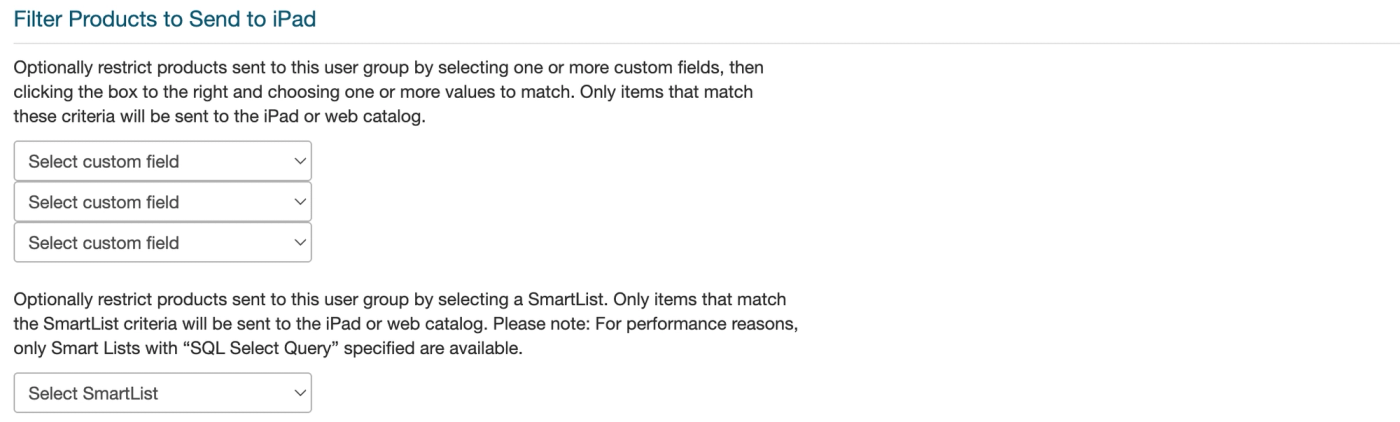
- Scroll to "Filter Products to Send to iPad"
- Check which collections/categories are selected
How to Fix
If the collection is missing:
- In "Select Product and Pricing Information", find the Collections section
- Select "Select" (not "All" or "None") to see individual collection checkboxes
- Check the boxes for the collections the rep should see
- Click Save
- Have the rep sync their eCat app — open the settings cog and tap "Refresh data", then wait for the data to refresh. Make sure the rep has a stable internet connection while doing this.
If the product is hidden:
- Go to Admin Console > Products > Products
- Search for the product by item number or name
- Click Edit
- Check if "Hidden" or "Discontinued" is checked
- Uncheck if the product should be visible
- Click Save
If it's a sync issue:
- Have the rep open the settings cog in eCat and tap "Refresh data"
- Wait for the data to finish refreshing (make sure the rep has a stable internet connection)
- Check again once the sync is complete
Note: After making User Group changes, reps must sync their app to see the updates. Changes aren't instant.
"Why is my pricing wrong?"
What This Means
When a rep sees incorrect pricing, it's usually because their User Group is assigned to the wrong default price level, or the pricing data in the customer file is incorrect.
Common Causes
- Rep's User Group is assigned to the wrong default price level
- Customer-specific pricing in your customer file hasn't been updated
- Rep is viewing a customer with a different price level than expected
- Rep hasn't synced their app since pricing was updated
Where to Check
- Admin Console > Users > User Groups - Find the rep's User Group
- Click Edit on their User Group
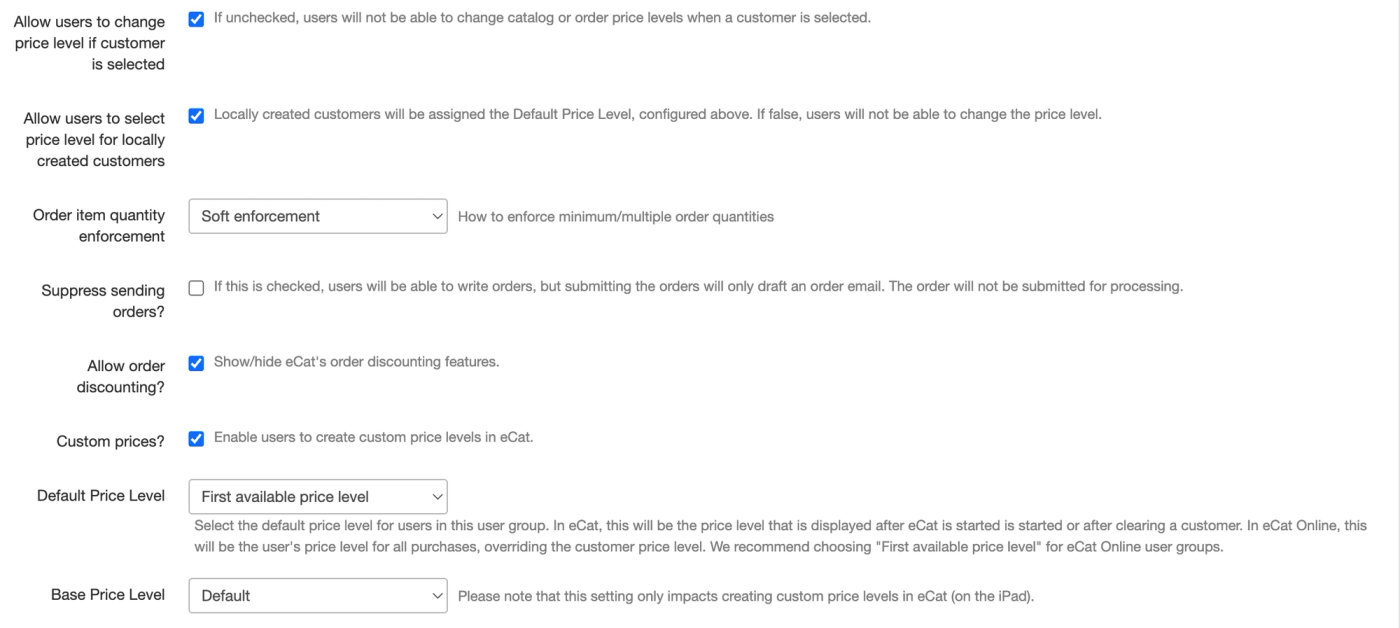
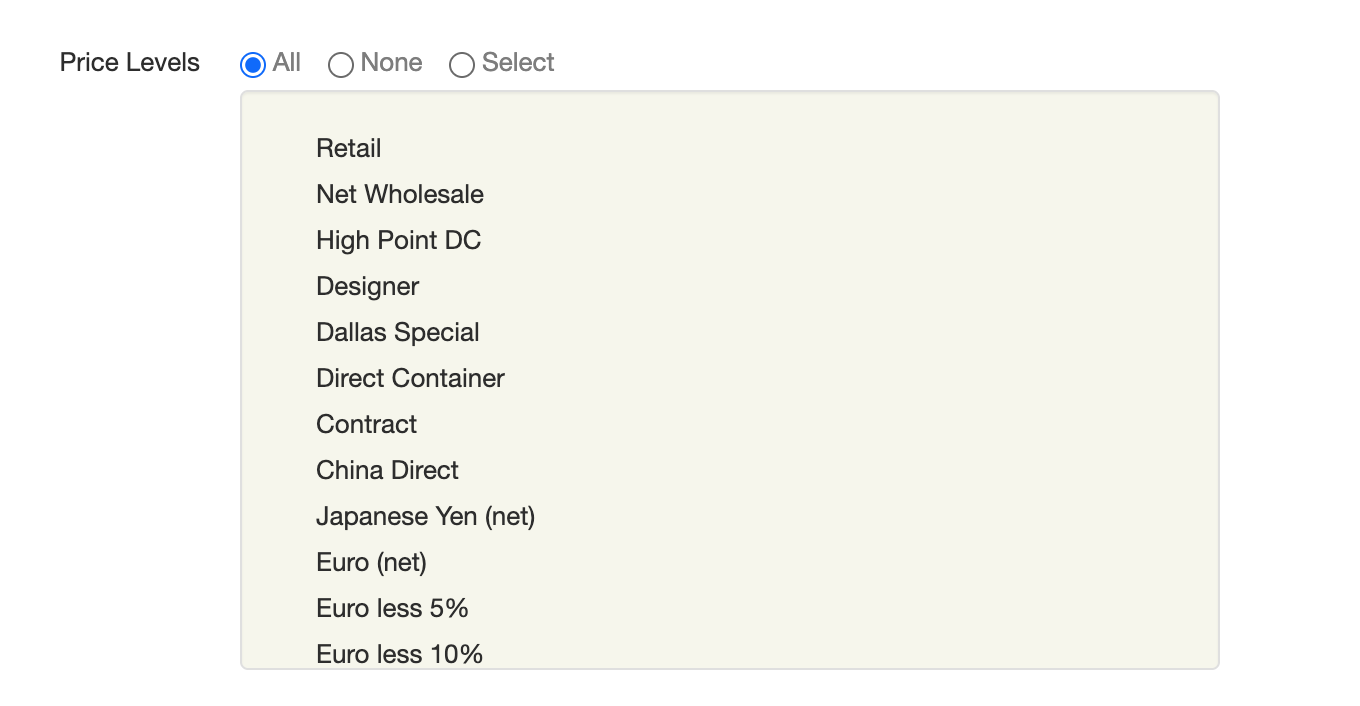
- Look for the Price Level or Default Price Level setting
- Verify it matches what the rep should see as a default
How to Fix
If the User Group has the wrong default price level:
- Change the Price Level dropdown to the correct level
- Click Save
- Have the rep sync their eCat app
If the pricing data is wrong:
- Go to Admin Console > Customers
- Search for and select the customer to view their account
- Check the Price Level assigned to that customer
- If incorrect, update your customer file and re-import
If it's customer-specific pricing:
Customer-specific pricing is controlled by the Price Level set in your customer file, not in the User Group. The User Group sets the default price level for reps; the customer file overrides it for individual customers.
- Go to Admin Console > Customers
- Search for the customer the rep is viewing
- Click Edit on the customer record
- Check the Price Level assigned to that customer
- If incorrect, update your customer file and re-import
"Why isn't my customer showing up?"
What This Means
When a rep can't find a customer in eCat, it's usually because the customer's territory code doesn't match the rep's territory code, or the customer hasn't been added to the customer file.
Common Causes
- Customer's territory code doesn't match the rep's territory code
- Customer hasn't been added to the customers.csv file yet
- Customer was recently added and the rep hasn't synced
- Customer's record has a typo in the name or number
Where to Check
Note: Before checking admin settings, confirm the rep hasn't simply selected the wrong price level in their iPad or eCat Online (if they have permission to change price levels).
- Admin Console > Users > Users - Find the rep's user record
- Note their Territory Code(s)
- Go to Admin Console > Users > Customers
- Search for the customer by name or customer number
- Check the customer's Territory Code
How to Fix
If territory codes don't match:
- Decide whether to:Add the customer's territory code to the rep's profile, ORChange the customer's territory code to match the rep
- Make the change in the appropriate record (the user account or in the customer file)
- Click Save
- Have the rep sync their eCat app
If the customer is brand new:
- Verify the customer was added to your customers.csv file
- Check that the file was successfully imported (Admin Console > Tools > Import History)
- Have the rep sync their app
Note: Customers can't be disabled in eCat — they are either in the customer file or they are not. If a customer is missing, check that they are included in your customers.csv file and that the file has been imported successfully. Reps can only see customers whose territory code matches at least one of the rep's territory codes.
"My images aren't loading"
What This Means
When images don't load in eCat, it's usually because the image files weren't uploaded correctly, the image file names don't match the product data, or there's a sync issue.
Common Causes
- Image files weren't uploaded to the Admin Console
- Image file names don't match what's in the products.csv file
- Images are too large (over 15MB for source images)
- Rep hasn't synced their app since images were added
- Network connectivity issue preventing image download
Where to Check
- Admin Console > Tools > Admin Reports
- Download the Missing Images Report or Orphan Images Report
- Review which images are missing or not linked to products
How to Fix
If images weren't uploaded:
- Go to Admin Console > Tools > Import Images
- Upload the missing image files
- Wait for the upload to complete
- Have the rep sync their app
If file names don't match:
- Check the Missing Images Report to see which file names eCat is looking for
- Either:Rename your image files to match what eCat expects, ORUpdate your products.csv file to match your actual image file names
- Re-upload images or re-import products.csv
If images are too large:
- Compress or resize images to under 15MB
- Re-upload the optimized images
If it's a sync issue:
- Have the rep force a sync by pulling down on the product list
- If images still don't appear, have them log out and log back in
💡 Tip: Image file names are case-sensitive. "Product123.jpg" is different from "product123.jpg". Make sure your file names match exactly what's in your products.csv file.
Best Practices for Supporting Your Reps
Supporting your reps effectively means being responsive, proactive, and organized. Here's how to set yourself up for success:
Create a Support System
- Establish a communication channel - Set up a dedicated Slack channel, email alias, or Teams channel for eCat questions
- Set response expectations - Let reps know when they can expect a response (e.g., "within 4 hours during business days")
- Document common solutions - Keep a running list of questions and solutions you've provided
Be Proactive
- Monitor usage - Check the Usage Dashboard weekly to see who's logging in and who isn't
- Reach out to inactive users - If someone hasn't logged in for a week, ask if they need help
- Announce changes - When you update pricing, add products, or make configuration changes, let your team know
Teach Reps to Help Themselves
- Share KB articles - When you answer a question, include a link to the relevant Knowledge Base article
- Create quick reference guides - Make one-page PDFs for common tasks ("How to create a quote," "How to find a customer")
- Record short videos - Use Loom or similar tools to record quick how-to videos for your team
Keep Learning
- Attend SuperCat training - Join webinars and training sessions to stay current on new features
- Read release notes - When SuperCat releases updates, review what changed
- Ask SuperCat questions - Don't hesitate to reach out to SuperCat support when you're stuck
💡 Tip: The first month is the hardest. After you've answered the same questions a few times, you'll develop a rhythm and supporting your team will become much easier.
Troubleshooting
Rep says "I synced but still don't see the change"
Solution: Try these steps in order:
- Have the rep open the settings cog in eCat and tap "Refresh data", then wait for the sync to complete (stable internet connection required)
- Check again once the sync is complete
- If still not working, have them log out and log back in
- If still not working, check that the change was actually saved in the Admin Console
- If the change is saved but not appearing, contact SuperCat support—there may be a sync issue
Multiple reps are reporting the same issue
Solution: If multiple reps report the same problem, it's likely a configuration issue, not a user-specific problem:
- Check the User Group settings that apply to all affected reps
- Verify recent data imports completed successfully
- Check for any error emails from SuperCat about failed imports
- If you recently made Admin Console changes, review what you changed
If you can't identify the cause, contact SuperCat support with details about which users are affected and when the issue started.
Rep question isn't covered in this guide
Solution: Use these resources:
- Search the Knowledge Base - Most questions are answered in existing articles
- Check the comprehensive guides - Articles like "Your eCat Admin Portal" cover features in depth
- Ask SuperCat support - They can answer questions and point you to relevant documentation
I don't know if I should escalate or try to solve it
Solution: When in doubt, try these quick checks first:
- Can you find the relevant setting in the Admin Console? (Try it)
- Does the Knowledge Base have an article on this topic? (Search it)
- Have you seen this question before? (Check your notes)
If you spend more than 15 minutes without progress, escalate to SuperCat. They'd rather help you quickly than have you spend an hour stuck.
💡 Tip: Keep a log of questions you escalate and SuperCat's solutions. This builds your knowledge base and helps you solve similar issues faster next time.
When to Escalate to SuperCat Support
You can solve most rep questions yourself, but some issues require SuperCat's help. Here's when to escalate:
Technical Issues Beyond Admin Console
- Data import errors you can't resolve - If imports keep failing with errors you don't understand
- System performance problems - If eCat is slow or unresponsive for multiple users
- Integration issues - Problems with ERP connections, API integrations, or automated data feeds
- Bugs or unexpected behavior - If eCat isn't working as documented
Configuration Changes You Can't Make
- Organization-level settings - Some settings are locked and only SuperCat can change them
- Feature enablement - Turning on new features or modules
- Advanced customizations - Custom fields, special reports, or unique workflows
Questions About How eCat Works
- Feature capabilities - "Can eCat do [specific thing]?"
- Best practices - "What's the recommended way to handle [scenario]?"
- Roadmap questions - "Is [feature] coming soon?"
How to Escalate Effectively
When contacting SuperCat support, include:
- What the rep was trying to do
- What they expected to happen
- What actually happened (include error messages or screenshots)
- What you've already tried
- User's name and organization
This information helps SuperCat resolve the issue faster and may help you learn how to solve similar issues in the future.
Note: SuperCat support is available at support@supercatsolutions.com. Response time is typically within 24 hours during business days.