Overview
eCat Online is set up so only users associated with approved customer accounts can see the shopping cart and place online orders. You may want to enable eCat Online users associated with prospective customers not yet set up in your back office system to enter orders in your eCat Online website catalog. Here's a work around to accomplish that.
- Set up a pro-forma 'new customer' account in your eCat customer file for each price level at which online customers will be purchasing
- Assign the appropriate 'new customer' account to applicants when approving their access to the eCat Online website
Setting up 'Proforma' Customer Records
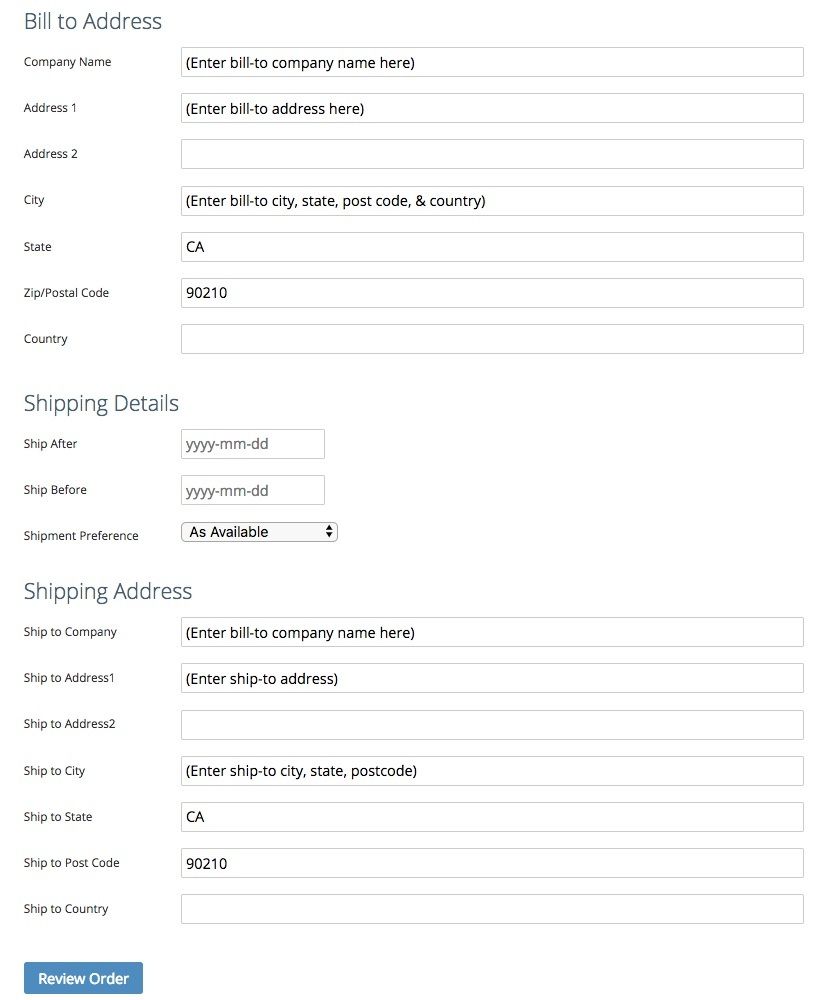
Enter a customer account record in the customer file for each price level at which new customers will be purchasing. Use field values like the following. These values will display and serve as prompts in the online order finalization page.
Approving users for new customer accounts
When approving online access for applicants for prospective customers not yet being sent in the eCat customer file
- Enter the appropriate territory code
- Assign the applicant to the proforma customer account with the appropriate price level code.
- Select the appropriate user group
Users linked to the proforma accounts will see the following when checking out the eCat Online order cart.
Permanant customer accounts
After a customer prospect places an order a customer account will have been set up for them in your back office system.
- Publish the new customer account in your company's eCat customer file, then
- Edit the eCat user accounts for all individuals associated with the new customer to replace the temporary proforma customer number with the permanent customer account number.
This will ensure that the user sees the correct information next time they place an eCat Online order.