In eCat, red orders usually indicate that they have not yet been exported when your company uses an API integration for order handling.
This can be normal, for example, when exports are pending submission, or it may indicate a potential integration issue.
Understanding red orders
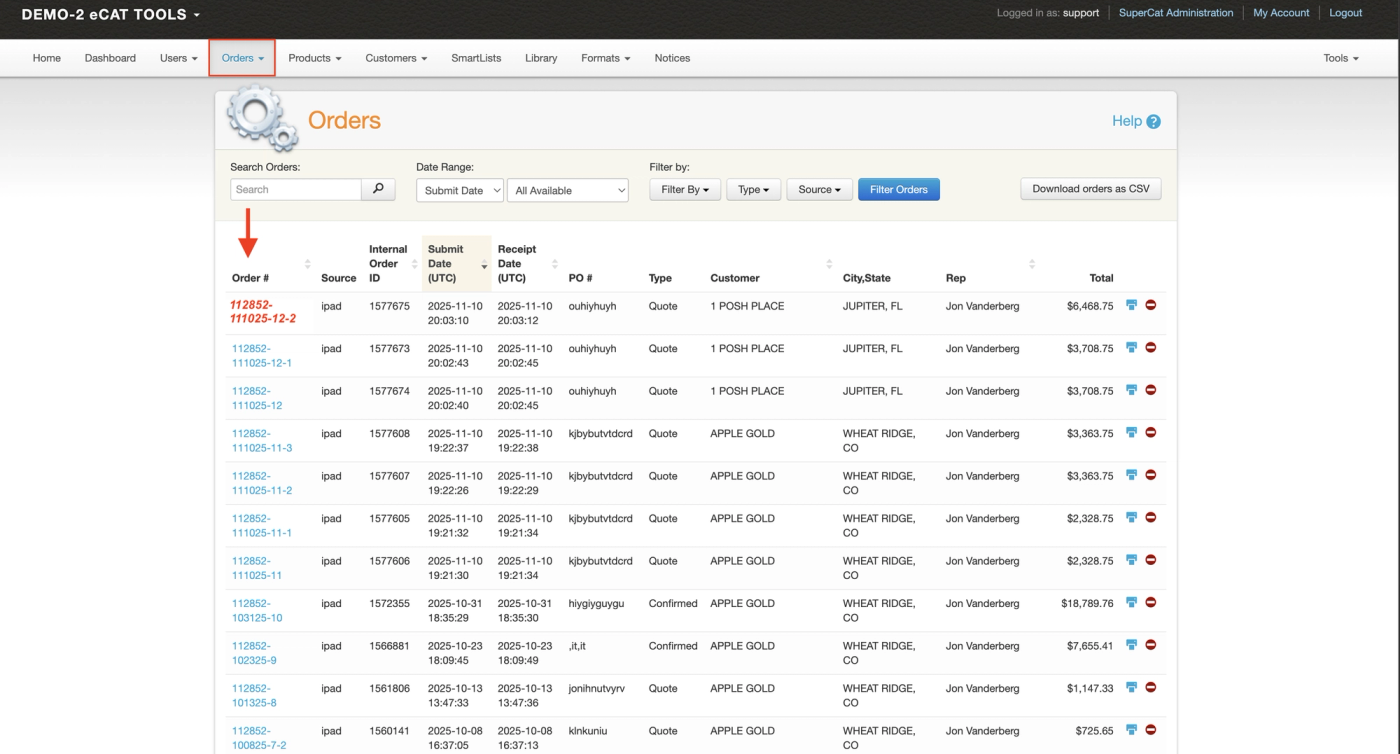
When viewing orders, you may notice some highlighted in red. This color is directly tied to your company’s order export configuration in the Admin Console.
If your organization uses a direct API integration (via JSON Push or Pull), red means the order has not yet been successfully exported. If your organization does not use an API integration, orders will not appear red.
Check your company’s export settings
- Go to Admin Console → Company Settings.
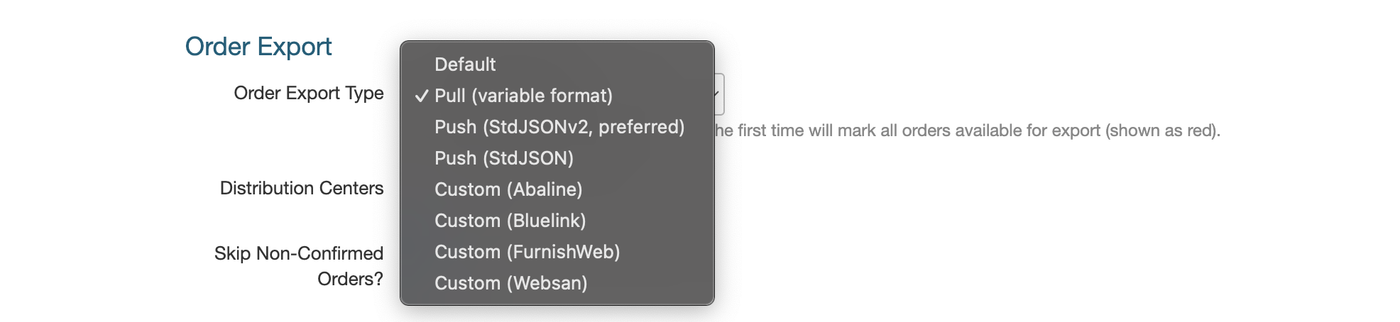
- Locate the Order Export section.
- Review your export method:"Default" – Typically means there is no API integration, and orders will not appear red.Non-Default Methods (e.g., "Push", "Pull") – These methods can result in red orders depending on the export status.
How export methods affect order color
Push
- Orders are sent (pushed) automatically and frequently.
- If an export fails (for example, due to a timeout), the system retries.
- If repeated failures occur, the order will remain red until the issue is resolved.
Pull
- The system retrieves (pulls) orders at regular intervals, such as every few minutes, hourly, or daily.
- New orders that have not yet been pulled appear red.
- Once pulled successfully and marked complete, they turn blue.
Checking order export status
- Go to Admin Console → Orders → Orders.
- Under the Order Number column header, search for any order numbers displaying in red.
- If the order number is displayed in red, review the following:
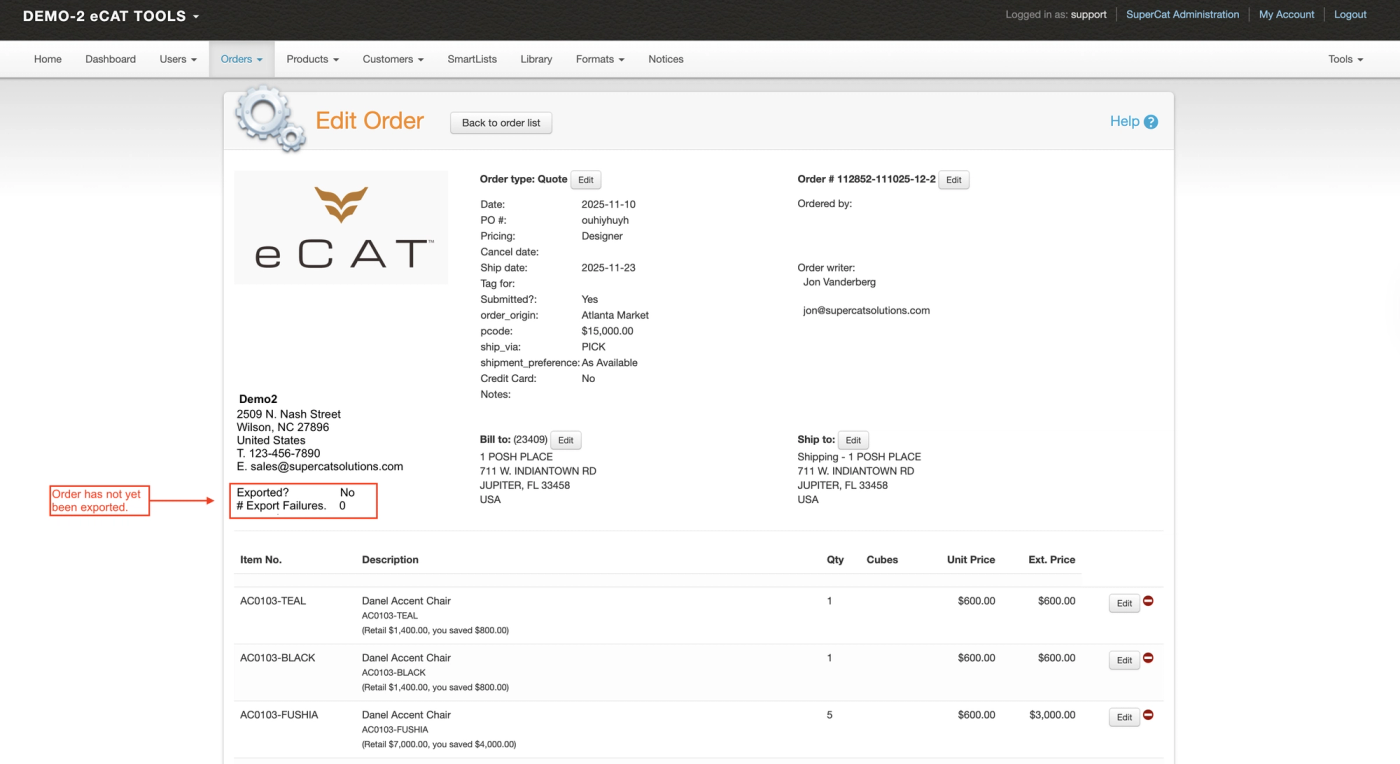
- Click on the order number to view if there is an order error or not
- In the order, under your company's details, view if the order has:Exported? → No / YesExport Failures = 0 → The export has not yet been attempted.Export Failures = 1 or more → There was a problem; check the error message in the order details.
- If the order number is blue (with a non-default export), the order was successfully exported.
Error Notifications: The order export system will send emails to the configured error email recipients. The email will contain the order number and a link to view the order.
How to resend a red order
If a red order needs to be exported again:
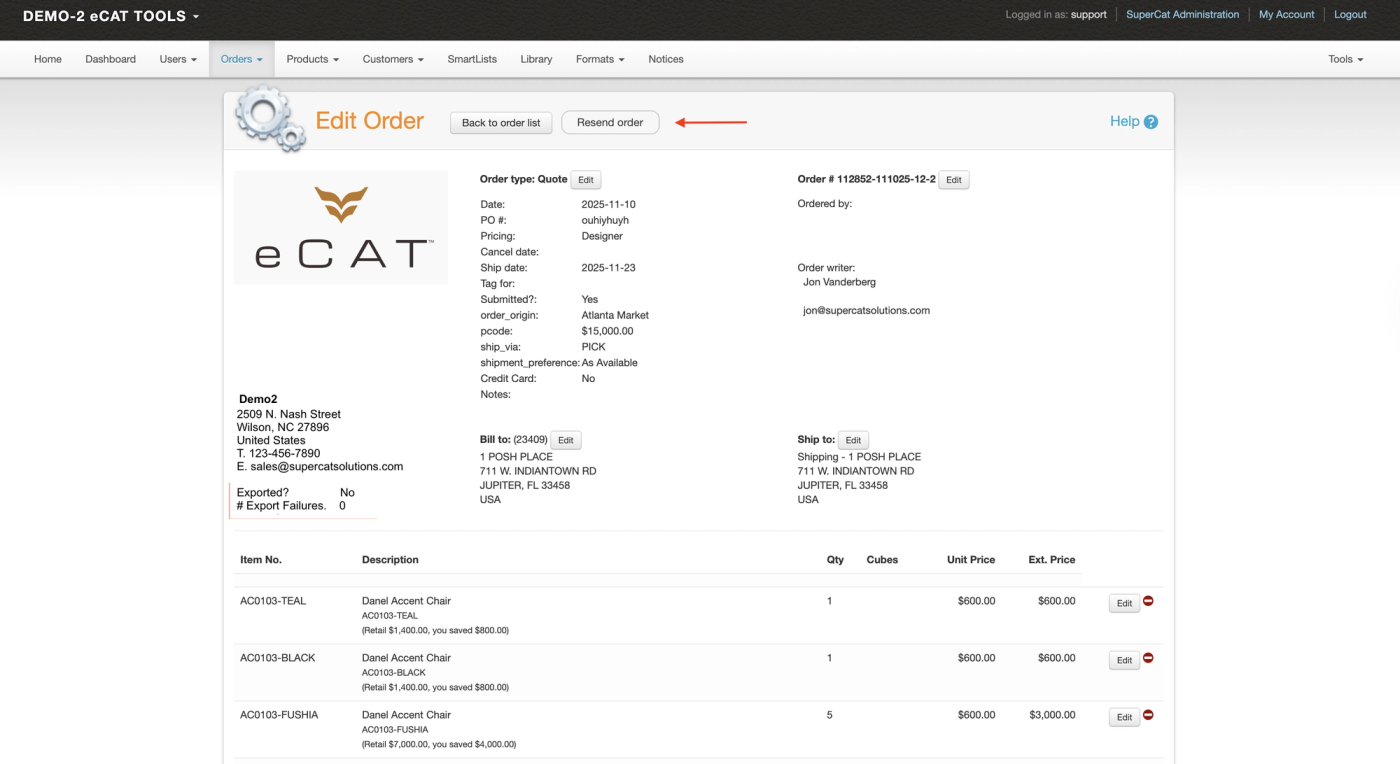
- Open the order details.
- Click "Re-send Order" to manually trigger a re-export through the API.
- Verify that the order turns blue, once processed successfully.
When to be concerned
Seeing a few red orders that later turn blue is normal.
However, a large number of persistent red orders may indicate:
- Repeated export errors
- Integration timeouts
- Configuration issues in the API setup
If multiple orders remain red after retries, review the error messages and contact your system administrator or support for further assistance.
In short
Red = not yet exported via API.
The order may be waiting for a scheduled export or stuck due to an error.
Learn more about JSON Real Time Order Export API (Push) & JSON Batch Order Export API (Pull)